Running an online store on WooCommerce is exciting, but nothing kills momentum faster than a slow, unreliable, or insecure server. In 2026 many store owners are moving away from expensive managed WordPress hosts toward self-managed VPS setups paired with lightweight control panels. aaPanel has become one of the most popular choices for exactly this use case: it’s free, fast, easy to use, and packed with everything a WooCommerce shop needs without the bloat.
This step-by-step guide shows you how to set up a high-performance WooCommerce store on aaPanel. Whether you’re migrating an existing shop or launching your first one, you’ll end up with a secure, fast, and scalable e-commerce server that costs a fraction of most managed hosting plans.
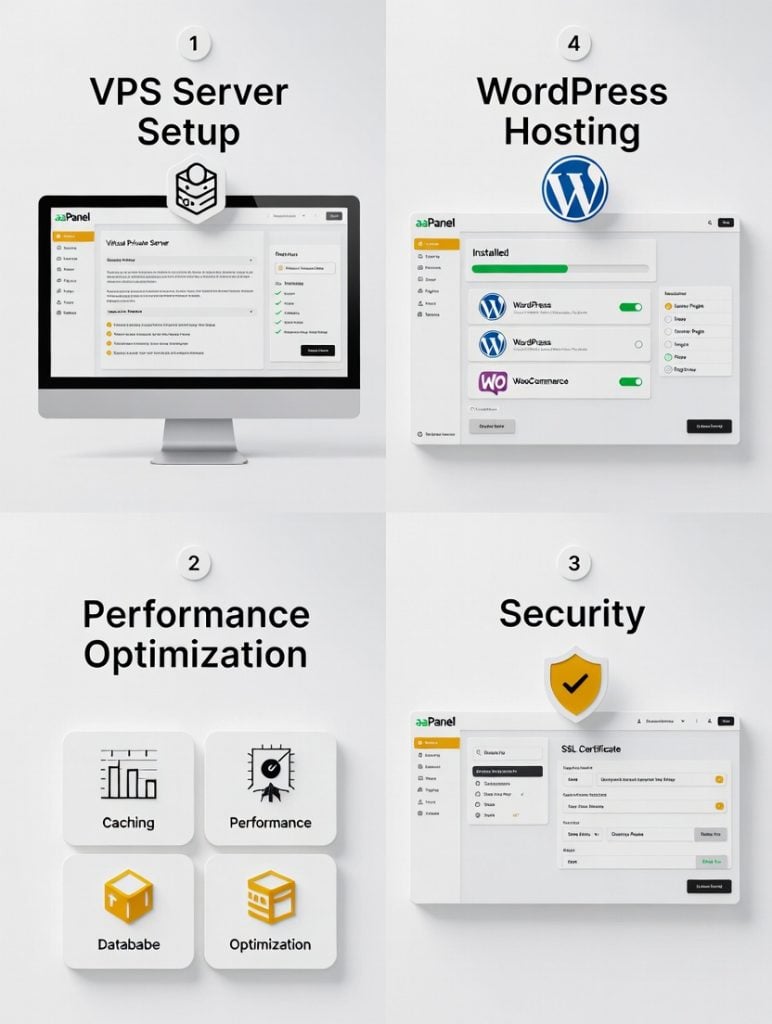
Why aaPanel Is a Great Fit for WooCommerce Stores
aaPanel is a fresh take on web hosting control panels. It’s open-source, gives you full root access, and keeps things simple with a dashboard that’s actually easy to use. Forget those clunky old panels it moves fast and doesn’t get in your way.
For e-commerce the most important benefits are:
- One-click installation of WordPress + WooCommerce
- Multiple PHP versions running side-by-side (critical for plugin compatibility)
- Built-in Nginx + OpenLiteSpeed support for excellent caching
- Free Let’s Encrypt SSL with auto-renewal
- One-click Redis and Memcached activation
- Resource monitoring so you can spot bottlenecks before customers do
- Easy database management and one-click backups
Many WooCommerce users who switch from shared hosting or even some premium managed services report page-load improvements of 30–70 % simply because aaPanel lets them tune the stack exactly to their store’s needs.
Choosing the Right VPS for Your WooCommerce Store
Before installing aaPanel you need a solid VPS. In 2026 the sweet spot for most small-to-medium WooCommerce stores is:
- 4–8 vCPU (AMD EPYC or Intel Xeon high-frequency cores)
- 8–16 GB RAM
- 100–200 GB NVMe SSD
- At least 1 Gbps uplink with 4–8 TB monthly transfer
Popular providers that work well with aaPanel include:
- Vultr High Frequency
- DigitalOcean Premium Intel/AMD
- Linode / Akamai Dedicated CPU
- Hetzner Cloud (great value in Europe)
- Contabo VPS (budget-friendly with large disks)
Don’t use the cheap “unlimited” hosting deals. They promise a lot, but WooCommerce eats up memory, especially when people check out or when it’s syncing inventory.
Step-by-Step aaPanel Installation on Your VPS
Installation takes about 5–10 minutes.
- Log in to your VPS via SSH as root.
- Run the official one-line installer for your OS. For Ubuntu/Debian:
wget -O install.sh http://www.aapanel.com/script/install.sh && bash install.shFor CentOS/AlmaLinux:
yum install -y wget && wget -O install.sh http://www.aapanel.com/script/install_6.0.sh && bash install.sh- Wait for the script to finish. It will display your login URL, username (usually
admin), and a random password. - Open the URL in your browser (https://your-server-ip:8888/random-string), log in, and change the password immediately.
That’s it. You now have a full-featured Website Control Panel running.
Installing WordPress and WooCommerce on aaPanel
aaPanel makes this part ridiculously simple.
- In the left menu go to App Store → WordPress → One-Click Install.
- Fill in:
- Domain name (add it first under Website if not already present)
- Database name/user/password (or let aaPanel create them)
- Admin username/password/email
- Click Install. In 1–2 minutes you’ll have a fresh WordPress site.
- Log in to wp-admin, install the WooCommerce plugin from Plugins → Add New, and run the setup wizard.
Done. Your store is live.
Essential Performance Tweaks for WooCommerce Speed
A slow checkout kills conversions. aaPanel gives you the tools to fix that.
Enable OpenLiteSpeed + LSCache (Fastest Combo)
- In App Store install OpenLiteSpeed.
- Go to Website → your domain → PHP → switch to the latest PHP 8.2 or 8.3.
- Install the LiteSpeed Cache plugin in WordPress.
- In aaPanel → App Store → install Redis (one-click).
- In LiteSpeed Cache settings enable Object Cache → Redis.
With this setup, WooCommerce stores usually load fast and get TTFB under a second and PageSpeed scores topping 90.
Other Quick Wins
- Turn on HTTP/3 (QUIC) under Website → SSL → enable HTTP/3 if your SSL is active.
- Enable Brotli compression in Nginx/OpenLiteSpeed settings.
- Use aaPanel’s built-in image optimizer or install Smush plugin.
- Set up Cloudflare CDN (free plan) in front of your server.
Security Basics Every WooCommerce Store Needs
E-commerce sites are prime targets. aaPanel includes strong built-in tools.
- Go to Security → enable the firewall and add common WooCommerce ports (80, 443, your SSH port).
- Install Fail2Ban from App Store → Security to block brute-force attacks.
- Use File → File Protect to lock wp-admin, wp-login.php, and xmlrpc.php.
- Enable ModSecurity rules under Security → ModSecurity.
- Set up automatic backups in Cron → daily full-site + database backups to external storage (Google Drive, Dropbox, S3).
For extra protection run Wordfence or Solid Security plugin.
Monitoring and Maintenance Made Easy
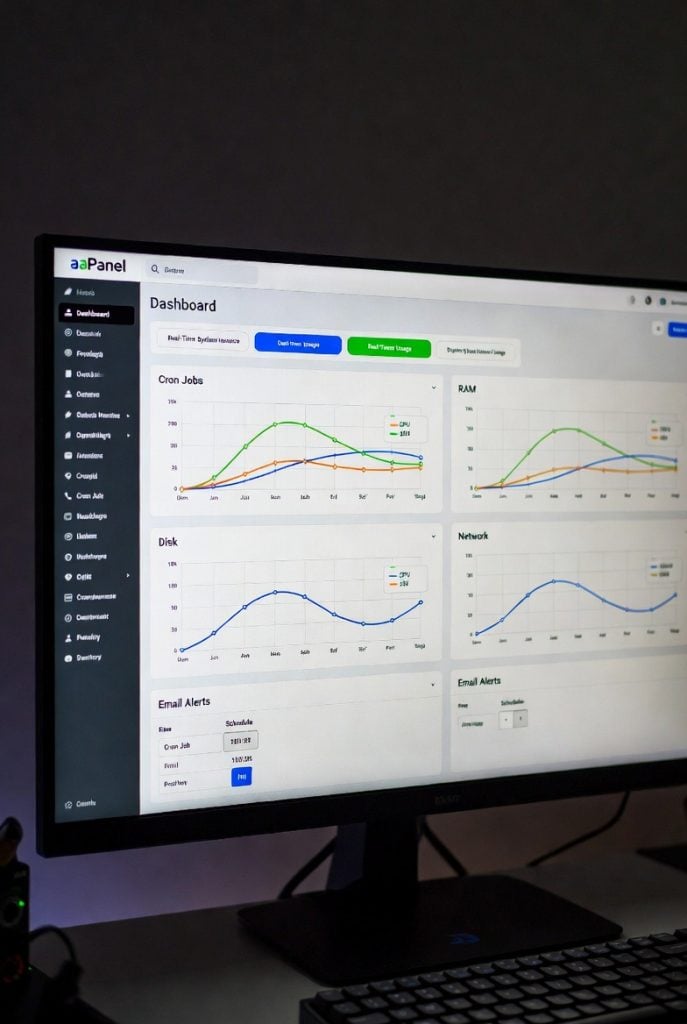
aaPanel’s built-in Server tab shows real-time CPU, RAM, disk, and network usage. Set email alerts when CPU > 80 % or disk < 10 % free so you can act before customers notice slowdowns.
Schedule these cron jobs:
- Daily database optimization
- Weekly full backup
- Monthly log cleanup
Final Thoughts
aaPanel turns a basic VPS into a high-performance WooCommerce hosting machine for almost no extra cost. Compared to managed WordPress hosts you save hundreds of dollars per month while gaining full control and better speed when tuned correctly.
If you’re already using aaPanel, check out the WordPress Hosting & Optimization category on the blog for even more WooCommerce-specific tweaks. If you’re still on cPanel or another panel, aaPanel is the best webmin alternative that many e-commerce owners are switching to in 2026 for its speed and simplicity.
Start with a small VPS, follow this guide, and watch your store load faster and convert better. Your customers (and your wallet) will thank you.