you want a fast, lightweight, and totally free way to run WordPress, pairing it with aaPanel is a smart move. aaPanel is a simple hosting control panel and super easy for beginners, but with plenty of power under the hood. Let’s go through the whole setup together, step by step, so you end up with a working WordPress site faster than you might think.
Watch the Video Tutorial First
If you’re more of a visual learner, check out this walkthrough video. It covers everything from start to finish:
Prerequisites Before Installing aaPanel
First things first, make sure you have a VPS or dedicated server with at least 1 GB of RAM and a fresh install of Ubuntu 20.04 or 22.04. Clean slate is key and aaPanel works best when you’re not dealing with leftovers from previous setups. You’ll need root access over SSH. Most VPS providers let you spin up a box with these specs in minutes.
You don’t absolutely need a domain name right away, but having it sorted now makes everything smoother later on.
Installing aaPanel on Your Server
Getting aaPanel running is surprisingly easy. First, log in to your server using SSH. Then run this one-line command:
URL=https://www.aapanel.com/script/install_panel_en.sh && if [ -f /usr/bin/curl ];then curl -ksSO "$URL" ;else wget --no-check-certificate -O install_panel_en.sh "$URL";fi;bash install_panel_en.shThis command grabs the installer and launches it. The install takes about 5–10 minutes, depending on your server’s speed. Once it’s done, you’ll get a login URL, username, and password on-screen. Make sure you save those. They’re your ticket into the aaPanel dashboard.
Once you log in, you’ll see a clean, simple dashboard. aaPanel feels much lighter than most traditional panels, so your server will have a bit more room to breathe and handle extra traffic.
Setting Up WordPress on aaPanel
Here’s where things get fun. From inside aaPanel, head to the “App Store” or “One-Click” menu and search for WordPress. Thanks to the built-in WordPress Toolkit, setup is basically a breeze. Choose your domain, set a database name, and click install. aaPanel automatically handles your database and files, then sets up WordPress for you.
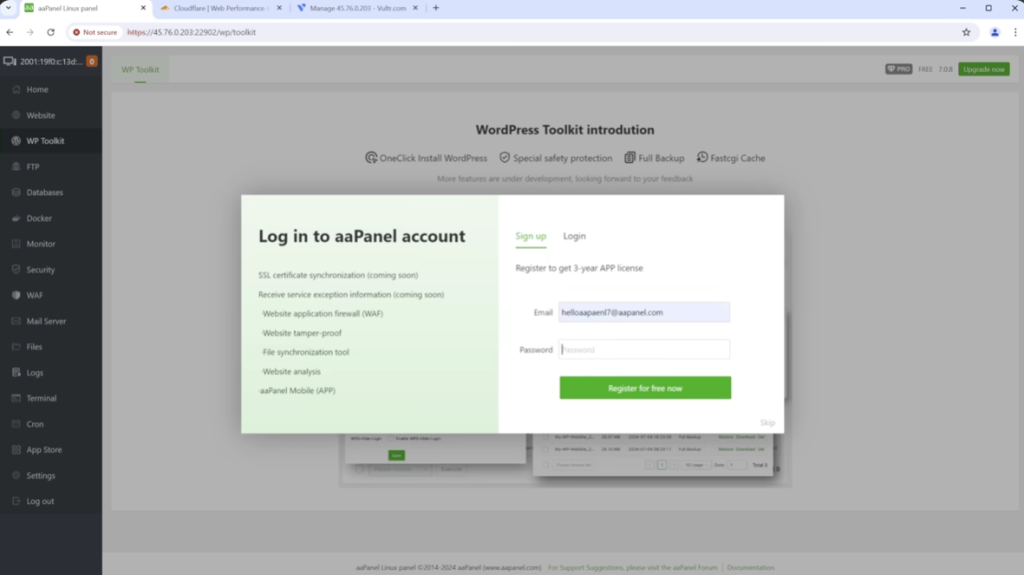
When it finishes, you’ll see your new WordPress admin username and password. Use these to log in, and your site is ready for you to start customizing.
Essential Post-Installation Steps
Once WordPress is up, take a bit of time for housekeeping. Update WordPress itself, plus any themes and plugins. Add a solid caching plugin to speed things up. It’s also a good idea to secure your site with HTTPS—look into How to Install SSL Certificate for Free. SSL isn’t just about security; it also helps your SEO.
Many user recommend Best WordPress Hosting that bundle aaPanel with their plans or offer one-click WordPress installs, so that’s worth checking out if you want even easier performance.
Common Issues and Quick Fixes
Most people only hit a handful of issues. If you get a message about your domain not pointing correctly, double-check your DNS settings. For permission errors, set aaPanel file permissions to 755 for folders and 644 for files. Usually, that sorts out the most common setup problems.
Summary
Running WordPress with aaPanel gives you a pro-level setup without complicated licensing or confusing configurations. Once you get the hang of it, you can have everything running in under half an hour.
Whether you’re launching your first blog or managing a bunch of client sites, this setup gives you great speed and plenty of control. Take a little time with your first install. It’ll only get easier next time.
So, why not give it a shot? Set up your server, follow these steps, and see how easy it is to get a powerful WordPress site online.