If you just signed up for web hosting and can’t figure out where to find the WordPress hosting control panel, you’re in good company. A lot of beginners log in to their hosting account, poke around, and wonder, “Now what?” The good news is, it’s a lot simpler than it seems. Let’s walk through where to look and how to get the most out of your tools.
Understanding the WordPress Hosting Control Panel
Think of your hosting control panel as the command center for your website. This dashboard lets you dig into files, databases, domains, email accounts, security just about everything that keeps your website running. Different hosts use different systems here. Some stick with cPanel, others have custom dashboards, and a few, like aaPanel, go for lightweight setups.
Where your control panel lives depends on which hosting provider you picked. But the shortcut’s almost always just a few clicks away once you know what you’re looking for.
Where to Find It on Popular Hosts
Hostinger, Bluehost, SiteGround—these big names make it pretty easy. Log into your client area and you’ll probably spot a button labeled “cPanel,” “Hosting,” or “Manage.” Click around, and you’ll find icons like File Manager, Databases, or a WordPress toolkit waiting for you.
If you’re running a VPS or using cloud hosting, your setup might look different. Here, lightweight panels come into play. They’re efficient, not resource hogs, and feel snappier when you’re managing things.
Finding Your Control Panel
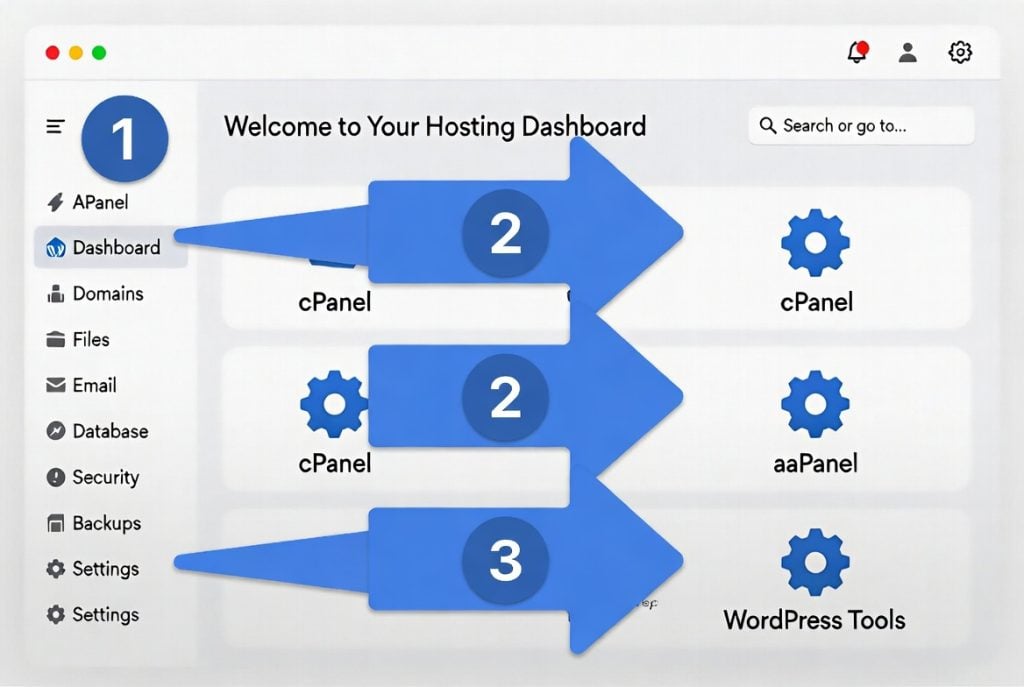
First thing: log into your hosting account. After you sign up, your host should email you with login details. Once you’re in, look for sections named “Hosting,” “My Sites,” “cPanel,” or simply “Control Panel.” Clicking on your site or active service usually opens up the main dashboard.
No luck? Most hosts put a search bar up top. Type in “control panel” or “cPanel,” and you’ll get the direct link.
Installing WordPress from the Control Panel
Inside the control panel, installing WordPress becomes almost too easy. Most hosts have one-click WordPress installers. You’ll see icons labeled “WordPress,” “Softaculous,” or “Auto Installer.” Click, follow the steps, pick your domain, and let the system do its thing.
Want to try WordPress out before launching your site? There’s always the option to learn how to install WordPress on localhost for some safe practice.
Managing Your WordPress Site
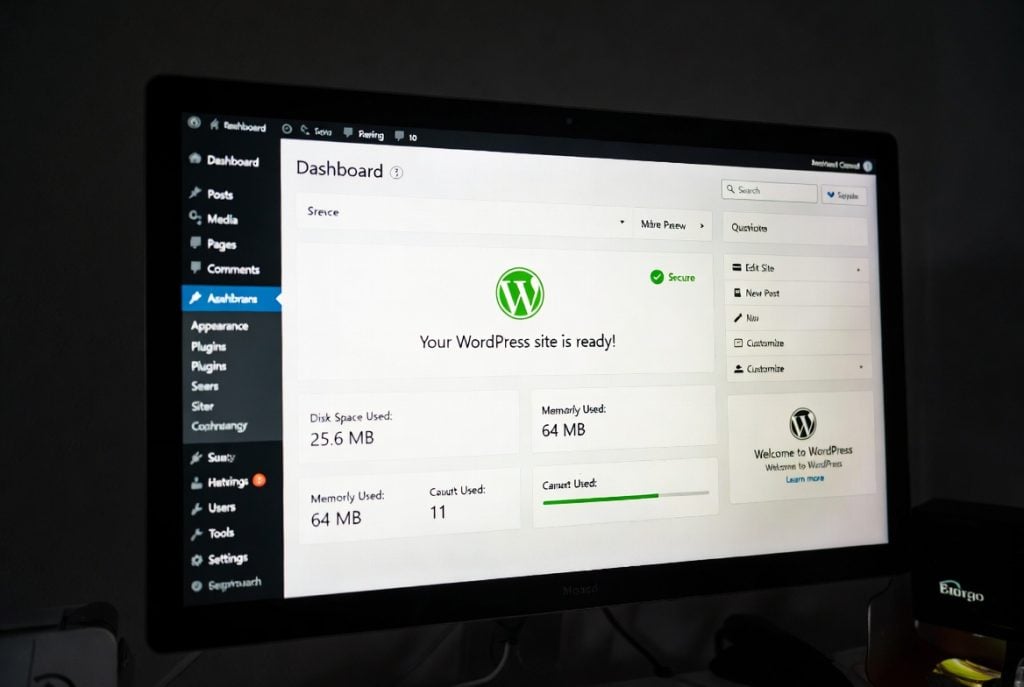
After installation, your control panel is your go-to spot for pretty much everything: backups, databases, emails, SSL certificates you name it. Some panels power up your workflow even more by offering direct tools to update themes or plugins, all without hopping into your WordPress dashboard.
People often look for cPanel alternatives, they’re lighter, faster, and ideal if your servers don’t have a ton of horsepower.
Performance and Security Basics
No matter what panel you’re using, a few habits will save you headaches: keep WordPress, your themes, and plugins updated. Turn on a strong security plugin and set regular backups. And, pick a hosting plan that actually fits your site’s traffic so things stay quick and reliable.
Questions That Come Up a Lot
One question always crops up: “So…where is the WordPress hosting control panel?” Really, it’s almost always right inside your hosting account dashboard. If you’re lost, don’t waste time hunting. Most hosts have live chat support ready to point you in the right direction fast.
Summary
Finding your WordPress hosting control panel is your first big step to taming your website. Once you’re familiar with where things live, managing and growing your WordPress site gets easier and maybe even a little fun.
Whether you’re using a familiar shared host or running a custom VPS, knowing your way around the control panel gives you all the tools to keep your site running fast and smooth. Explore the options, poke around, and get comfortable. The more hands-on you get with your hosting panel, the more confident you’ll become, and your website’s performance will show it.
Now that you know how to install a free SSL certificate and where your control panel sits, you’ve got a strong foundation for your online presence. Start simple. Stick with it. Your website and your skills will keep growing.