How to manage Linux server isn’t really about cramming commands into your head. It’s more about not getting caught off guard. When you first set up a server, everything hums along just fine. Give it time, though, and things slow down, the disk fills up, or you can’t even SSH in because no one bothered to keep track of what was running. The real job? It’s a handful of things, done on repeat: know the box’s purpose, keep it updated, lock down who can log in, check disk and memory, and always have a backup you’ve tested. If you can do these consistently without scrambling, you’re in better shape than most folks renting a VPS and only logging in once the website’s crashed.
You don’t need to be a pro sysadmin to keep one server healthy. You just need a routine. Ten minutes on a lazy Monday saves you from a panicked weekend trying to figure out which log file matters. For a friend who just got root on a fresh server and doesn’t want to drown in details, I’d tell them to follow these steps, in this order.
Start with access and a simple note
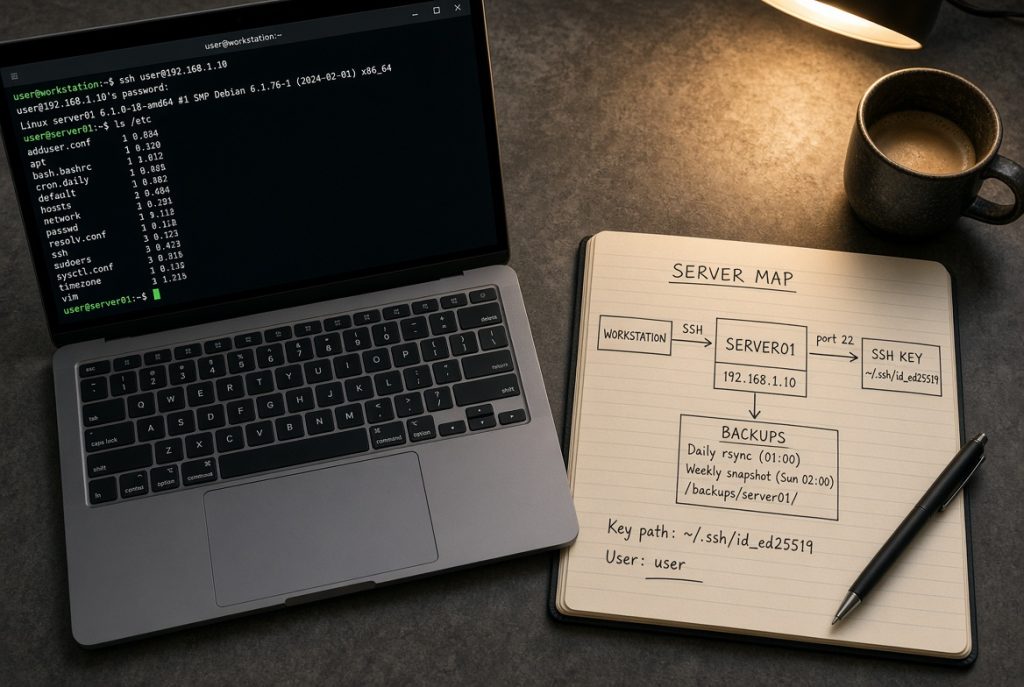
Before you install anything extra, make sure you can always get back in. Create your own user, give yourself sudo rights, and, if you can, turn off root password logins. Use an SSH key you’ve already tested from your main laptop. Cloud dashboards love to flash the root password once in your browser. Use that session to add your key and don’t rely on remembering the password later. Locking yourself out is the most common, most boring mistake people make.
Now, write a quick map. Not a novella, just a one-pager: what’s this server for, what Linux distro is it running, what’s the public IP and SSH port, where do websites live, which database is used, and where do the backups go. Trust me, a month from now you won’t remember if staging was in /var/www/stage or which database isn’t really “test.” This note also stands in for you if you’re offline and someone else needs to step in. A managed box is one that someone else could reboot without calling you.
People waste hours debating The Best Linux distribution and then forget the note. Ubuntu, Debian, AlmaLinux, or Rocky—they all host websites just fine. Pick one your host supports and actually gets security updates. Changing later is a hassle. More important than the name is keeping track of your actual setup. Skipping that note is how small servers turn into mysteries.
Updates, users, and firewall basics
Most webmasters ignore updates because “nothing seems broken.” That’s a trap. Updates patch holes you’ll never notice until trouble hits. On Debian and Ubuntu, “apt update” and “apt upgrade” regularly is enough. On RHEL-style systems, just run “dnf upgrade.” Check over the list when it includes the kernel, web server, or database. Only reboot if the kernel update genuinely needs it, not just because some blog says to reboot daily.
- Keep user accounts to a minimum. Just you, maybe one coworker, and a couple of service accounts that can’t log in with SSH.
- Never share root passwords in chat. That’s how a freelancer who left years ago still has access. Remove people’s keys as soon as they’re gone. It might feel awkward for a moment, but it’s nothing compared to when a lost laptop still unlocks your server.
- Set the firewall to only allow SSH, HTTP, HTTPS, and anything else you can explain in one sentence. Leaving your database port open isn’t handy but it’s just asking to get scanned. If you change the SSH port, remember to write it in your map before you head out. Always test that new login in a second terminal before you log out of the first.
What to check every week
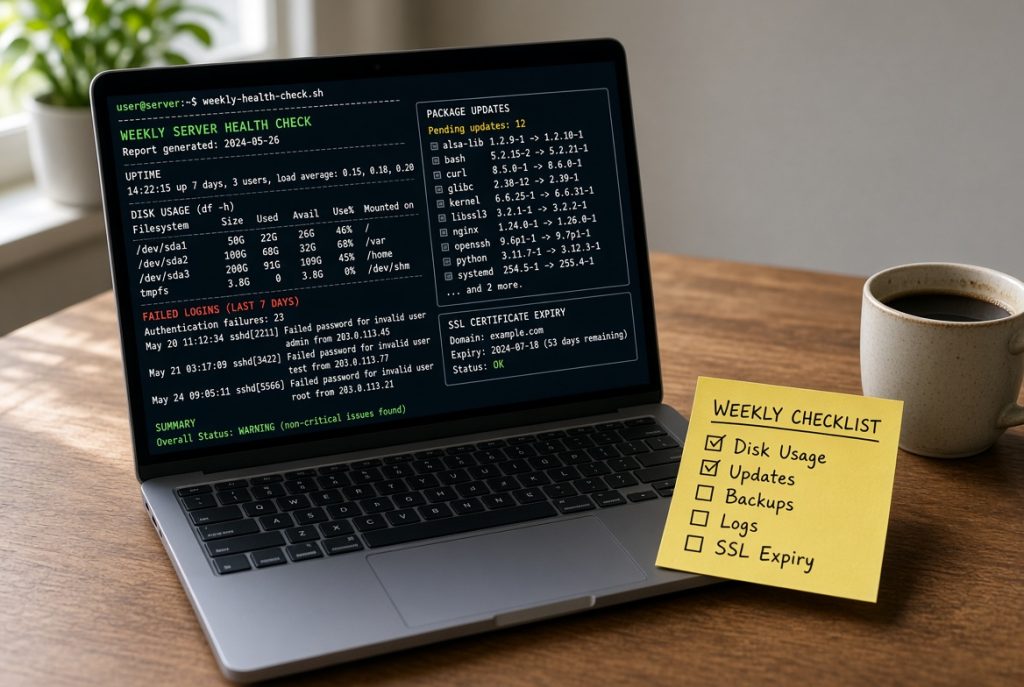
Set aside time each week for a quick checkup. It doesn’t need to be long. Look at disk space, memory, failed services, and confirm the backups. “df -h” to spot a filling disk, “free -h” to catch a system running out of RAM, “systemctl –failed” to find any services that quietly died. If you see a disk over 80% full, hunt for logs or caches that ballooned. Don’t just get a bigger disk right away.
Take a look at who’s logging in, too. On small servers, “last” is enough to spot odd logins. If you see a login from a place you’ve never even visited, rotate your keys and check the auth log. Don’t panic and run straight to the forums. It’s usually just a scanner probe. The main thing is building the habit of checking, not guessing.
When to use a panel, and when to skip it
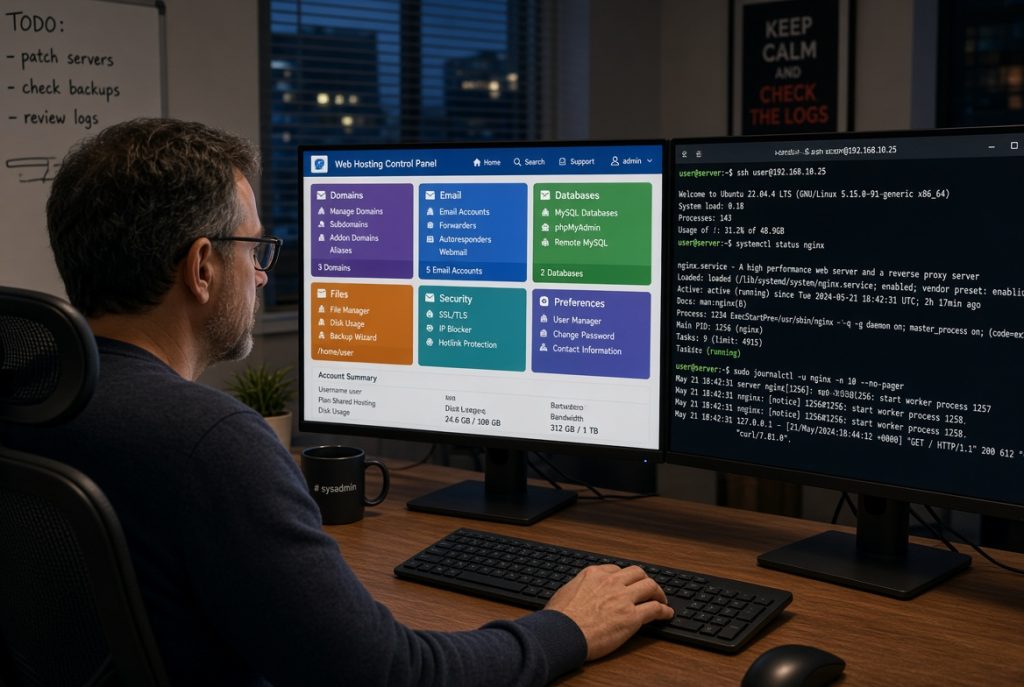
Hosting control panels are actually useful… once you’ve done the basics. They make adding sites, databases, SSL certificates, and poking around files much easier, especially when you’re in a hurry or someone else needs access fast. Just don’t let the panel become the only thing that “knows” your system. If you lose it, you shouldn’t lose control of your box.
Install a panel only on a rebuildable server or after taking a fresh snapshot. Installers often tweak packages, open new ports, or even swap out your web server. Read the docs for your distro, then double-check that SSH and the firewall still match your notes and that your old sites work. Write down the panel’s URL and port with the IP.
Use the panel for routine stuff like creating sites, issuing certs, scheduling backups. But go to the shell for cleanup, managing user keys, and investigating real errors. Clicking is quick, but fixing sometimes means reading logs, not guessing from an “error” button.
Build a rhythm that fits your schedule
Keep things simple: on launch day, update everything, check the firewall, and take a snapshot or backup. Weekly, check disks, memory, failed services, and make sure backups work. Monthly, clean out old users and websites you can’t explain, and test a restore on a spare folder or machine. Don’t trust a backup icon and make sure you can really get your files back.
Log changes in that same note as your server map. Jot down things like “upgraded PHP on March 12.” If something breaks later, you’re not left wondering if it was a package or a dodgy plugin. That’s how you learn which tasks matter without bookmarking endless commands you never actually use. The commands aren’t as important as having a plan and sticking with it. If disaster hits, don’t panic and hit reboot. Check if the disk is full, if something’s hogging RAM, or if a service has failed. Restarting hides full disks for maybe five minutes and they’ll fill again fast. Copy the error messages into your note, fix the smallest thing that looks guilty, and test from somewhere outside your usual network. Just because it works on your laptop doesn’t mean the world can see it.
Day to day, server management gets easier if your server does one clear job and your record stays up to date. When you have more than one machine or money depends on uptime, add simple monitoring. You can go deep with dashboards later. Nobody grows into a backup they never tried restoring.
Servers that run quietly aren’t the ones loaded with tools. They’re the boxes where only a handful of people can get in, updates run on schedule, you check on disks and backups every week, and your control panel is just a helper, not your only roadmap. Start there. Tweak things only when your project truly needs it, and always, always write it down before you close the terminal.