A server control panel is basically a dashboard in your browser for things people usually do through the command line. You can set up websites, link domains, manage SSL certificates, open databases, and schedule backups, all without typing out a bunch of commands. A free server control panel just means you’re not paying a monthly fee to do all that. For your very first Linux VPS, aaPanel is probably the right place to start. The screens speak plain English, nothing feels hidden, and you can get a site online in about an hour. You don’t need to learn a whole software stack before you’ve even chosen a domain.
That doesn’t mean aaPanel is your only good option. If you want a calmer, more traditional approach with email and DNS baked in, HestiaCP has that vibe. CyberPanel is the standout if OpenLiteSpeed is what you care about. CloudPanel’s great if you’re only hosting apps and don’t want email, since it’s lightweight and straightforward. This guide breaks down what makes these panels different, and when using a free one just doesn’t make sense.
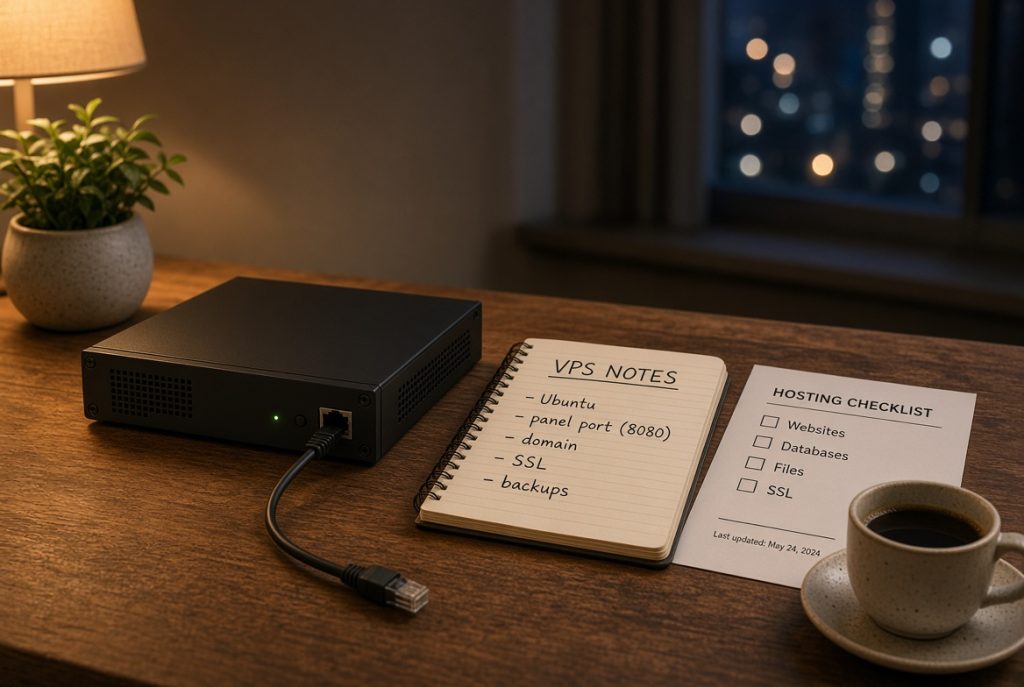
What does a server control panel actually do?
What does a server control panel actually do? If you start with a blank VPS, you’ll end up installing Nginx or Apache, PHP, a database, maybe Certbot, then dealing with a tangle of config files every time something goes sideways. A panel wraps all those steps up with a nicer face. Add a domain and the panel creates the vhost, makes the folder, and shows you where everything is. Want SSL? Click a button and Let’s Encrypt does its thing after your DNS is set. You can add a database user without hunting down the right SQL command.
Remember, the panel isn’t the operating system. If your disk fills up or a port is blocked, that’s still your problem. SSH should always stay open, because one day the panel won’t start and you’ll need a backup entrance. The browser is the handy map, and the shell is still the road.
Website Hosting Companies include a free server control panel because most people aren’t editing config files by hand. On your own VPS, you’re both the host and the customer. The panel just speeds things up. It doesn’t handle real emergencies.
Why is aaPanel best for a first VPS?
Why is aaPanel best for a first VPS? It’s straightforward. You always know where files, databases, and SSL live. Installing WordPress is one click, or you can upload a static site straight into the right folder, no hunting. Write down the panel’s port number. You’ll forget it later.
Keep your setup simple. Update the OS, add a sudo user, double-check your SSH key, then put in the panel. Set up the site with your real domain and only try to issue the SSL certificate once DNS is pointing correctly. If SSL gives you trouble, check your DNS record and firewall before you start blaming the panel. Turn on daily backups right away, even if your site’s empty. Test it and download the file. If you’ve never opened a backup, it doesn’t really exist.
Here’s a Top 7 free server control panel
Here’s a rundown of seven free server control panel for small VPS setups. “Free” here means the core stuff works without a license. Some have paid extras, but ignore those until they’re actually needed.
1. aaPanel

Modular, handles Nginx or Apache, file manager, databases, SSL, quick app installs. Beginners get through setup easily. Screens are clear, first site is quick, app store is handy. Downside: easy to overload with random apps, and the interface gets crowded.
2. HestiaCP

Aims to keep things like classic hosting, with sites, DNS, mail, databases, users all wrapped together. Default settings work out of the box, SSL is simple, and it’s lighter than the big commercial panels. Drawback: Only works on Debian and Ubuntu, and running a mail server on a tiny VPS is a pain.
3. CyberPanel

Built around OpenLiteSpeed. Fast, especially for WordPress, and comes with SSL, DNS, email, and management tools. But you’re choosing OpenLiteSpeed, not just the panel, and some advanced features need a paid version.
4. CloudPanel

Lightweight and modern, and good for PHP, Node, Python on Nginx. Clean per-site PHP versioning. But there’s no real email support, and the DNS features are thin. If clients expect proper email you’ll need something else.
5. Virtualmin

Webmin with an extra layer for managing virtual hosts. Deep control if you know your way around Linux. Runs on lots of distributions. The interface looks old, and there are too many advanced settings for newbies.
6. ISPConfig

Designed for bigger setups, with multiple servers, sites, email, DNS, resellers. Still maintained, good when you outgrow a single VPS. But it’s heavy and has way more concepts than you’ll need for just one site.
7. Webmin

Focused more on system admin than hosting. You can manage users, packages, firewalls, all from the browser. But it’s not built for website workflows. Pair it with Virtualmin if you want hosting features.

*All these panels use memory and your attention, so choose what fits your real needs, so don’t just go by the logo.
Free Server Control Panel Comparison Chart
| Panel | Best for | Mail on the box | Weight | Skip if |
|---|---|---|---|---|
| aaPanel | First VPS, WordPress | Optional | Medium | You want a strict multi-user host |
| HestiaCP | Classic small hosting | Yes | Medium | You need Windows or odd distros |
| CyberPanel | Fast WordPress | Yes | Medium | You refuse LiteSpeed |
| CloudPanel | Apps, low RAM | No | Light | Clients need inboxes |
| Virtualmin | Admins who like Unix | Yes | Medium | You want pretty onboarding |
| ISPConfig | Several servers | Yes | Heavy | You have one brochure site |
| Webmin | Server chores | No | Light | You need sites and SSL only |
How to pick without wasting your weekend
How to pick without wasting your weekend? Figure out what you’re actually doing first. Don’t install a bulky panel if you just need the basics:
- Hosting for a couple domains with SSL
- A database for WordPress or a simple app
- Backups stored off the main disk
- Email only if you’re really ready to run it
- SSH access that always works
A website control panel for small businesses should get you through that checklist in a week, not just win on a features chart. By day one, HTTPS loads; by day two, redirects work; by day three, you know your backup is actually somewhere safe; by day seven, you check the disk and SSL expiry, then close the tab.
Watch your RAM
Watch your RAM. A 1GB VPS runs a light panel and one small site, and it’ll slow to a crawl if you pile on email, lots of apps, and extra caching. CloudPanel or a quiet HestiaCP install make more sense there than a dozen app store installs. With 2GB, aaPanel and WordPress run comfortably. At 4GB, you can start running email too.
Don’t mix manual config edits with panel management. If you edit vhosts by hand and through the panel, you’ll break things, usually at the worst time.
When is a free server control panel the wrong move?
If you want someone else to monitor, patch, and handle crises while you sleep, shared hosting does that. Free server control panels also aren’t built for reselling hosting or managing lots of customer accounts, and panels like cPanel and Plesk cost money because they solve those business problems.
Skip the panel if you’ve just got a single static site and are comfortable with systemd, since adding an interface you’ll never use is just one more update to remember. If you stick with a server control panel, keep things simple: one VPS, a handful of sites, automated SSL, verified backups, a working shell login. aaPanel is the best place to start for that. Only switch to something else when you hit a real blocker, not just because someone’s UI screenshot looks shinier.