Managing Multiple Websites on One VPS is one of the best ways to save money without sacrificing speed or reliability. These days, it’s totally normal for agencies, freelancers, bloggers, and small business owners to keep anywhere from 5 to 20 sites humming along on one solid VPS. The trick? Plan things out, so a sudden spike on one site doesn’t take down the rest, security stays tight, and you aren’t stuck doing maintenance every night.
Let’s get into some real, proven strategies for manage multiple websites on one VPS. Doesn’t matter if you use a control panel or roll up your sleeves and manage it all through SSH. These tips help you dodge headaches and keep things running fast and smooth.
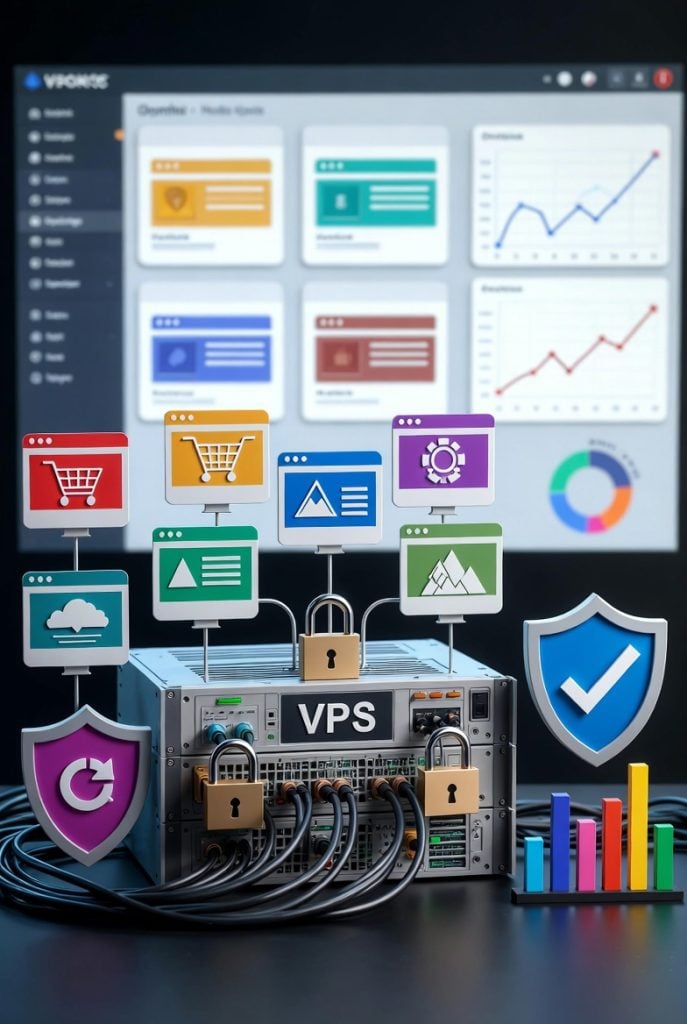
Choose the Right VPS Specs
You can’t cram a dozen sites onto a weak server and expect miracles. Start with a VPS that gives you wiggle room.
For 5–10 average WordPress sites like blogs, small shops, or portfolios go with:
- 4 to 8 vCPUs (preferably high-frequency AMD EPYC or Intel Xeon)
- 8 to 16 GB RAM
- 150 to 300 GB of fast NVMe SSD storage
- 1 Gbps network uplink and at least 4 to 6 TB of transfer per month
Got 10–20 sites or heavier stuff like WooCommerce? Then you’ll want 8–16 vCPUs and 16–32 GB RAM. Always pick NVMe SSDs over anything older. Random speed matters a lot when you’re serving lots of sites at once.
And just skip those “unlimited” budget plans. When the host throttles your CPU or disk during a traffic rush, every site on your server suffers. Not worth it.
Isolate Each Website
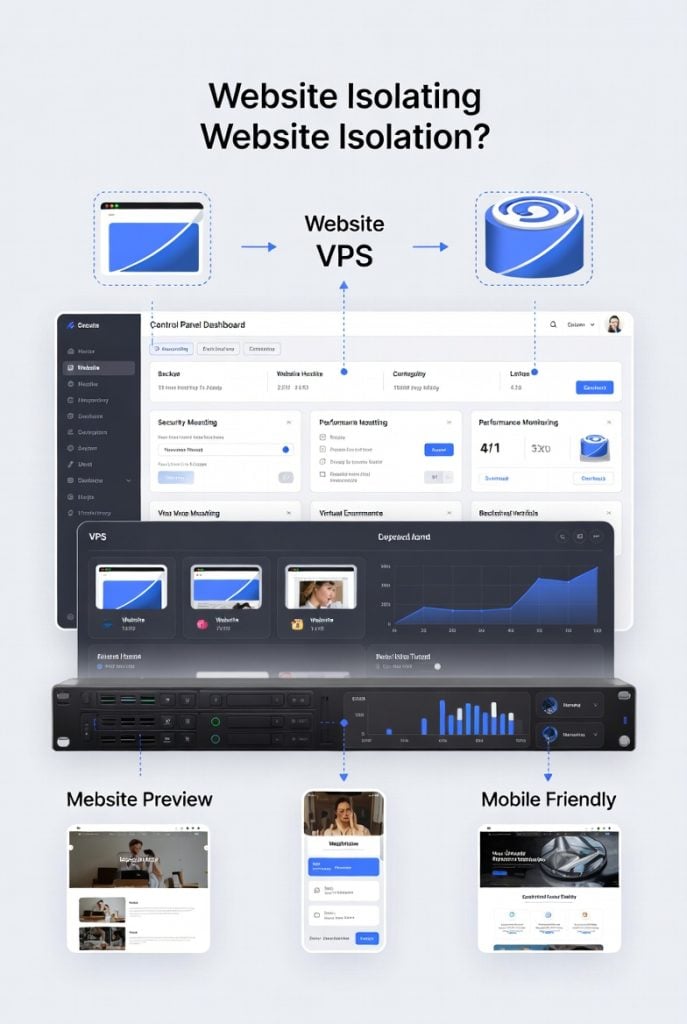
If one site gets hacked or hogs resources, it shouldn’t drag the others down.
Start by creating a separate Linux user for each website. That way, file permissions automatically limit the damage if something goes wrong. For example:
- user1 owns /home/user1/public_html/site1.com
- user2 owns /home/user2/public_html/site2.com
Set folder permissions to 750 so only the right people and processes can get in. Do the same for databases one MySQL user per site, with only the permissions they need.
Want even tighter isolation? Managing Multiple Websites on One VPS (or related group of sites) in its own Docker or LXC container. Tools like CapRover or Coolify make this pretty easy, even if you’re not a Docker pro. Containers help catch memory leaks and make it simple to roll back changes or move a site somewhere else.
Optimize Web Server Configuration
For multiple sites, Nginx and OpenLiteSpeed are favorites. They’re fast, handle tons of connections, and don’t choke under pressure.
Virtual Hosts and Resource Limits
Create a separate server block (Nginx) or virtual host (Apache/OpenLiteSpeed) for each domain. Inside each block:
- Set client_max_body_size to a reasonable value (e.g., 64M for WooCommerce uploads)
- Enable HTTP/2 or HTTP/3
- Use Brotli compression
- Add security headers (X-Frame-Options, X-Content-Type-Options, Referrer-Policy)
Limit PHP-FPM workers per pool so one busy site cannot starve others. Example pool config for a medium site:
pm = dynamic
pm.max_children = 30
pm.start_servers = 5
pm.min_spare_servers = 5
pm.max_spare_servers = 15ching
Caching Layers
Redis or Memcached for object caching, full-page caching with LiteSpeed Cache or Nginx FastCGI Cache, and OPcache for PHP. A good caching setup can cut database queries by 80–90% on WordPress.
Manage Databases the Smart Way
When lots of sites share one MySQL or MariaDB instance, things can slow down fast.
Give each site its own database and its own MySQL user with limited permissions. This stops data leaks and makes backups or restores a breeze.
Tune MySQL for Multi-Site Load
If your sites are database-heavy, set innodb_buffer_pool_size to 50–70% of your available RAM. For mostly-read pages, turn on query caching. And set up a cron job to run OPTIMIZE TABLE across all databases once in a while keeps things tidy and fast.
Backup and Disaster Recovery Strategy
If you host multiple sites, backups aren’t optional.
Automated Backup Schedule
Set up daily full backups of your files and databases, plus weekly off-site copies. You can use aaPanel’s backup tool or just rsync and cron if you like to DIY. Store backups on cloud storage like Backblaze B2, Wasabi, or S3.
Test Restores Regularly
And don’t just assume your backups work. Every few months, actually restore one site to a test domain and check that everything works. A backup you can’t restore is as good as no backup at all.
Best Security Practices for Managing Multiple Websites on One VPS
One hacked site can put all your sites at risk. Don’t take shortcuts.
User and Permission Isolation
Always use separate Linux users, and lock down permissions to 750 or 640 on public_html folders.
Firewall and Intrusion Prevention
Install and set up a firewall like CSF or Fail2Ban. Whitelist your own IP for SSH, block ports attackers love, and set bans for failed logins that are actually tough to break.
SSL Everywhere
Use Let’s Encrypt with auto-renewal for every domain. Enable HTTP to HTTPS redirects and HSTS headers.
Regular Updates and Scanning
Keep your OS, web server, PHP, and every WordPress core file and plugin up to date. Set everything to update automatically when possible. Run daily malware scans using tools like ClamAV or Maldet. Just schedule a cron job and forget about it.
Next-Gen Hosting Control Panels often simplify these steps with built-in tools, making multi-site security easier to maintain without manual scripting.
Performance Monitoring and Alerts
If you can’t see a problem, you can’t fix it. Use aaPanel’s built-in resource graphs or try Netdata for real-time stats. Set up alerts on email or Slack: if your CPU hits 80%, RAM jumps past 85%, or disk space drops under 10%, you’ll know right away. Want more detailed dashboards? Prometheus and Grafana dig deeper.
Mobile-friendly website hosting control panel dashboards are especially useful here because you can check server health and alerts from your phone during peak hours or on the go.
When to Scale or Split Servers
Every VPS has limits, no matter how much you tweak it. Here’s how you know it’s time to start splitting things up:
- CPU sits above 70% during busy times
- Swap gets used a lot
- Database queries slow down, even if caching is working
- One site’s traffic starts dragging down the rest
Start by moving your busiest sites onto their own VPS. Down the road, set up a load-balanced cluster or jump to managed Kubernetes if you really need to scale.
Final Thoughts
Managing Multiple Websites on One VPS still works in 2026. As long as you plan ahead and pay attention. With good resource isolation, caching, solid security, and regular backups, you can keep 10 to 20 sites humming on a decent mid-range VPS
Start small, test everything, and scale up when you need to. You’ll save money, keep your sites fast, and your clients (or yourself) happy. Plus, you get to keep more of that extra profit by running things smart.