SSH is how most users log into their Linux servers from anywhere. You can manage files, run updates, fix problems, all from the comfort of your laptop. But here’s the thing: if you’re using a password to log in, you’re really just hoping no one guesses it. Bots are constantly scanning the internet, testing every weak password they can think of. If you’re reusing passwords or your password’s not super strong, it’s only a matter of time before someone gets in.
Switching to key-based authentication is a no-brainer. Instead of a password, you use two cryptographic keys: the private one lives on your computer, the public one goes on the server. When you log in, the server checks if you’ve got the right private key. If you do, you’re in. If not, no dice. Bots can’t guess their way in anymore, and you don’t have to remember or type your password every time. It’s just safer, plain and simple.
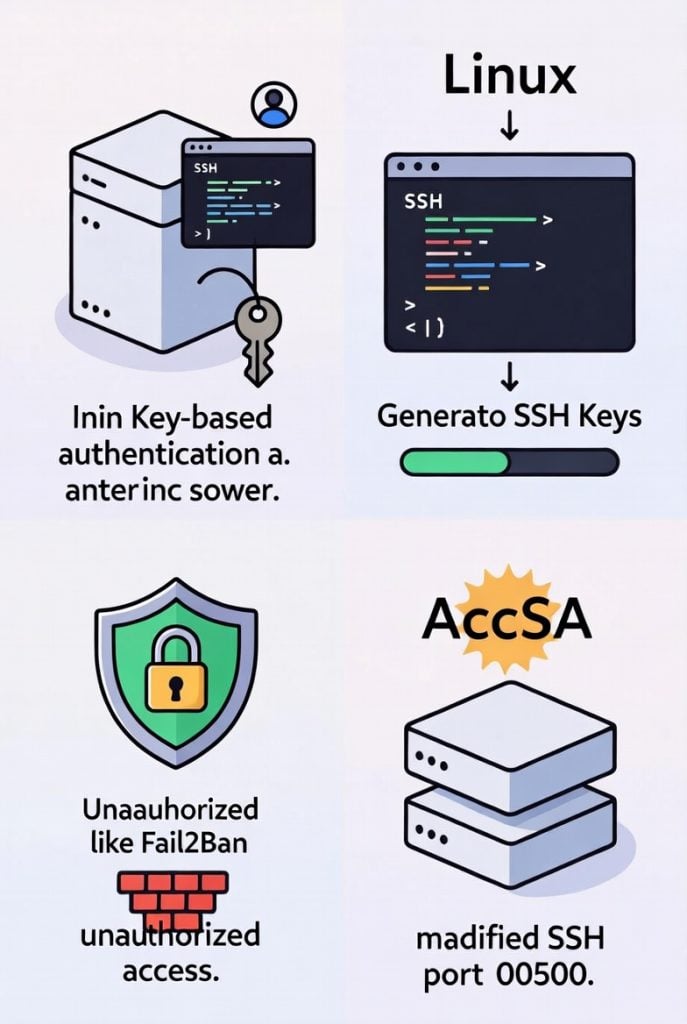
This guide shows you exactly how to set up SSH key authentication on your Linux server. It doesn’t matter if you’re running Ubuntu, Debian, CentOS, AlmaLinux, or Rocky Linux. The steps are basically the same. By the end, your server’s going to be way harder to break into, and logging in feels much smoother.
Why bother with keys instead of passwords? Well, passwords are easy to steal. People fall for phishing emails, malware logs keystrokes, and even strong passwords end up in data leaks. A 16-character password sounds tough, but if it’s ever leaked somewhere else, attackers can use it against you.
Key-based authentication fixes these headaches:
- Private keys are crazy long and not something anyone’s going to guess.
- Your private key never leaves your machine. So, even if someone’s watching the network, they’re out of luck.
- Once you set up keys, you can turn off password login completely. Bots and attackers won’t even get a chance to guess.
- For extra safety, you can add a passphrase to your private key. It’s like giving your key a password of its own.
- If you ever need to cut someone’s access, just delete their public key from the server.
Most pros and hosting companies say you should switch off password logins as soon as you’ve got keys working. That single step blocks almost all the automated attacks out there.
Generating Your SSH Key Pair
Let’s get started. First, you create your SSH key pair on your own computer and not the server. That way, your private key stays safe.
Open your terminal. If you’re on Mac or Linux, just open Terminal. On Windows, PowerShell or Git Bash does the trick.
Type this:
ssh-keygen -t ed25519 -C “[email protected]”
Just hit Enter to accept the default location for the keys. When it asks, set a strong passphrase (or leave it blank if you want things faster but slightly less secure). Now you’ve got two files:
- ~/.ssh/id_ed25519 — your private key. Don’t share this with anyone.
- ~/.ssh/id_ed25519.pub — your public key. This one’s safe to copy around.
That -t ed25519 flag? It tells SSH to use the Ed25519 algorithm, which is newer, quicker, and more secure than the old RSA keys.
Copying the Public Key to Your Server
Now, let’s get your public key onto the server. The easiest way is with ssh-copy-id:
ssh-copy-id -i ~/.ssh/id_ed25519.pub user@your-server-ip
Swap out “user” for your actual username (maybe root, maybe a regular user) and put in your server’s IP address. You’ll need to enter your password one last time. After that, your key is installed on the server.
If your system doesn’t have ssh-copy-id (which is pretty rare these days), you can do it manually. Run:
cat ~/.ssh/id_ed25519.pub
Copy everything that spits out.
Log in to your server the old way (with your password) and add the key:
echo “paste-your-public-key-here” >> ~/.ssh/authorized_keys
Then set the right permissions:
chmod 700 ~/.ssh
chmod 600 ~/.ssh/authorized_keys
Testing Key-Based Login
Open a new terminal window (don’t close the one you’re using — just in case), and try to log in:
ssh user@your-server-ip
If you set everything up right, you’ll get in without a password prompt (unless you set a passphrase — then you’ll be asked for that). Still getting asked for your password? Double-check your authorized_keys file and the permissions.
Disabling Password Login for Maximum Security
Once you’re in with your key, it’s time to lock things down for real. Open the SSH config file:
sudo nano /etc/ssh/sshd_config
Look for these lines (add them if they’re missing):
PasswordAuthentication no
PubkeyAuthentication yes
PermitRootLogin prohibit-password # or just “no” if you never need to log in as root
Save and exit, then restart SSH:
sudo systemctl restart sshd # Ubuntu/Debian
sudo systemctl restart ssh # CentOS/AlmaLinux
Test one more time from a fresh terminal. If you can log in with your key but not with a password, you’re all set.
If you ever lock yourself out (hey, it happens), use your host’s console or rescue mode to undo the changes.
Extra Steps to Lock Down Your Server
Extra Hardening Steps Worth Doing
Switching to key authentication is already a massive security boost, but you can push things even further with a few more tweaks.
Change the Default SSH Port
Most bots go straight for port 22. If you move SSH to a different port—like 2222 or 6022—you’ll dodge a lot of random attacks. Just pop open /etc/ssh/sshd_config and change:
Port 22
to
Port 6022
Restart sshd afterwards, and don’t forget to update your firewall to let traffic through on the new port.
Install Fail2Ban
Fail2Ban is like a bouncer for your server. It watches your logs and bans IPs after too many failed login tries. On Ubuntu or Debian, it’s just:
sudo apt update
sudo apt install fail2ban
It starts protecting SSH right away, but you can add extra rules later if you want.
Try a Free Control Panel
Managing users and firewall settings gets a lot easier with a Free panel. It gives you a clean interface for everyday tasks, but you still have full SSH access underneath. It’s a nice balance between security and convenience.
Monitoring and Maintenance Tips
After hardening SSH keep an eye on things:
- Check /var/log/auth.log regularly for failed login attempts.
- Set up email alerts in Fail2Ban so you know if someone is trying to break in.
- Rotate SSH keys every 6–12 months (generate new pair, remove old public key).
- Keep your OS and packages updated (automatic unattended-upgrades on Ubuntu is very helpful).
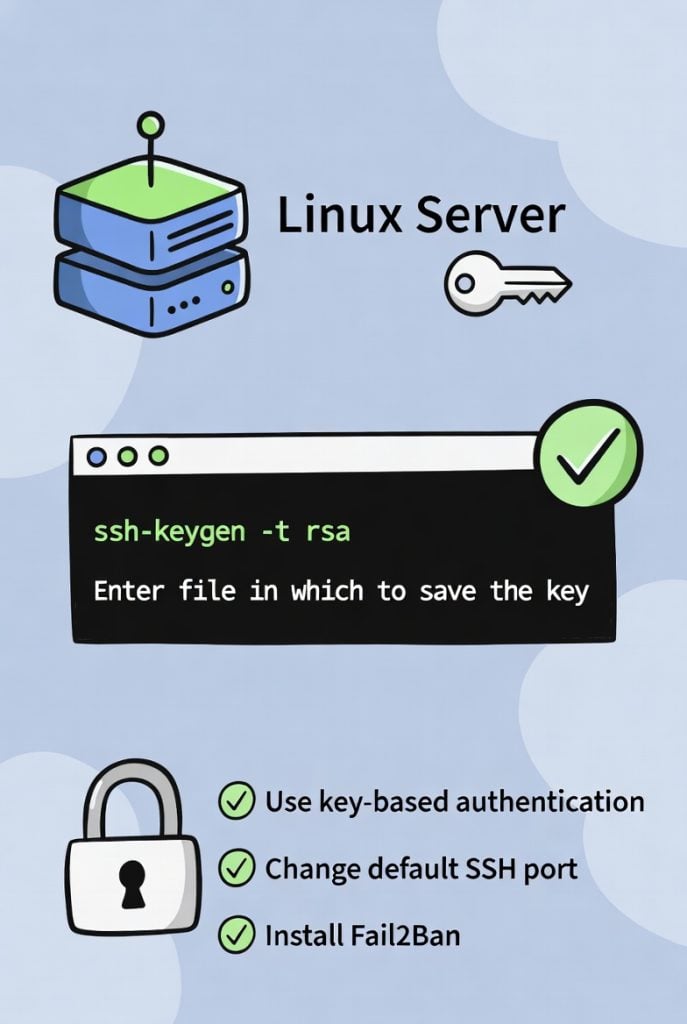
A solid Server Security & Firewall strategy (such as CSF, UFW or iptables rules) works hand-in-hand with SSH hardening to create multiple layers that make unauthorized access extremely difficult.
Final Thoughts
Key-based authentication is honestly one of the best things you can do for your server’s security. It only takes about 10 or 15 minutes to set up, and it blocks almost every automated SSH attack out there. If you combine that with Fail2Ban, a port change, and regular updates, your server becomes a pretty tough nut to crack.
Most attacks are just bots looking for easy targets. Once they see password logins are off, they usually give up and move on. You don’t have to be perfect just tougher than the next guy.
So take a few minutes today: make your key pair, copy your public key, make sure you can log in, and then turn off password logins. You’ll thank yourself later when logging in is both quick and secure.