Page speed isn’t just about comfort. Slow HTML drags out the wait for Google, bogs down phones, and sends people packing before the first heading loads. Compression fixes a big chunk of this, and it’s about as low-effort as you can get: you don’t need to rework your theme or toss out plugins. It shrinks the text files your server sends HTML, CSS, JavaScript, SVG, JSON. Images are already compressed; this is about the code that wraps around them.
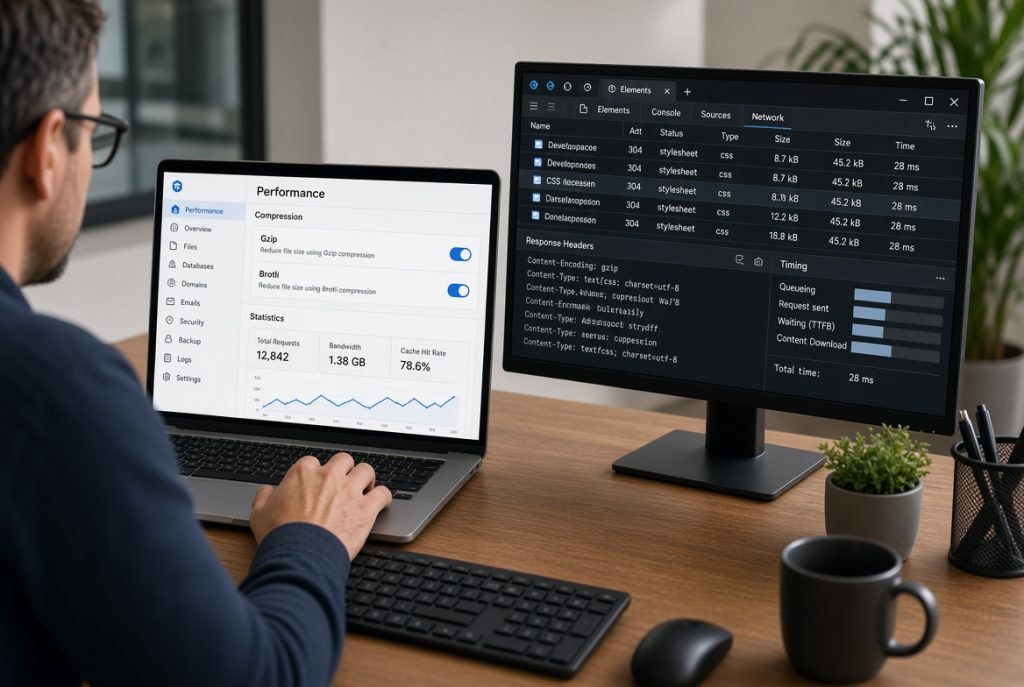
Gzip is the standard, has been for years. Brotli’s newer and usually does a better job for text. Most web hosts let you use both, and they’ll serve whichever the browser prefers. You don’t need to overthink it just turn it on, load a page, and check that the headers say what you expect.
If you manage sites through a hosting control panel, look for the option under Nginx, Apache, or something labeled “Performance.” That’s why people search up how to enable gzip compression hosting panel. Nobody wants to edit config files when they don’t have to. Either way, the goal stays the same: send less data, so your site paints faster and wins on metrics like Largest Contentful Paint.
Why Compression Really Matters for SEO
No search engine is handing out awards for Gzip. They care about usable speed. Lighter text files move faster, especially on slow mobile connections. Compression helps Time to First Byte (once the server finishes the page) and can even improve LCP when HTML and CSS land quickly. It won’t rescue a bloated home page with a 4MB hero image, or twelve web fonts, but it will keep you from shipping 400KB of CSS when 90KB would do the job.
There’s another perk people miss: bots crawl your site nonstop. If every HTML page is oversized, you waste crawl budget moving pointless bytes. Leaner responses save money and help bots work more efficiently. It’s not a ranking boost but it just makes everything smoother.
Don’t confuse compression with caching. Caching gives the server a ready-made page, skipping heavy database work. Compression shrinks whatever you send. Use both. If your site’s dynamic, cache first, but always compress your text.
Gzip, Brotli, and Browser Preferences
Gzip’s universal. Every browser has sent “gzip” in Accept-Encoding for years. Brotli, as “br,” is often better at shrinking CSS and JS, but watch out old browsers and some middlemen (proxies, CDNs) won’t always support it. Modern Chrome, Firefox, Safari, Edge—they deal with Brotli just fine. A good server checks what the browser wants and sends a single encoding. Even if you stick with Gzip, you’ll see real gains. If your server or control panel supports Brotli for HTTPS, switch that on too but keep Gzip as the backup. Don’t compress what’s already compressed like JPEGs, PNGs, WebP, MP4, and most fonts won’t benefit, and sometimes they’ll even get bigger.
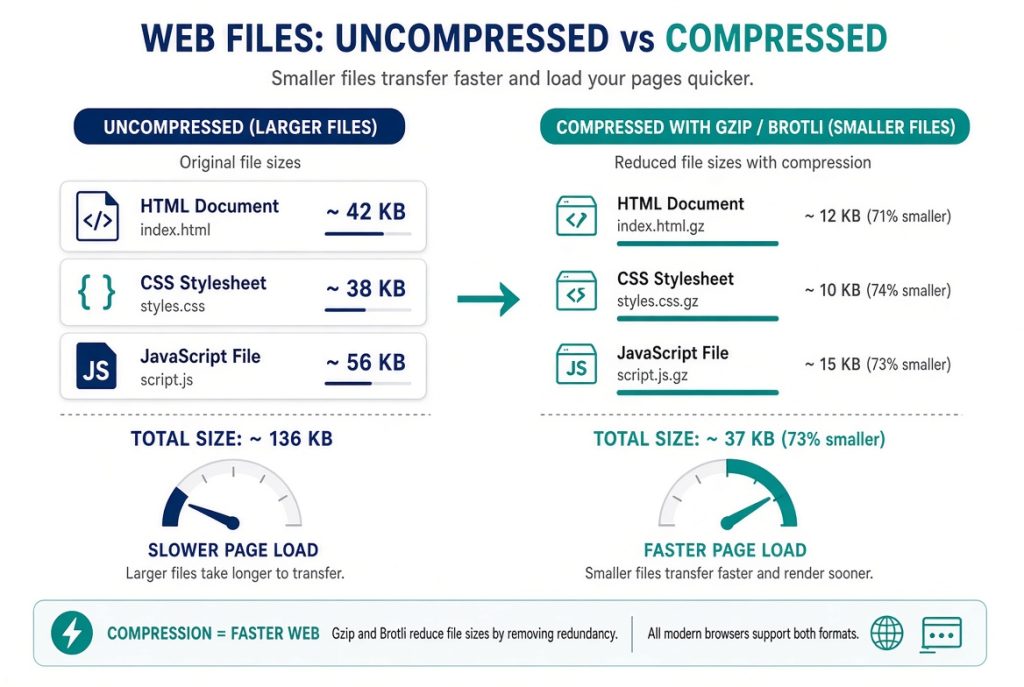
Testing is faster than debating. Open your site, pick out a CSS file, and check the response headers. You want to see Content-Encoding: gzip or Content-Encoding: br, plus the original Content-Type like text/css or text/html. If those are missing, your changes didn’t take hold.
How to Enable Gzip Compression Hosting Panel
The steps vary, but the gist doesn’t change. Look for the spot in your panel like Nginx, Apache, LiteSpeed, or their performance tools. Turn on Gzip or Brotli and list out what types to compress: text/html, text/css, application/javascript, application/json, image/svg+xml. Save and reload the server.
On a VPS, it might be a single checkbox. That’s why hosting control panels are popular: they group everything for you like SSL, cache, PHP version. If the panel is writing the config, don’t also paste manual Gzip settings. Two conflicting rules? Odds are, you get zero compression. If your panel lets you set the compression level, keep it moderate. Maxing out Gzip wastes CPU for tiny gains, and on busy sites, that extra load can slow things down. Start in the middle, watch performance, and only bump it up if your server stays cool.
What to Check Once Compression’s On
- Open your browser’s DevTools.
- Load a page with cache disabled.
- Check a document and a CSS file.
- Look for your encoding, confirm the file loads (status 200), compare transfer size to the raw size. A 120KB stylesheet sent as 25KB? That’s working.
- Still sending the full 120KB? Compression missed that type or something’s blocking it.
PageSpeed Insights will complain about missing text compression if it isn’t working. Use that as a clue, not a final judgment. Those tools check one page; try your blog’s homepage, a checkout, and any AJAX responses too. If you keep an SEO Audit Checklist, add: HTML encoding present, CSS encoding present, JavaScript encoding present. Takes a minute, catches real-world blockers.
Watch your error logs after you reload. Brotli modules, especially on Nginx, can crash if misconfigured. If the site tanks, turn off Brotli, keep Gzip, and fix it later. A live site running only Gzip beats a perfect setup that’s offline.
Common Compression Pitfalls
- Wrong server. If Nginx is public but you only turn on Gzip in Apache, nothing changes.
- CDN issue. Some CDNs compress at the edge and ignore your origin server’s settings; always double-check CDN controls.
- PHP output buffering. If your app gzips content before the web server does, double compression causes errors. Then pick a layer, not both.
Tiny files rarely shrink; that’s normal. Focus on big CSS and JS bundles for real savings.
Another trap: enabling compression in your panel but then using a cache plugin that serves static files without the same rules. If your plugin writes static HTML, make sure it still gets compressed. Test both cached and uncached URLs.
Keep Compression Simple
Turn it on. Check it after server changes, migrations, or large updates. That’s enough and no need to micromanage. If you use AISEO Tools to write better drafts, but if your server leaves CSS uncompressed, the page still crawls. Content and server settings each fix their own side of the speed problem; get the server right first if you see “enable text compression” in your reports. Hosting control panels make this easy like enable gzip compression hosting panel features, try Brotli if possible, reload, move on. Save your MIME list, so a future update doesn’t accidentally skip JavaScript.
Practical Plan That Works
Get HTTPS and caching working first. Then enable Gzip. If Brotli is simple to add, do it. Test headers for HTML, CSS, JS; leave images out. Watch your server’s CPU for a day, if file sizes drop and machines stay idle, you’re done.
Compression won’t rescue thin content or a site people don’t want. But it does stop you from sending dead weight to visitors who just want the page to load. That’s the whole idea: less code, faster paint, fewer complaints about “heavy” pages when images aren’t the main problem. So when someone asks how to enable gzip compression hosting panel for SEO, the real answer is simple. Enable it for text, check the headers, keep a fallback, don’t stack three Gzip systems. Your pages shrink, your server breathes easier and that’s an easy speed win.