
How to Add Vultr in aaCloud
Enable API in Vultr
Log in to Vultr, enable the API, and turn on access control.
In the left-side menu, go to
Account.Click
API, then click theEnable APIbutton.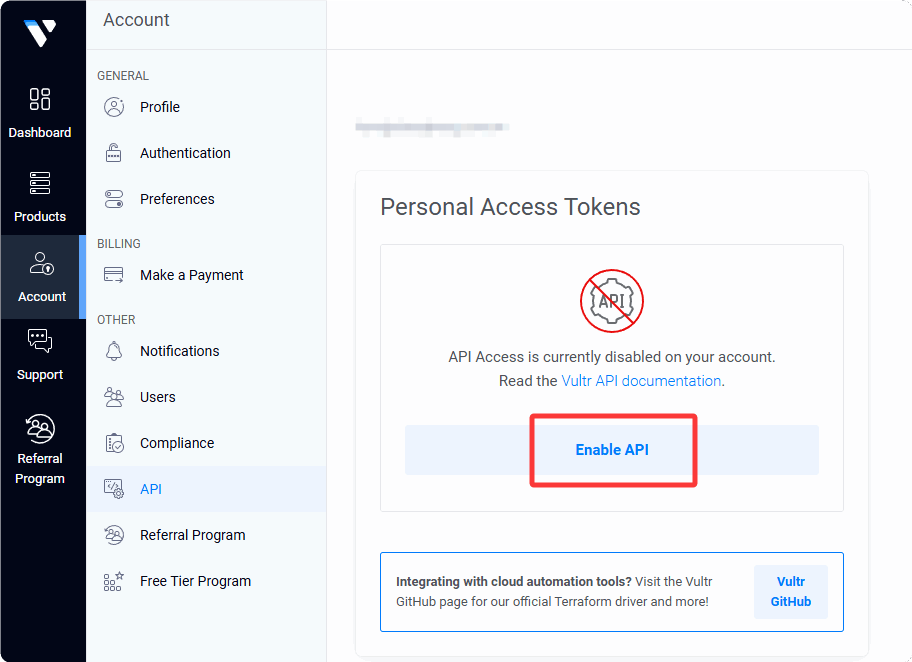
Copy and save your
API Key. Please note that you must copy and store it properly, as this is the only time the API Key will be displayed.Locate
Access Controlin theAPIinterface:- Toggle on
Allow All IPv4andAllow All IPv6.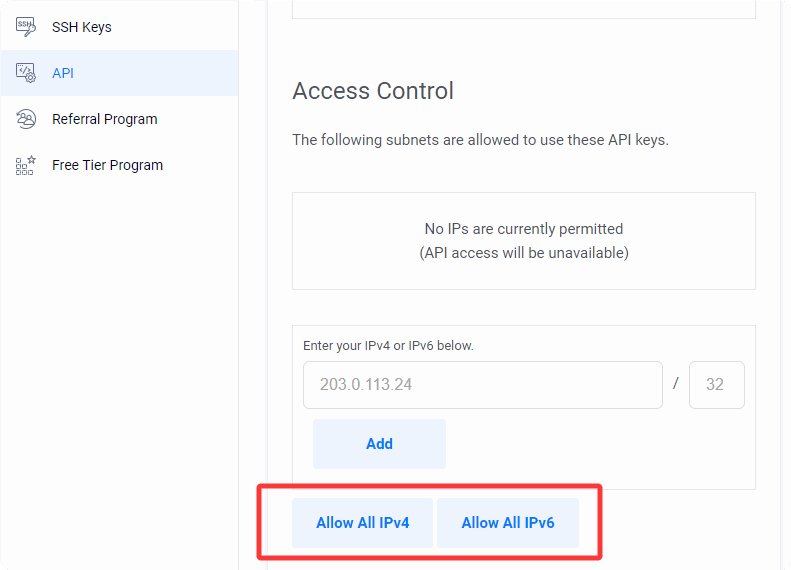
- After enabling:
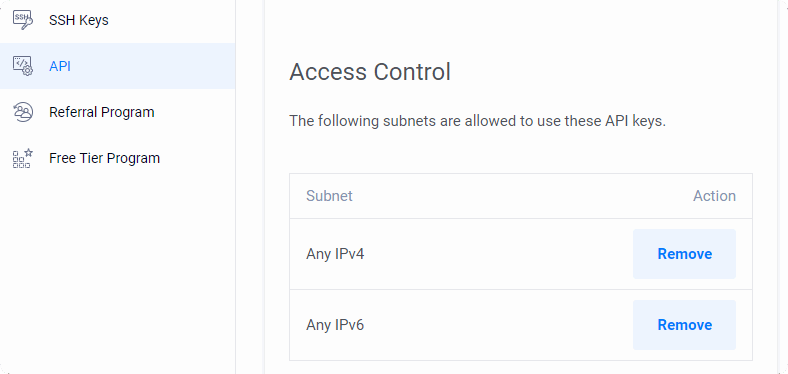
- Toggle on
Add Vultr in aaCloud
Log in to aaCloud, then click
Cloud Accountin the left-side navigation bar.Click the
Add accountbutton.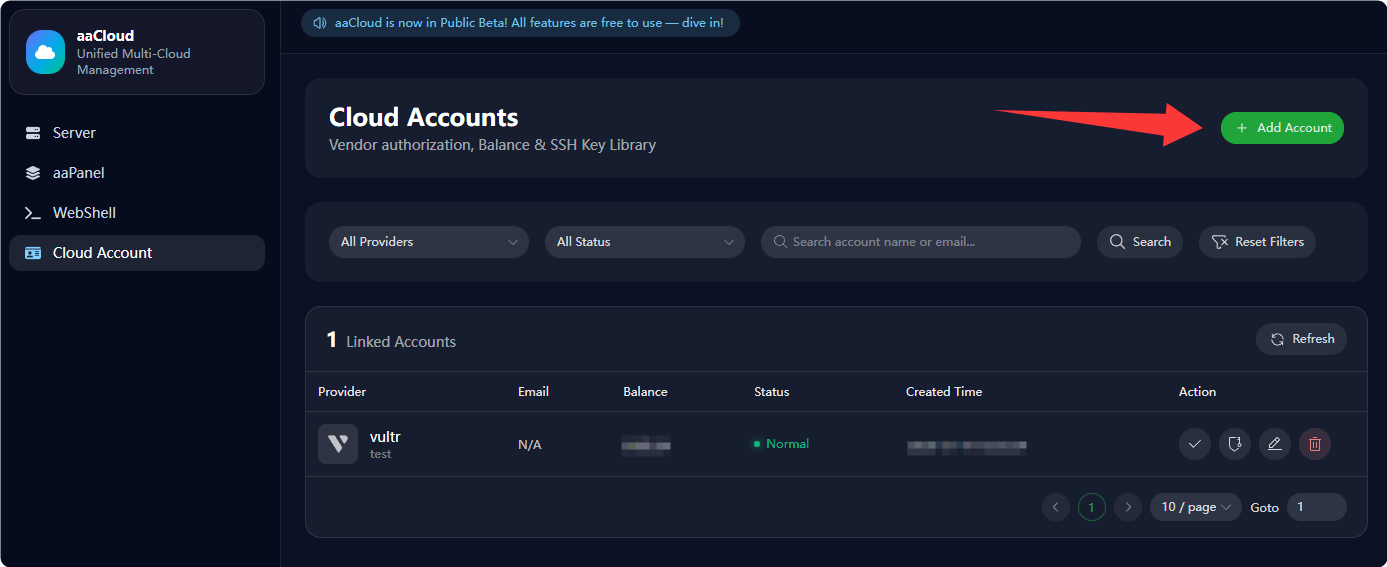
Select
Vultrfrom Provider.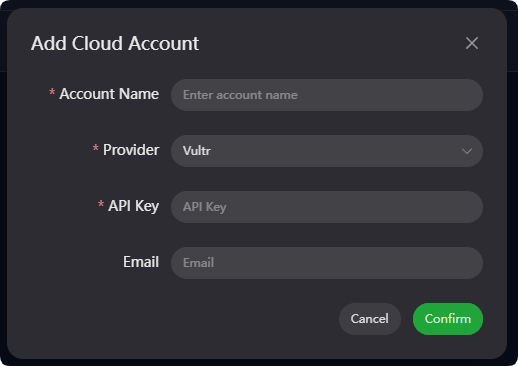
Paste the copied API information into the
API Keyfield, enter the Account Name, and finally click theAddbutton.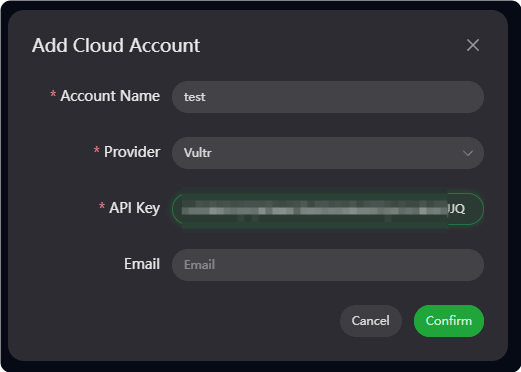
To test availability, click
Verify.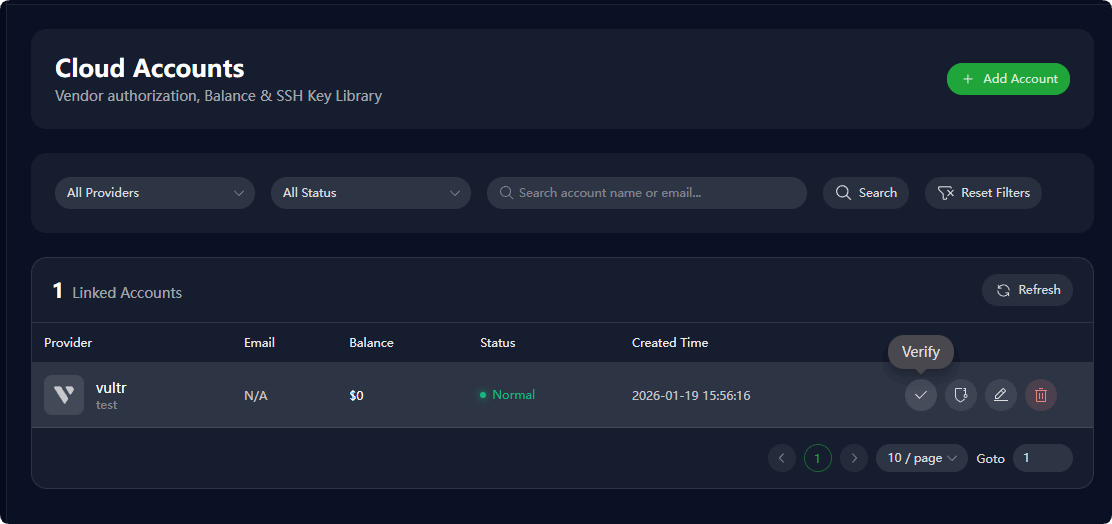
After successful addition, you can go to the Server interface, click Sync from Cloud or Add Server to manage your servers.