
Quick Start
Welcome to aaPanel! This page will walk you through installing aaPanel and launching your very first website.
Choose the option that best describes where you are now.
Already familiar with Linux servers? Skip directly to Before Installation.
📹 Quick Start Video Tutorial
New to Servers?
You only need to understand three basic concepts before getting started.
What is a server?
A server is a computer that stays online and provides your website or application to visitors.
Your website files, images, databases, and applications are stored on the server. When someone visits your domain, the server sends the website content to their browser.
What is Linux?
Linux is the operating system running on your server, similar to Windows or macOS on a personal computer.
aaPanel supports several Linux distributions, including Ubuntu, Debian, CentOS, AlmaLinux, and Rocky Linux. If you are not sure which one to choose, we recommend Ubuntu 22.04.
You do not need to learn Linux before using aaPanel. During installation, you only need to connect to the server and run the installation command provided below.
What is aaPanel?
aaPanel is a web-based server control panel. It turns common Linux server operations into a visual interface.
After installing aaPanel, you can use your browser to create websites, install WordPress, manage files and databases, configure HTTPS, monitor server resources, and create backups.
Server
└── Linux operating system
    └── aaPanel
        ├── Websites and applications
        ├── Files and databases
        ├── Backups and security
        ├── Docker management
        ├── Server monitoring
        └── System security
Do I need a server?
Yes. aaPanel needs to be installed on a supported Linux server. If you currently use shared hosting, you will need a VPS or cloud server before installing aaPanel.
Once your server is ready, continue to Before Installation.
Before Installation
aaPanel is currently developed based on Ubuntu 22.04
Minimum hardware requirements
CPU: 1 Core
RAM: 512 MB
Storage: 1 GB
Supported Systems
Ubuntu 22 recommended
Ubuntu 24
Ubuntu 26
Debian 11
Debian 12
Debian 13
CentOS 9 10
AlmaLinux 8 9 10
Rocky Linux 8 9 10
Connect to Your Server
Before installing aaPanel, you need to connect to your server via SSH.
Get your server information
You will need:
- Server IP address
- Username (usually
root) - Password or SSH key
Depending on your operating system, Connect to Your Server:
You can use one of the following tools:
PuTTY Download from https://www.putty.org/
Windows Terminal / PowerShell
Open Windows Terminal
- Press
Win + Sto open the search box. - Type
Terminaland press Enter.
- Press
Open PowerShell
- Press
Win + Sto open the search box. - Type
PowerShelland press Enter.
- Press
Password mode, run:
ssh root@your_server_ipWhen password prompted, enter your password. Note that the password will not be displayed as you type — this is normal.
SSH key mode, run:
bashssh -i /path/to/private_key root@your_server_ip
Start installation
Installing aaPanel only takes 2 minutes.
Install Script
URL=https://www.aapanel.com/script/install_panel_en.sh && if [ -f /usr/bin/curl ];then curl -ksSO "$URL" ;else wget --no-check-certificate -O install_panel_en.sh "$URL";fi;bash install_panel_en.sh forumInstall as root user
root@vultr:~# URL=https://www.aapanel.com/script/install_panel_en.sh && if [ -f /usr/bin/curl ];then curl -ksSO "$URL" ;else wget --no-check-certificate -O install_panel_en.sh "$URL";fi;bash install_panel_en.sh forum

+----------------------------------------------------------------------
| aaPanel FOR CentOS/Ubuntu/Debian
+----------------------------------------------------------------------
| Copyright © 2015-2099 BT-SOFT(https://www.aapanel.com) All rights reserved.
+----------------------------------------------------------------------
| The WebPanel URL will be https://SERVER_IP:31750 when installed.
+----------------------------------------------------------------------

Do you want to install aaPanel to the /www directory now?(y/n):
If you use a normal user to execute the installation script, you will get the following prompt
aapanel@vultr:~$ URL=https://www.aapanel.com/script/install_panel_en.sh && if [ -f /usr/bin/curl ];then curl -ksSO "$URL" ;else wget --no-check-certificate -O install_panel_en.sh "$URL";fi;bash install_panel_en.sh forum
Non-root install, please try the following solutions:
   1.Please switch to [root] user install
   2.Try executing the following install commands:
     sudo bash install_panel_en.sh forum
aapanel@vultr:~$
You can use sudo -i or su command to switch to root user
aapanel@vultr:~$ sudo -iaapanel@vultr:~$ suaaPanel Login Information
After the installation is complete, the following information will be output. Copy and save your login information
If you forget to save, you can execute the bt default command to view it. If you forget the password, you can execute the bt 5 command to change the password.
==================================================================
Congratulations! Installed successfully!
==================================================================
aaPanel Internet Address: https://your_ip_address:31750/abcdefg
aaPanel Internal Address: https://your_ip_address:31750/abcdefg
username: abcdefgh
password: abcdefgh
Warning:
If you cannot access the panel,
release the following port (31750|888|80|443|20|21) in the security group
==================================================================
Time consumed: 1 Minute!
If you cannot access the panel after installing it, please check whether your server has a security group. Common Google cloud, AWS, etc. have port access restrictions enabled by default. You need to release the aaPanel port.
Login to your aaPanel
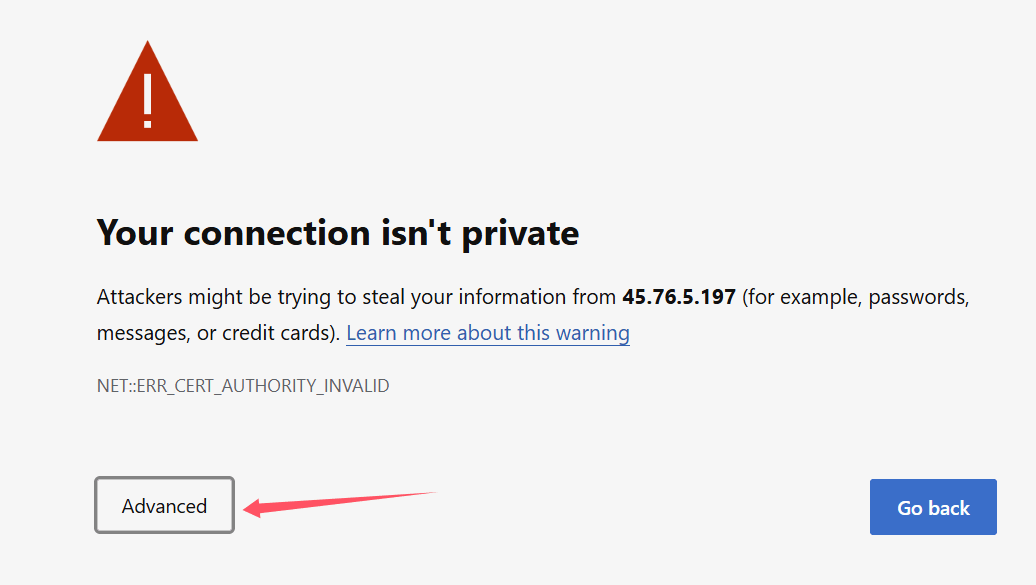
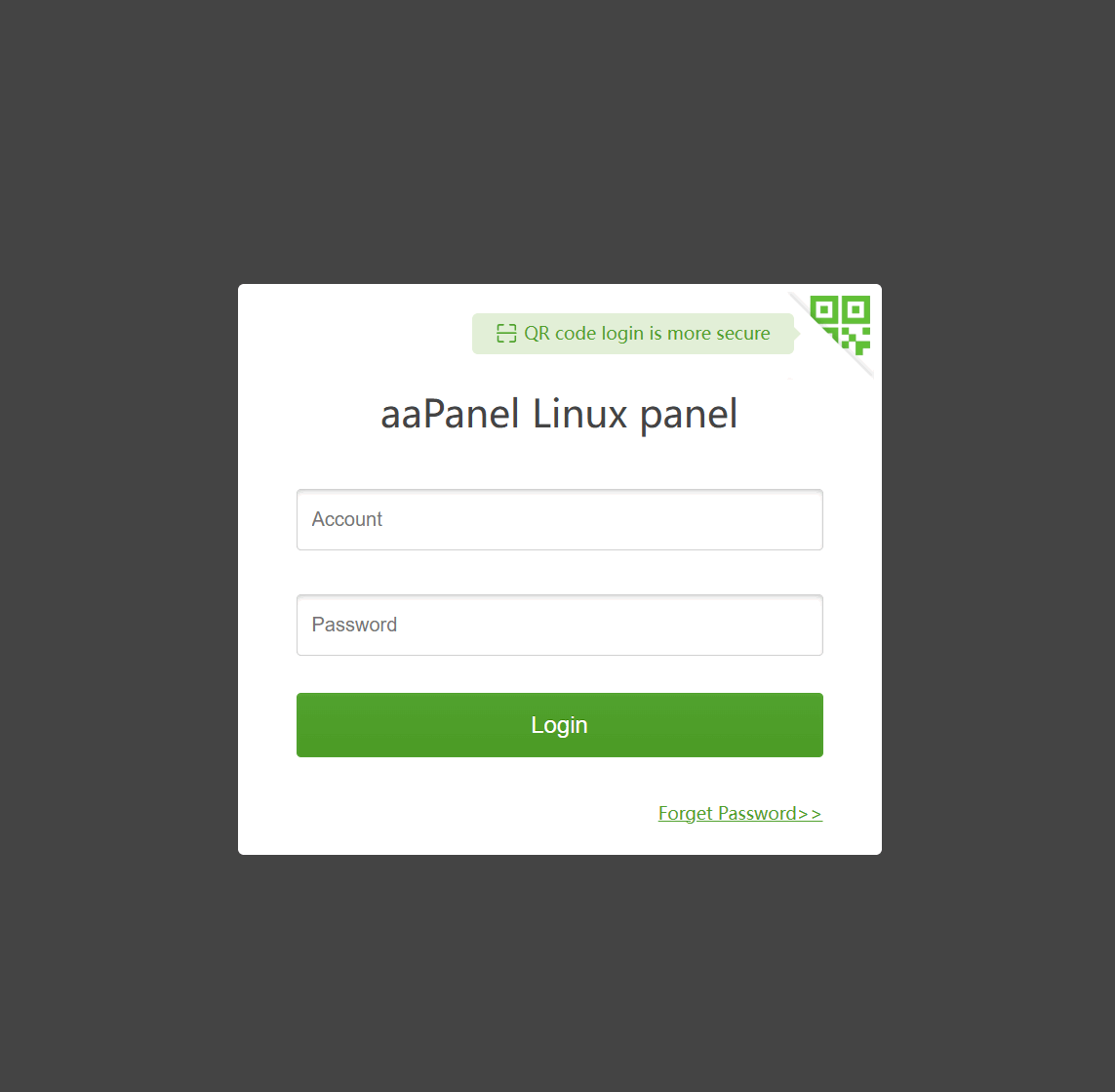
aaPanel uses self-signed certificates by default to ensure data transmission security. If you have never encountered this, please follow the diagram to log in to aapanel correctly.

Congratulations, Continue exploring the aaPanel features.
What's Next
After logging in, we recommend:
Initialize the environment — Install LNMP or LAMP from the aaPanel dashboard.
Deploy your first website — Follow the Deploy Website guide.
Explore features — WP Toolkit, FAQ.
Feedback or Suggestions
If you encounter problems or suggestions during use, please contact us through the following methods:
- (Please describe in
detailor providescreenshots)
Email: [email protected]
Discord: https://discord.gg/Tya5yceBpd
Telegram: https://aapanel.com/tg
GitHub: https://github.com/aapanel/aapanel
If you like aaPanel, please give it a Star