FTP
Use PureFTPd as the FTP server, and the server's files can be managed through the FTP client. Such as
upload,download,deleteand other operations.
FTP (File Transfer Protocol) a standard protocol for file transfer on the network
FTP defaults to passive mode: control connections use port
21, data transmission uses random ports:39000-40000 range. Active data connections use port20
Need to first create the
main aaPanelApp StoreInstall inFTPure-Ftpdcan be used normally
FTP overview

| Function | Describe |
|---|---|
| Add FTP | Add a FTP account |
| Username | Display the username of the FTP account |
| Password | Display the password of the FTP account |
| Path | Display the root directory of the FTP account, click to use File to manage files |
| Remarks | Display remarks of FTP account |
| Edit | Edit FTP account information |
| Delete | Delete FTP account |
Add FTP or Edit
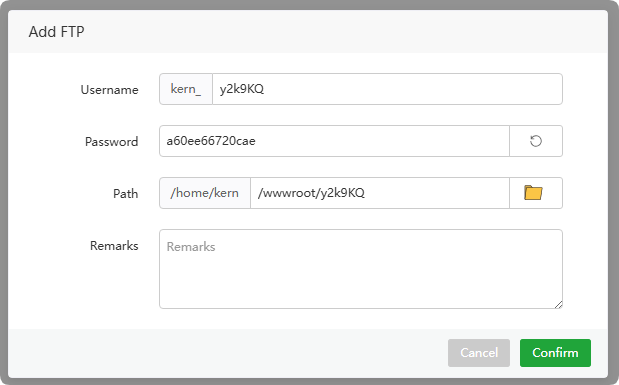
| Function | Example | Describe |
|---|---|---|
| Username | kern_y2k9KQ | Add FTP account username |
| Password | a60ee66720cae | Add password for FTP account |
| Path | /home/kern/wwwroot/y2k9KQ | The root directory of the FTP account |
| Remarks | Remarks for FTP account |
Usage example
Use FileZilla to connect to the FTP server and upload files
Go to FileZilla to
downloadandinstallFileZilla ClientIn the FTP interface,
vieworcreatean FTP account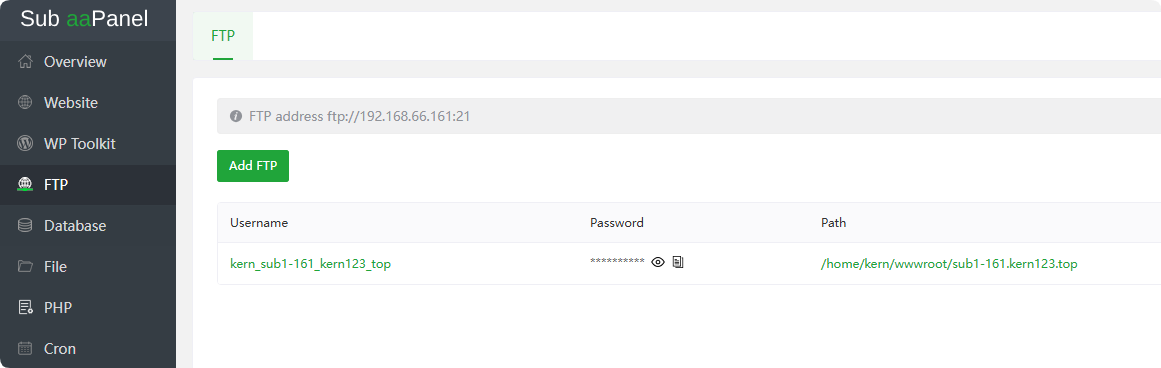
Connect to FTP server: will
FTP address,Username,PasswordInformation, copy and paste into FileZilla to connectReference picture below
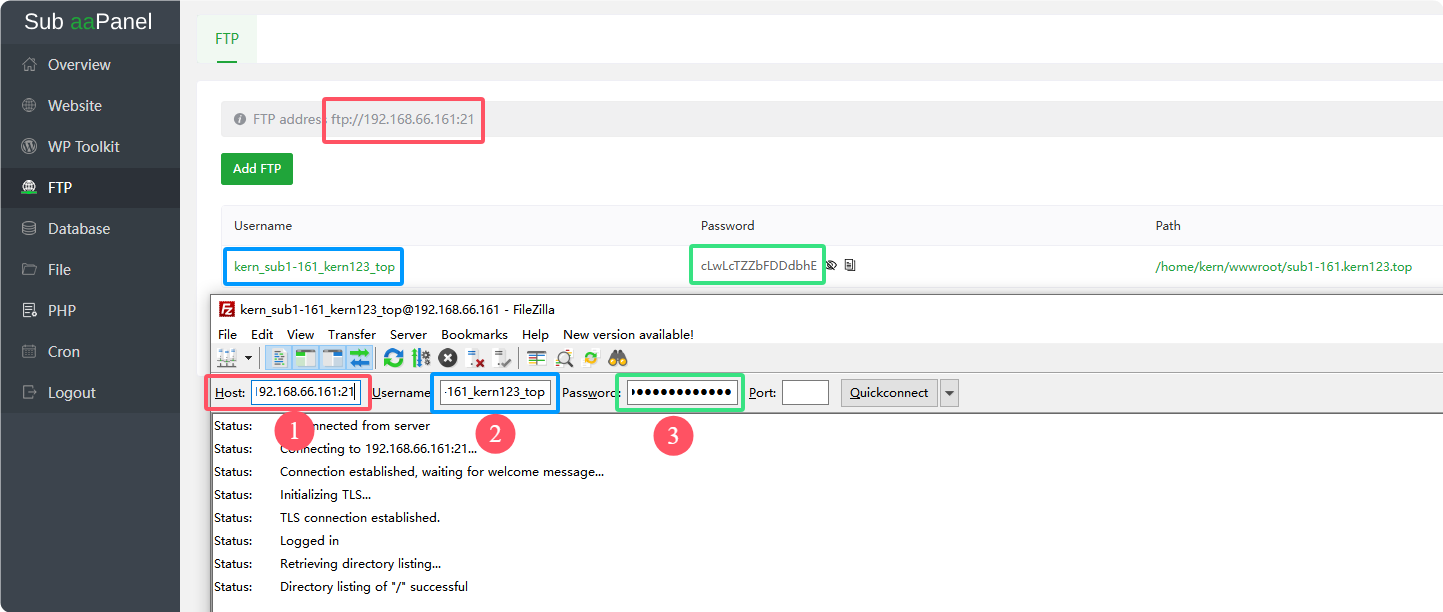
The FTP connection is successful.
Note that if the server provider has a security group, the port needs to be opened:
20,21,39000-40000 range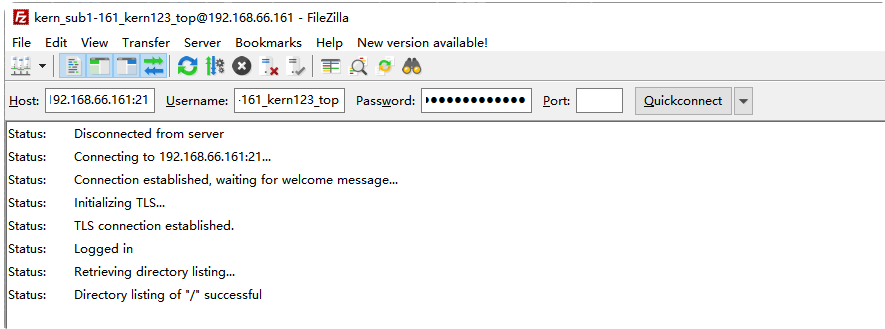
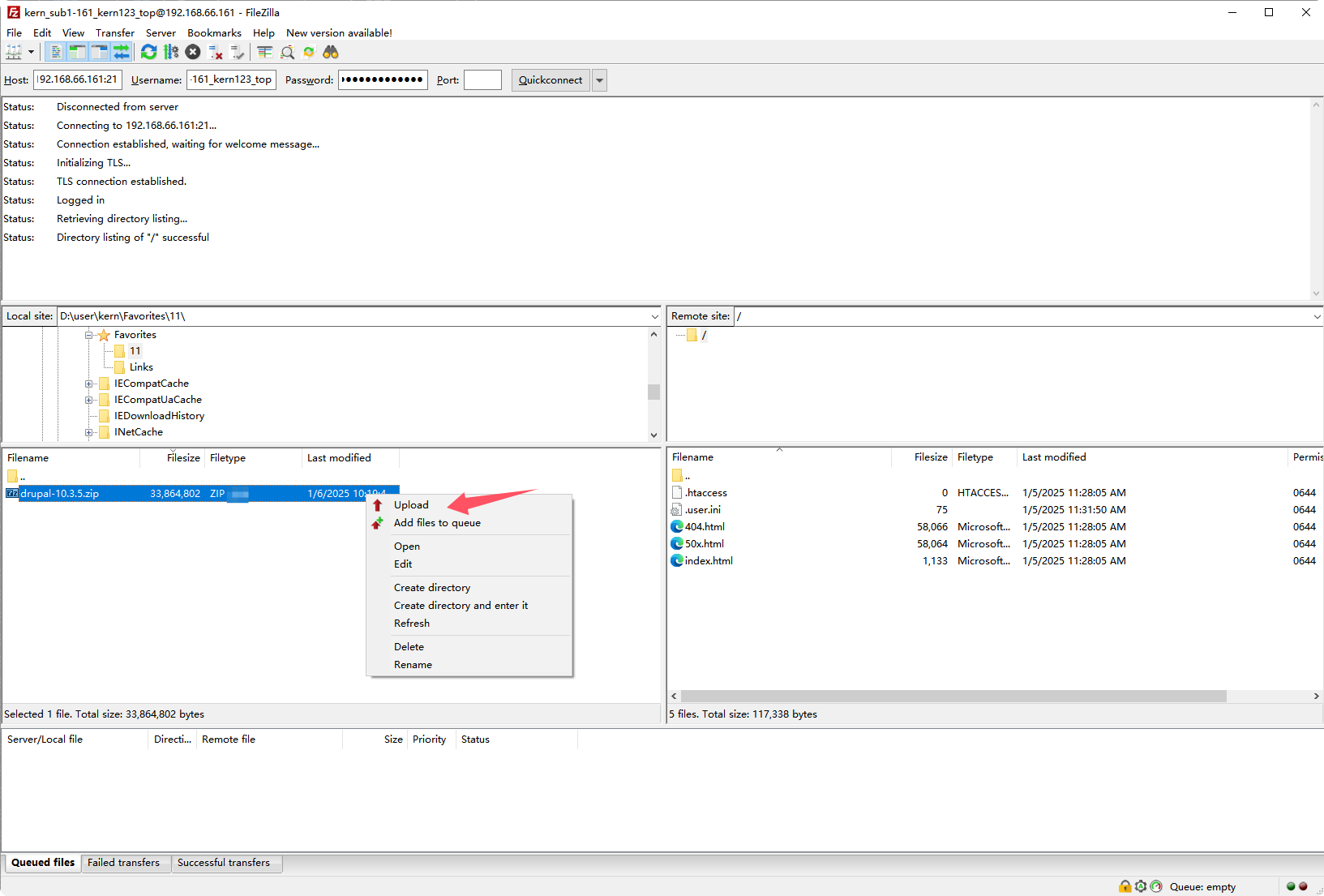
Find the corresponding file and
right-clickto upload it. You can alsodrag and dropthe file to upload it.