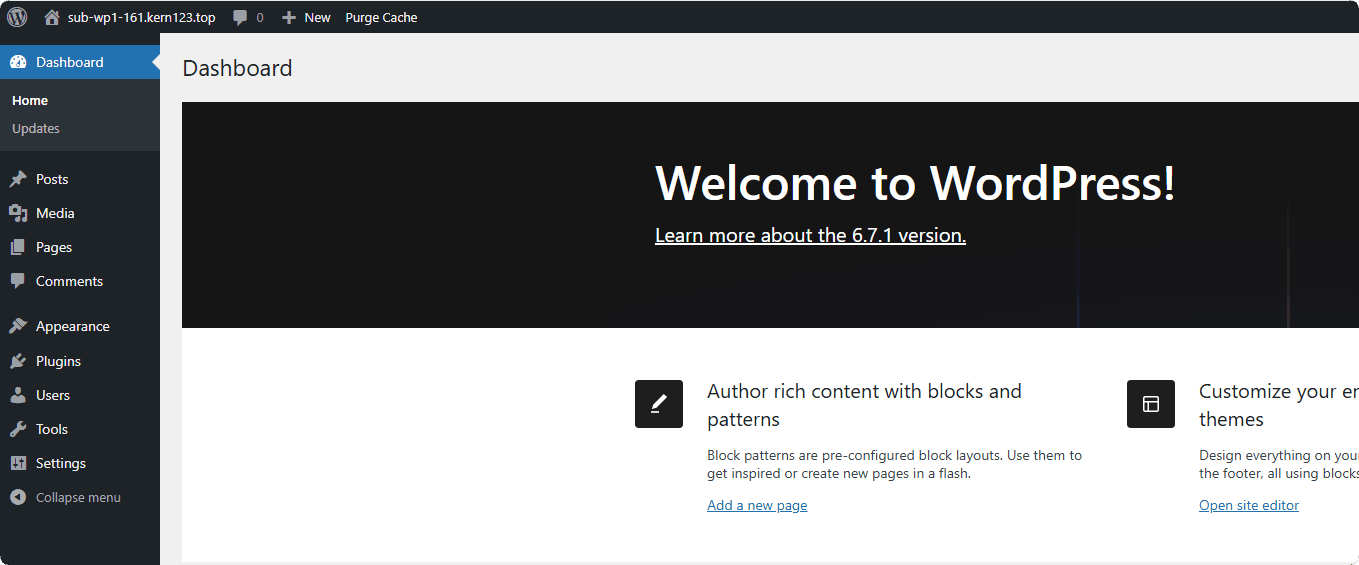
WP Toolkit
WP Toolkit overview

| Function | Describe |
|---|---|
| Add a WordPress site | |
| Website Name | Display the domain name of the website, click to view and modify the configuration of the current website |
| Status | Displays the running status of the website, click to Running and Disabled the website |
| Backup | Displays the number of backups of the website. Click to perform Backup, Restore, Download, Delete and other operations |
| Path | Display the root directory of the website, click to use File to manage files |
| Nginx cache | Enable or disable Nginx cache |
| WP Settings | Displays the WordPress version number of the current site. Can Clone the current site, manage Plugin, Theme, Integrity check or Reinstall the current site. |
| PHP | Display the PHP version of the current site. Click to modify the PHP version of the current site. Note thatNeed to first PHP Interface install |
| SSL | Display the SSL status of the current site, click to manage and deploy SSL certificate |
| Login | Log in to the current website backend without password |
| Configuration | Click to view and modify the configuration of the current website. as: Domain Management, WordPress Settings, Traffic Control etc. |
| Delete | Delete the current website and associated database. Note that it cannot be restored after deletion. Please back up before operating |
Add WordPress
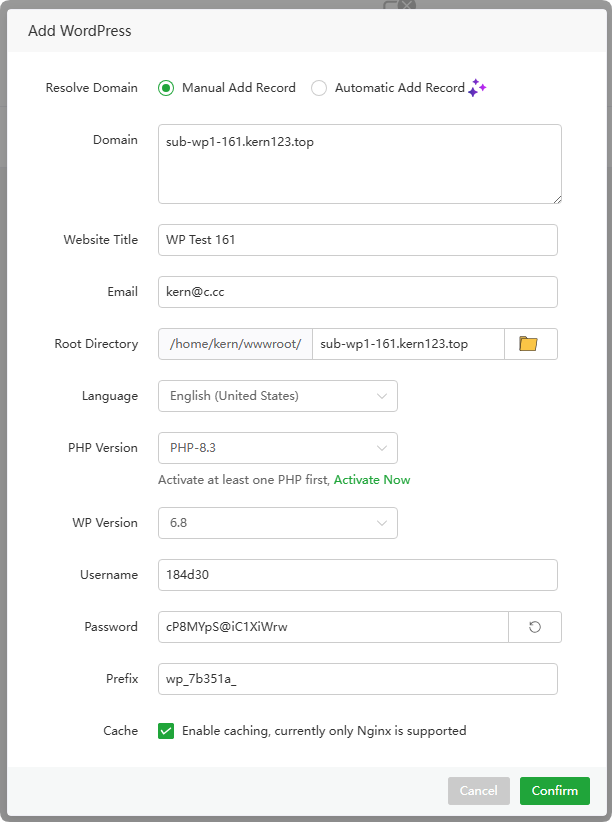
| Function | Example | Describe |
|---|---|---|
Resolve Domain | Manual, Automatic Add Record | Automatic Currently requires adding the corresponding DNS API in the main aaPanel Domains and having a valid SSL certificate for the domain to function properly. |
| Domain Name | sub-wp1-161.kern123.top | Enter the domain name of the website |
| Website Title | WP Test 161 | Enter the title of the word press website |
| [email protected] | Enter the email address of the website administrator | |
Root Directory | /home/kern/wwwroot/sub-wp1-161.kern123.top | Root directory of website files |
| Language | English (United States) | Select the language for the website |
| PHP Version | PHP-8.3 | Select the PHP version used by the website. Note that you need to first PHP Interface install |
| WP Version | 6.8 | Select the WordPress version used by the website |
| Username | 184d30 | Enter the WordPress website administrator account |
| Password | cP8MYpS@iC1XiWrw | Enter WordPress administrator password |
| Prefix | wp_7b351a_ | Database table prefix for WordPress website |
| Cache | Enable | Choose whether to enable Nginx cache |
Website Name or Configuration
Domain Management
Add,deletedomain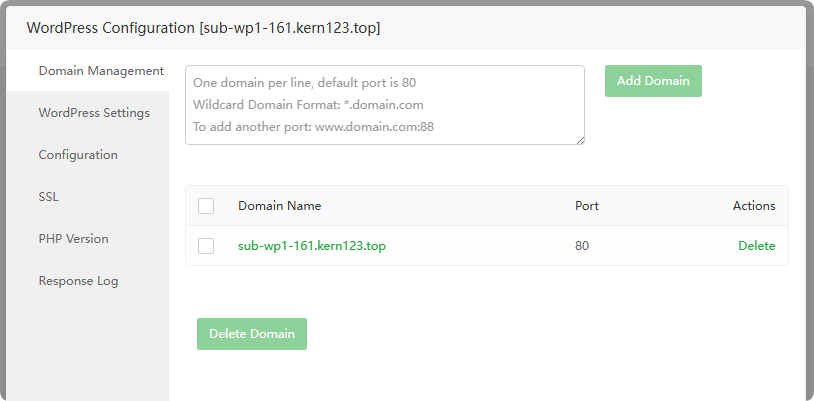
WordPress Settings
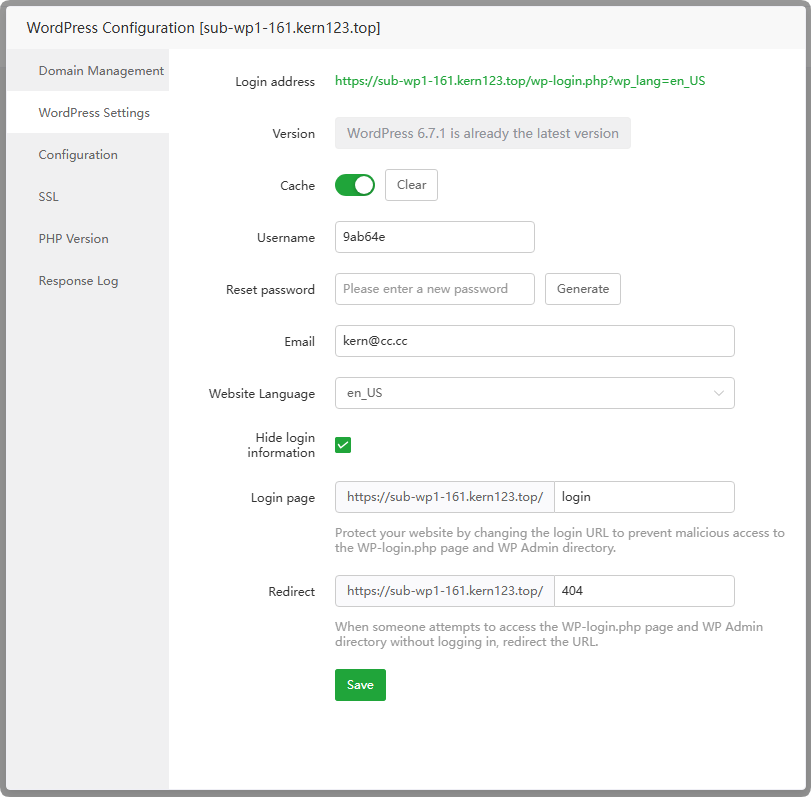
Function Describe Login address Displays the URL of the management background login pageof the current site. Click it to open it.Version Displays the WordPress versionof the current site. If there is a new version, you can click Update to update it.Cache Turn on/off,clearthecacheof the current site.Username Display the account of the current site administratorReset password Reset the current site administrator password. Leave it blank if no reset is required.Email Displays the email addressof the current site administratorWebsite LanguageDisplays the languageof the current site, you can select a language supported by WordPressHide login informationUse WPS-Hide-Loginto hide the management background login page. After setting, you need to use the changed management background login link.Login page Displaythemodifiedmanagement backgroundlogin addressRedirect If use the wrong login address, Will be redirected to this address
Configuration
Site Directory
Set the
Website DirectoryorRunning Directoryof the current website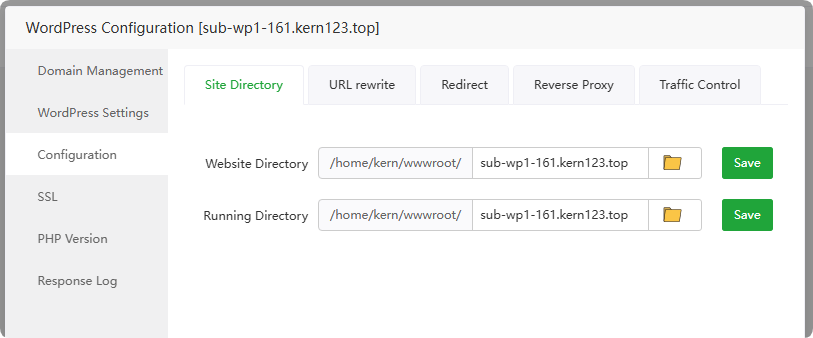
URL rewrite
URL rewrite is generally used to make dynamic addresses pseudo-static. By default, the
.htaccessfile in the site directory is used, or the URL rewritetemplatecan be used.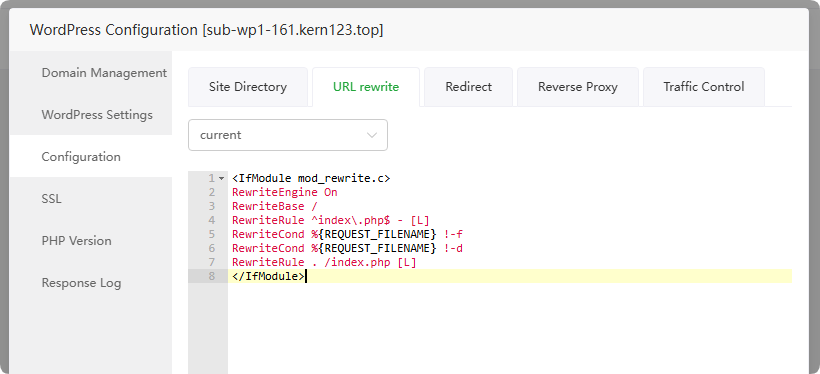
Redirect
Set the current site's specified
domainname ordirectory301/302jump specified address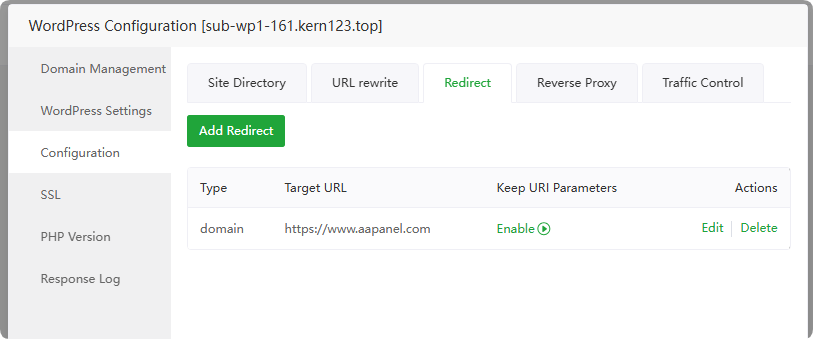
Reverse Proxy
Set the current website
proxyto access resources of other sites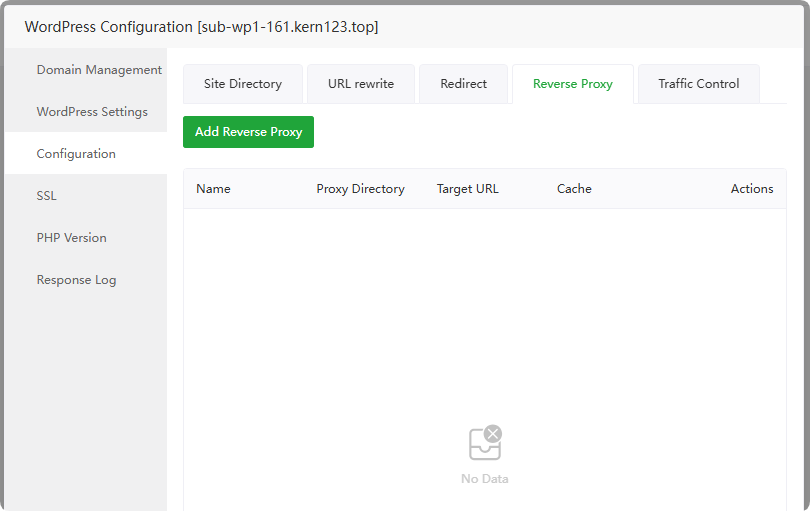
Traffic Control
Limit trafficcontrol for the current site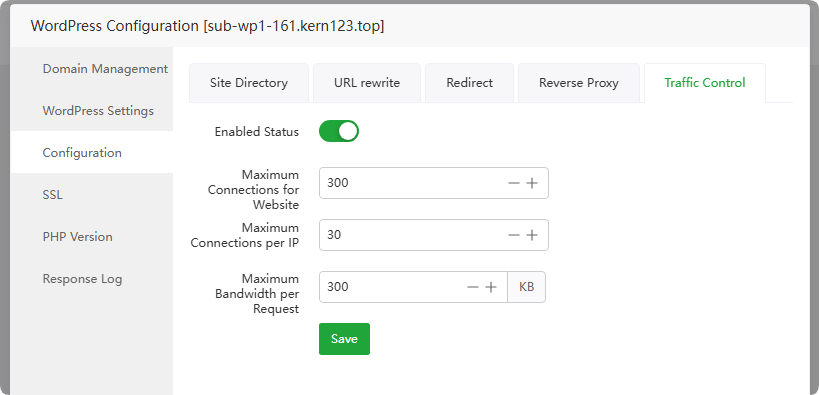
- SSL
Set Certificate
Configure encrypted access to the website, that is, use
httpsto access the website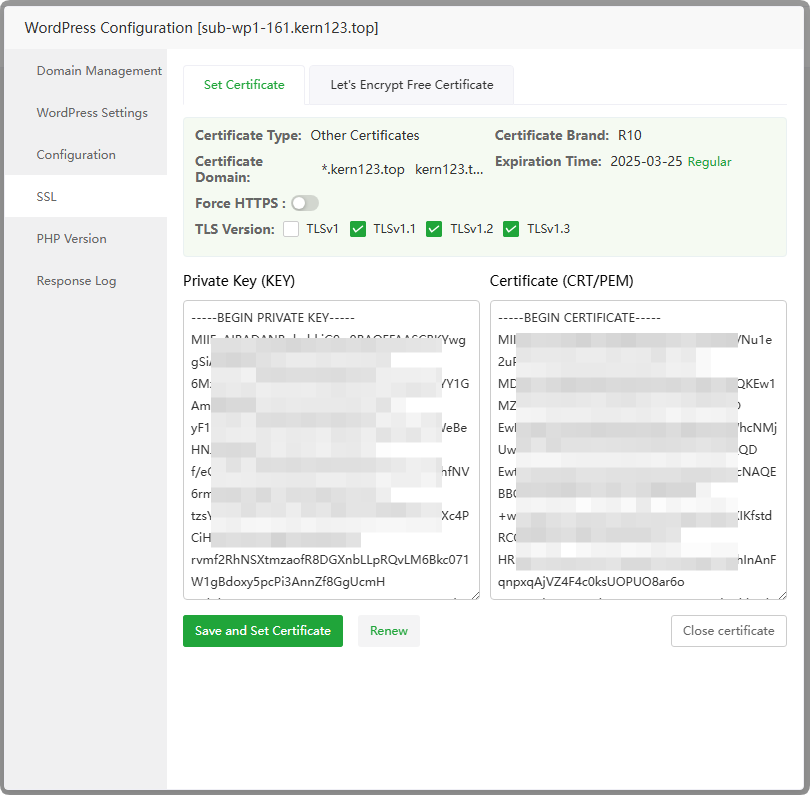
Certificate Type : Display the type of SSL certificate
Certificate Brand : Display SSL certificate brand
Certificate Domain : Display the certified domain name of the SSL certificate
Expiration Time : Display the expiration time of the SSL certificate
Force HTTPS :
Enable/disableforced HTTPSTLS Version : Set the TLS version used by the current website
Private Key (KEY) : Display the contents of the
SSL certificate private keyused by the current websiteCertificate (CRT/PEM) : Display the contents of the
SSL certificateused by the current websiteSave and Set Certificate : Save and set up SSL certificate
Renew : Renew the SSL certificate of the current website
Close certificate :
Turn offSSL certificate
Let's Encrypt Free Certificate
HTTP File Verification
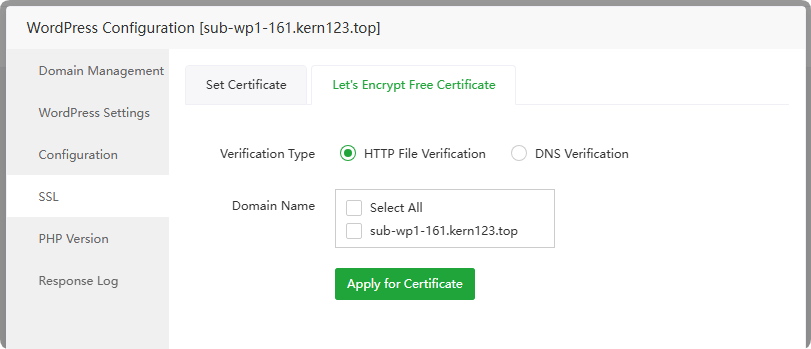
Let's Encryptservers verify domain ownership by accessing thiswebsite's filesIf an error occurs, please troubleshoot first and then verify. Multiple errors will be limited Let's Encrypt Rate Limits.
If you encounter verification failure, please troubleshoot according to the prompts
Maybe the domain name resolution has not taken effect and no resolution has been added.
Let's Encrypt cannot access your website. You can check redirection and proxy issues. Try to access and see if the display is normal. Apply again after it is normal.
If file verification is not available, use DNS verification
If restrictions appear, use third-party website SSL
DNS Verification
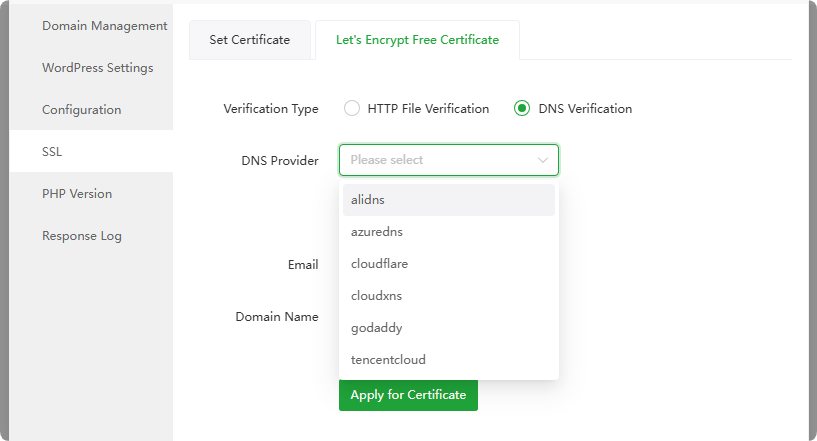
Let's Encryptserver verifies domain name ownership by parsingDNS records.The following domain name resolvers are supported, and the
TXT recordof DNS is added through theAPI to verifythe domain name.alidns
azuredns
cloudflare
cloudxns
godaddy
tencentcloud
PHP Version
Set the
PHP versionused by the current website. Note that Need to first PHP Interface installation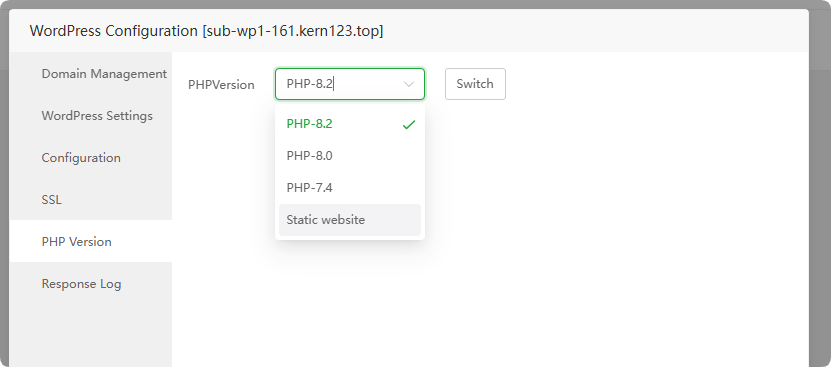
- Response Log
Response Log
Access logof current site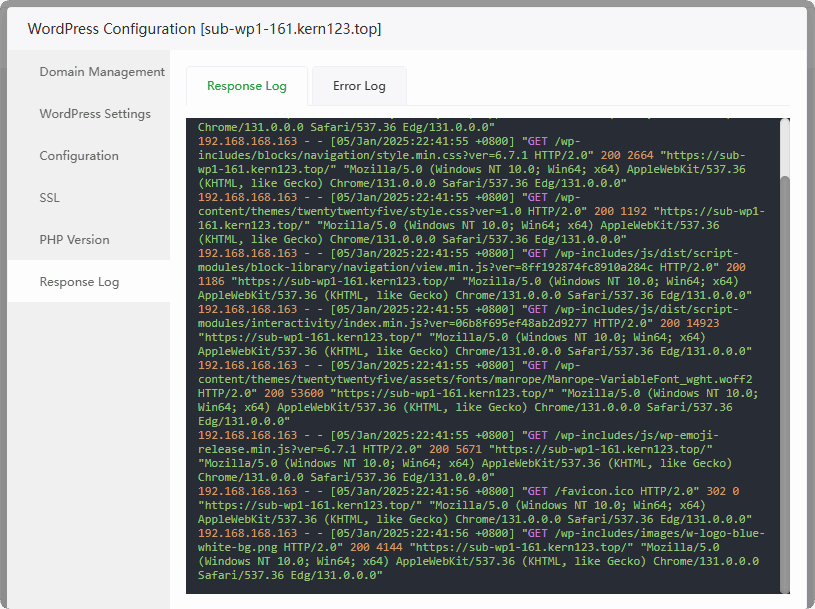
Error Log
Error logfor current site, if there is anerroron the website, you can view this log
Backup
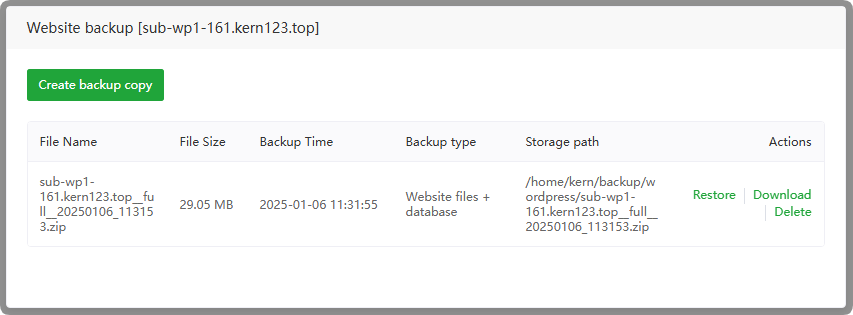
Create backup copy : Create a backup of the current website
File Name : Display the name of the
backup fileFile Size : Display the
backup file sizeBackup Time : Display the
creation timeof the backup fileBackup type : Display the type of backup file. The default in WP Toolkit is:
Website files + databaseStorage path : Display the
storage pathof the backup fileRestore : Restore backup files, including
Website files + databaseDownload :
Downloadbackup fileDelete :
Deletebackup files
Clone
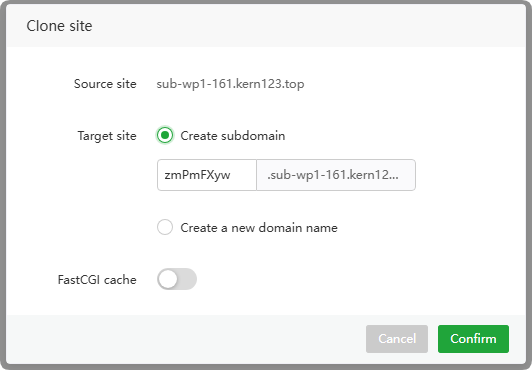
Create subdomain: Create a
subdomainsite using the current site's plugins, themes, databases, and filesCreate new domain name: Create a
new domain namesite using the current site’s plugins, themes, databases, and files
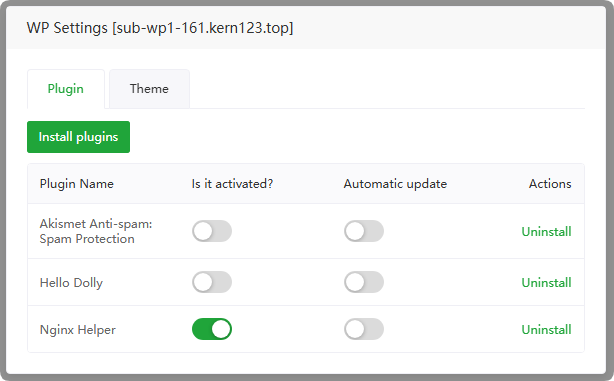
Plugin
Manage the Plugin of the current site, you can Install, Active, Uninstall, and auto update Plugin
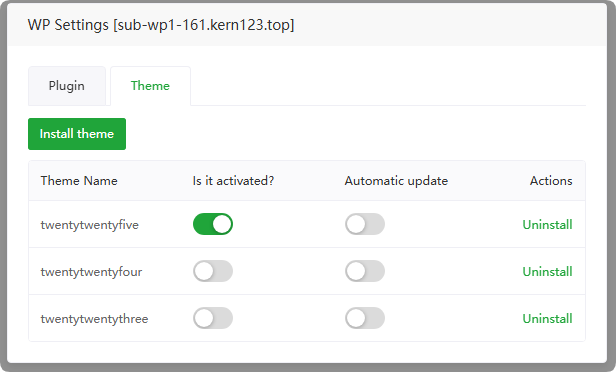
Theme
Manage the Theme of the current site, you can Install, Active, Uninstall, and auto update Theme. Note that only one Theme can be activated.
Integrity check
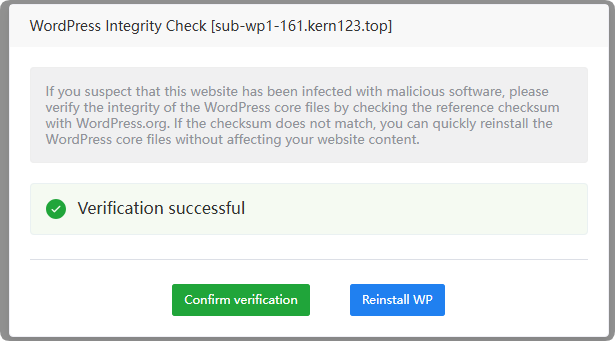
- Confirm verification : Check whether the current site has been
tampered with. If tampering is detected, you can clickReinstall WPto restore WordPress core files to the site. - Reinstall WP : Reinstall WordPress to restore WordPress core files
Login
No account or password is required to log in to the WordPress website management backend