
All Projects
Website > All Projects is the unified website project list for PHP, WordPress, Node.js, Go, Python, and Proxy projects. Use it to find projects across types, check their status, and open settings and logs.
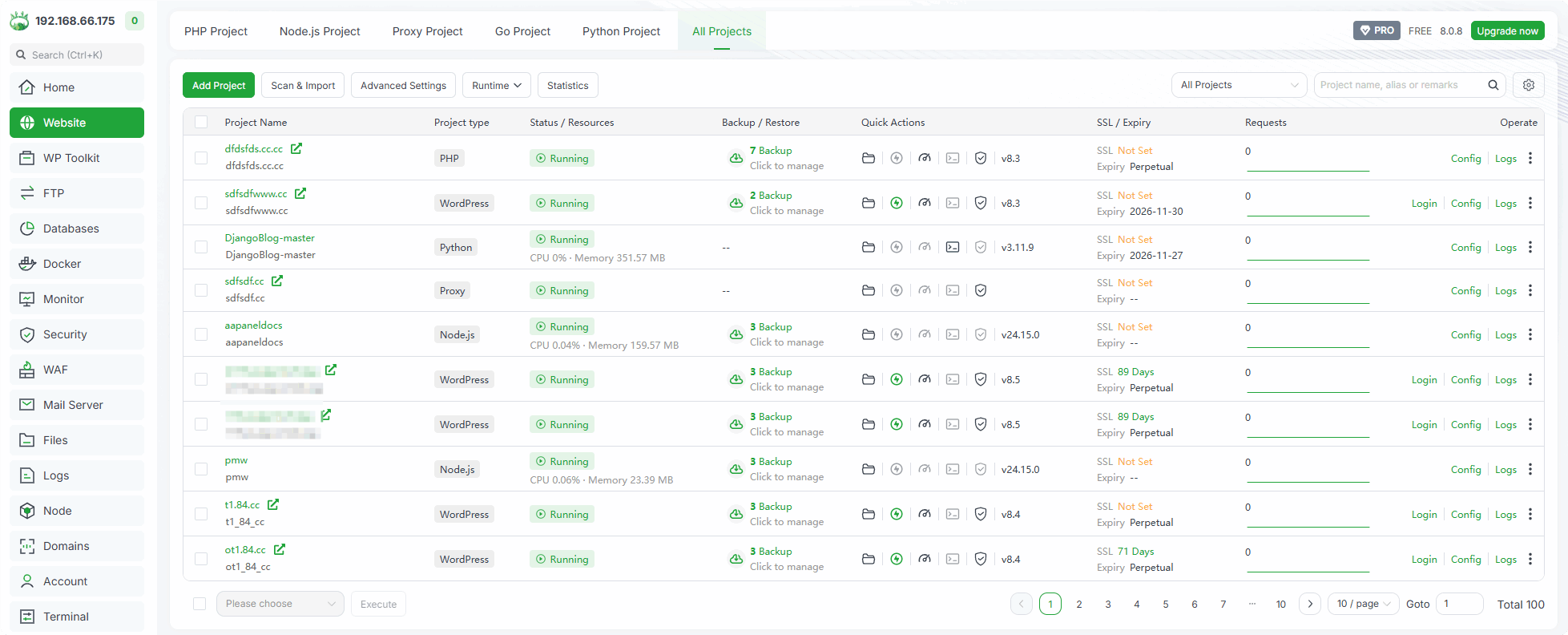
Toolbar
Control | Description |
|---|---|
| Opens the guided project-creation workflow. Choose the project type there, or use the dedicated project page for type-specific options. | |
| Imports running Node.js or Go projects. Create other project types from their dedicated pages. | |
Advanced Settings | Opens additional project settings. Available options depend on installed components. |
Opens Runtime Environments, PM2 Monitor, and Supervisor Manager. Some tools may prompt to install or update the related component. | |
| Opens a summary of total projects, PHP/WordPress sites, runtime projects, Proxy projects, and stopped projects. | |
Filters the list by PHP, WordPress, Node.js, Go, Python, or Proxy. Choose All Projects to remove the filter. | |
| Searches by project name, alias, or remark. Press Enter or use the search action to apply the filter. | |
Column settings | Shows or hides optional columns. The project-name and operation columns are always visible. |
Project types
Type | Use it for | Manage in |
|---|---|---|
PHP | PHP websites and static sites served by Nginx, Apache, or OpenLiteSpeed. | |
WordPress | WordPress sites managed by WP Toolkit. | |
Node.js | Node.js applications, including PM2-managed projects. | |
Go | Compiled Go applications. | |
Python | Django, Flask, FastAPI, and other Python applications. | |
Proxy | Reverse proxies to another server or a local service. |
Proxy projects do not run an application process in aaPanel, so their status is shown as --. Start, stop, or restart the backend service through its own manager.
List fields
Field | Description |
|---|---|
Project name | Shows the name and domain. Click the name for settings, or the external-link icon to open the site. |
Project type | Shows PHP, WordPress, Node.js, Go, Python, or Proxy. |
Status / Resources | Shows running, stopped, or WordPress maintenance status. Click it to start or stop. Runtime projects also show CPU and memory. |
Backup / Restore | Shows backup count for PHP, WordPress, and Node.js. Click it to manage backups; -- means no backup entry is shown for that type. |
Quick Actions | Shows actions such as File Manager, Purge Cache, Performance, Terminal, and WAF. Availability depends on project type; hover over an icon for its label. |
SSL / Expiry | Shows SSL status and expiry. Click SSL to manage certificates. |
Requests | Shows traffic when website monitoring is enabled; otherwise offers setup actions. |
Operate | Shows project actions. WordPress may include Login; open Config, Logs, or more type-specific actions. |
Create or import project
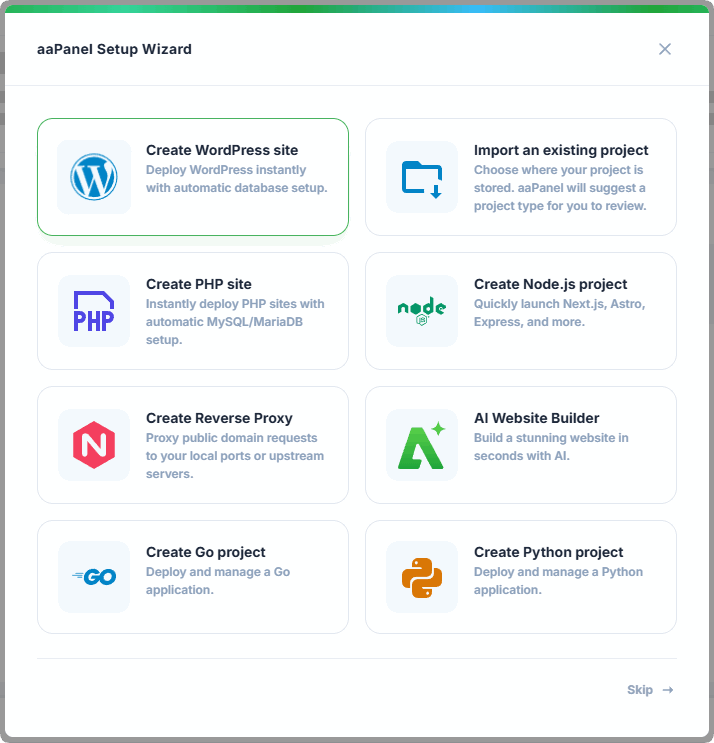
- Select
Add Project, or open the dedicated page for the project type. - Complete the project fields and confirm the creation.
- Return to All Projects. The new project is added to the list after it is created.
Use Scan & Import to import an existing Node.js or Go process. Review the detected settings before confirming.
For repository-based deployment, use the Git workflow on the corresponding project page. See Create Project from Git.
Manage a single project
- Open settings: Click the project name or use
Config. - Start or stop: Click the status value in
Status / Resources. Proxy projects cannot be started or stopped here. WordPress maintenance mode opens its own settings. - Back up: Click the backup count to open backup management. Check the task center for completion.
- Certificates: Click the SSL value. For a missing certificate, use the project's SSL settings or SSL Certificate.
- Expiration: Click the expiry date for project types that support an expiration setting, then choose or clear the date.
- Logs: Select
Logsto investigate failed startup, application errors, or unexpected restarts. - WordPress login: WordPress projects show
Loginwhen a domain is configured and the site is running. See password-free login and remote login. - WAF: Open the WAF action when available. WAF support depends on the web server and installed plugins.
The more menu contains different actions for each type:
Type | Additional actions |
|---|---|
PHP | Security Scan, Category, Delete |
WordPress | Purge Cache, Category, Plugins, Themes, Delete |
Python | Modules, Category, Delete |
Node.js / Go / Proxy | Delete |
Runtime tools
Open Runtime to access:
- Runtime Environments: Installs and manages Node.js, Python, and other runtime versions used by projects.
- PM2 Monitor: Shows PM2 instances and processes. You can inspect process details and logs, start, stop, restart, or import a PM2 process.
- Supervisor Manager: Opens Supervisor for process management. Install or update it if prompted.
Runtime entries are environment-level tools. Changing a runtime version does not automatically update every project; update the project configuration that uses it.
Statistics
Select Statistics to view the current counts for:
- Total projects
- PHP and WordPress sites
- Node.js, Go, and Python projects
- Proxy projects
- Stopped projects
The summary reflects project records. For Node.js, Go, and Python, use Status / Resources to confirm whether the runtime process is running.
Find and filter projects
- Use the project-type selector to limit the list to one type.
- Search by project name, alias, or remark.
- Change the visible columns with the column-settings button.
- Use the pagination control at the bottom of the list. Changing the page size refreshes the list.
If a project seems to be missing, clear the type filter and search field, check the current page, and refresh the list before assuming it was deleted.
Related pages
Feedback or Suggestions
If you encounter problems or suggestions during use, please contact us through the following methods:
- (Please describe in
detailor providescreenshots)
Email: [email protected]
Discord: https://discord.gg/Tya5yceBpd
Telegram: https://aapanel.com/tg
GitHub: https://github.com/aapanel/aapanel
If you like aaPanel, please give it a Star