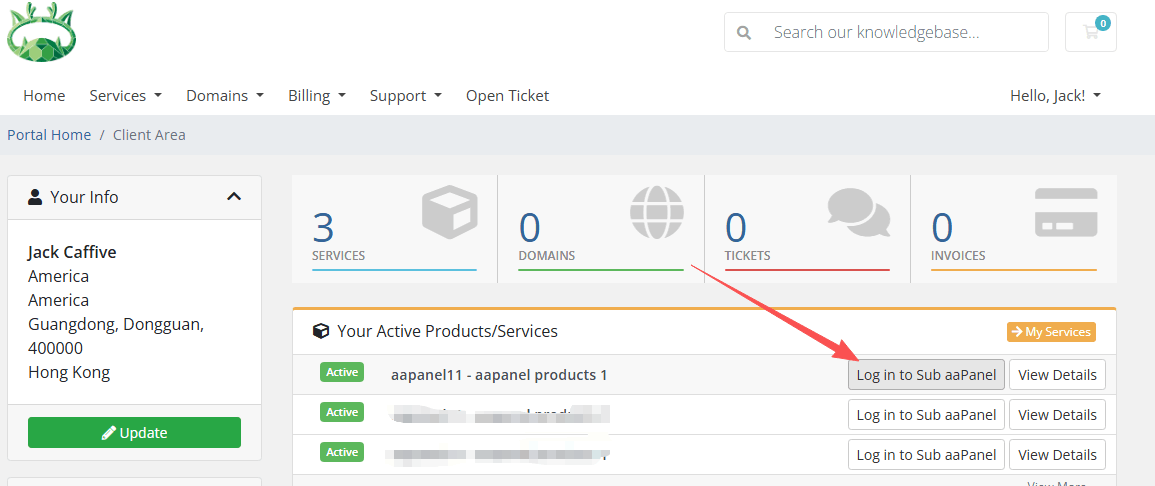
WHMCS Management Account (Sub aaPanel)
- Sub aaPanel for sale via WHMCS
Prerequisites
WHMCS website has been deployed
aaPanel has been installed
Enable aaPanel API
Setting --> API
Enable API
Add the IP address of the server where the WHMCS service is located to the IP whitelist
Copy the
API secret keyfor later use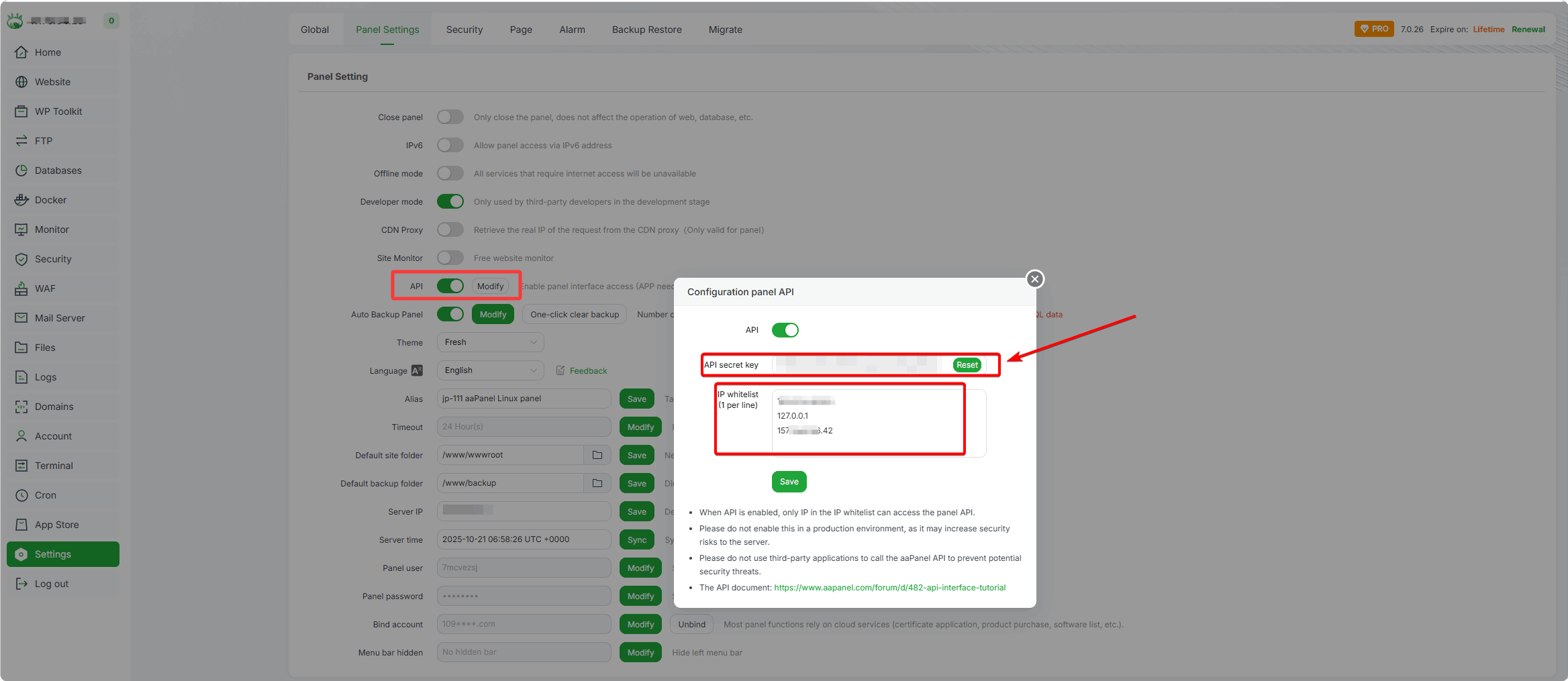
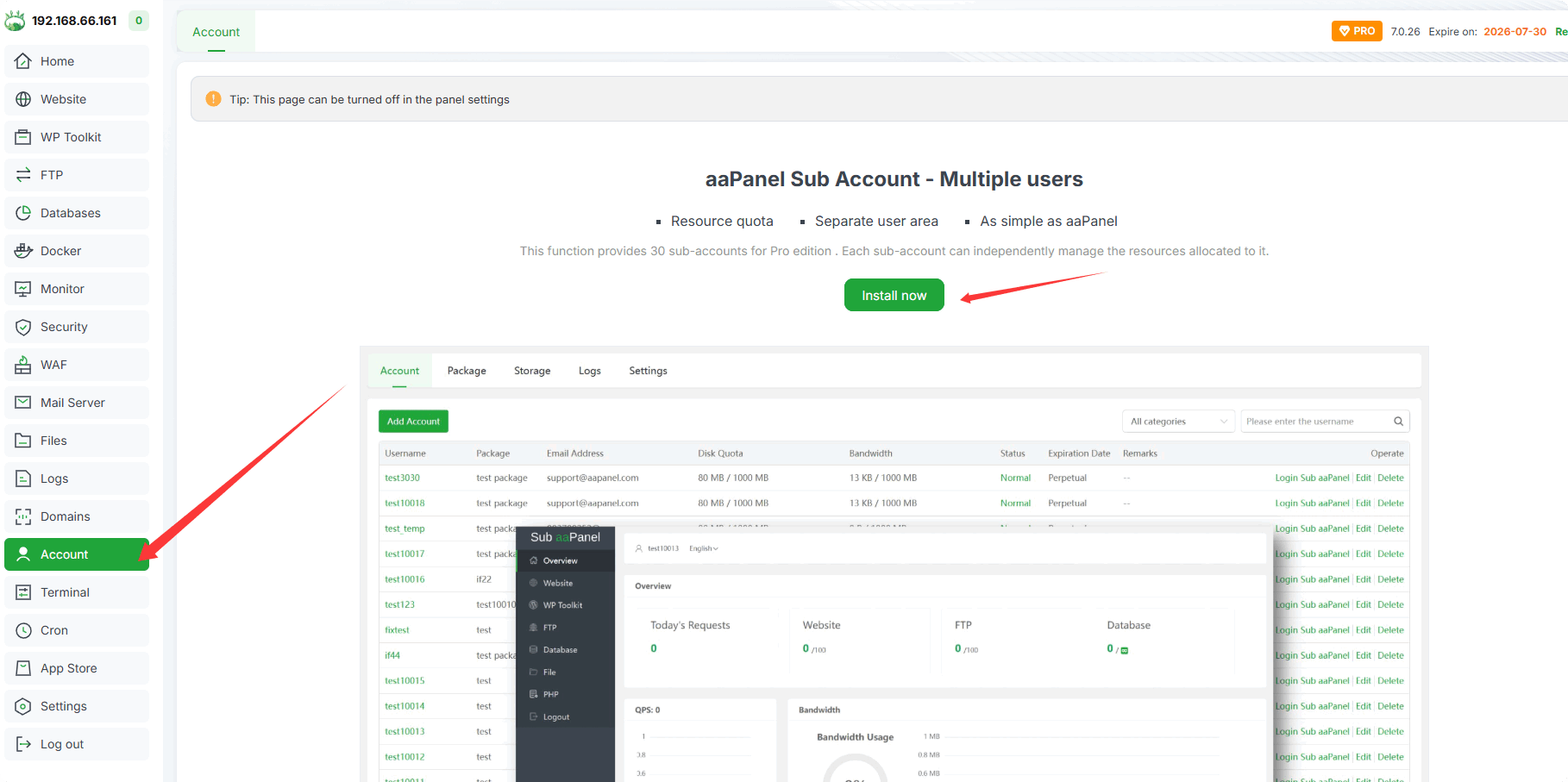
Install Sub aaPanel in the Account
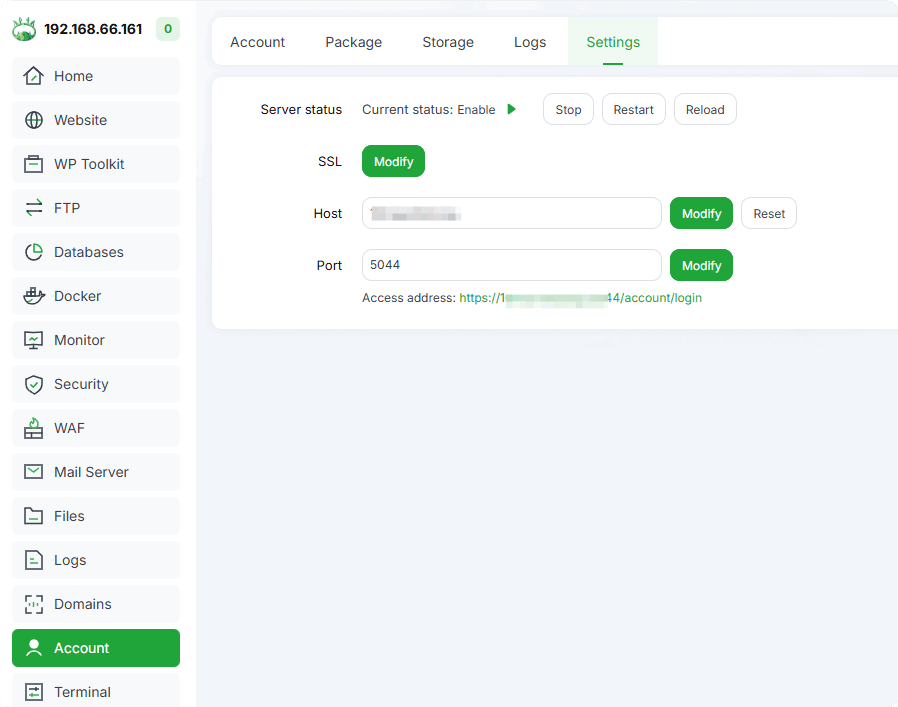
Set the correct access address and test whether normal access is possible
Install Connection Plugin in WHMCS
Install steps:
Download service pack: https://www.aapanel.com/download/aapanel_whmcs.zip
Upload and decompress Upload the file to the directory of the WHMCS website. If the website directory is /wwwroot/wmcs.aapanel.store, upload it to the /wwwroot/wmcs.aapanel.store
/modules/serversdirectory and extract it there.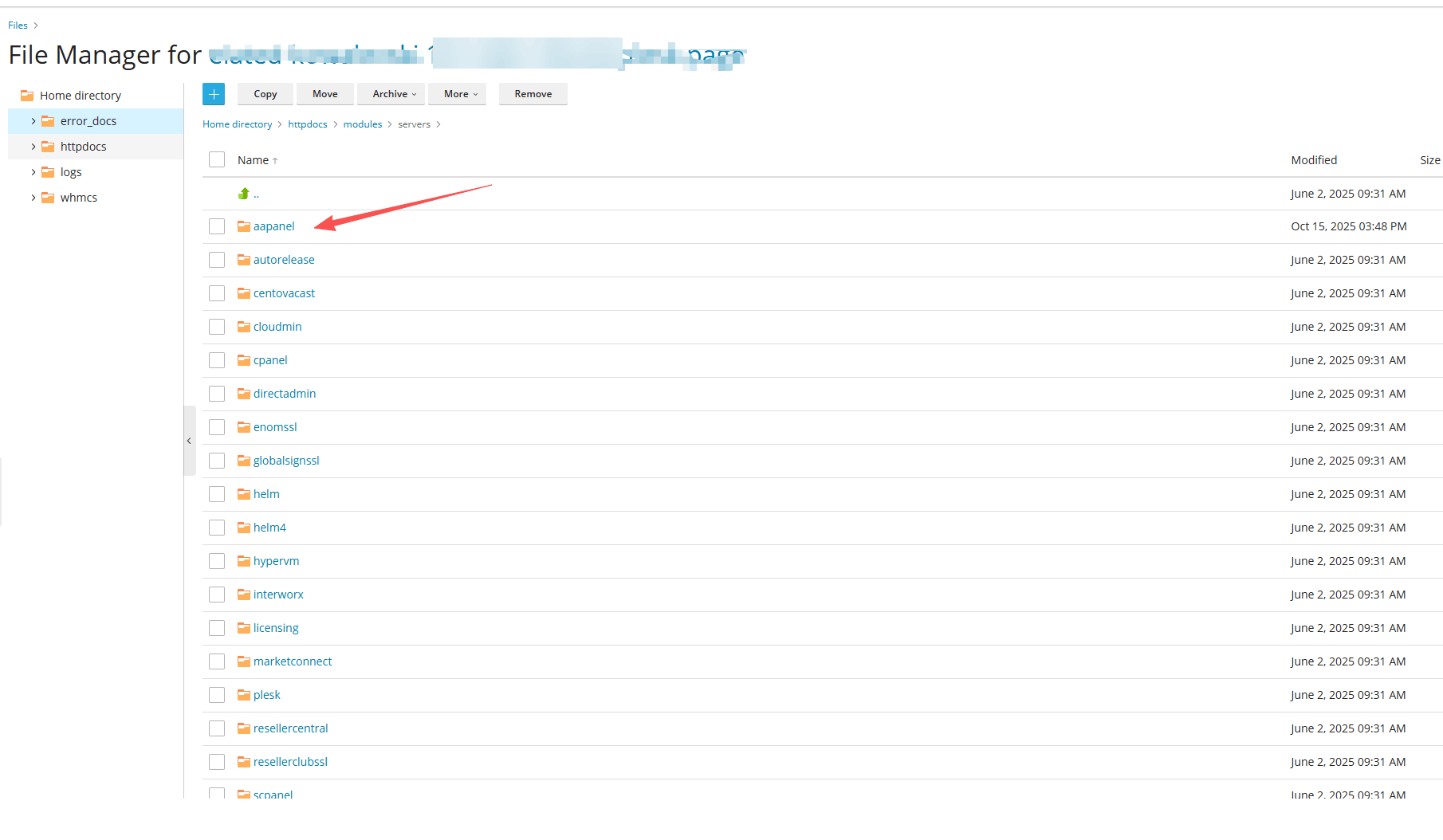
Delete the uploaded compressed file
Add Product in WHMCS
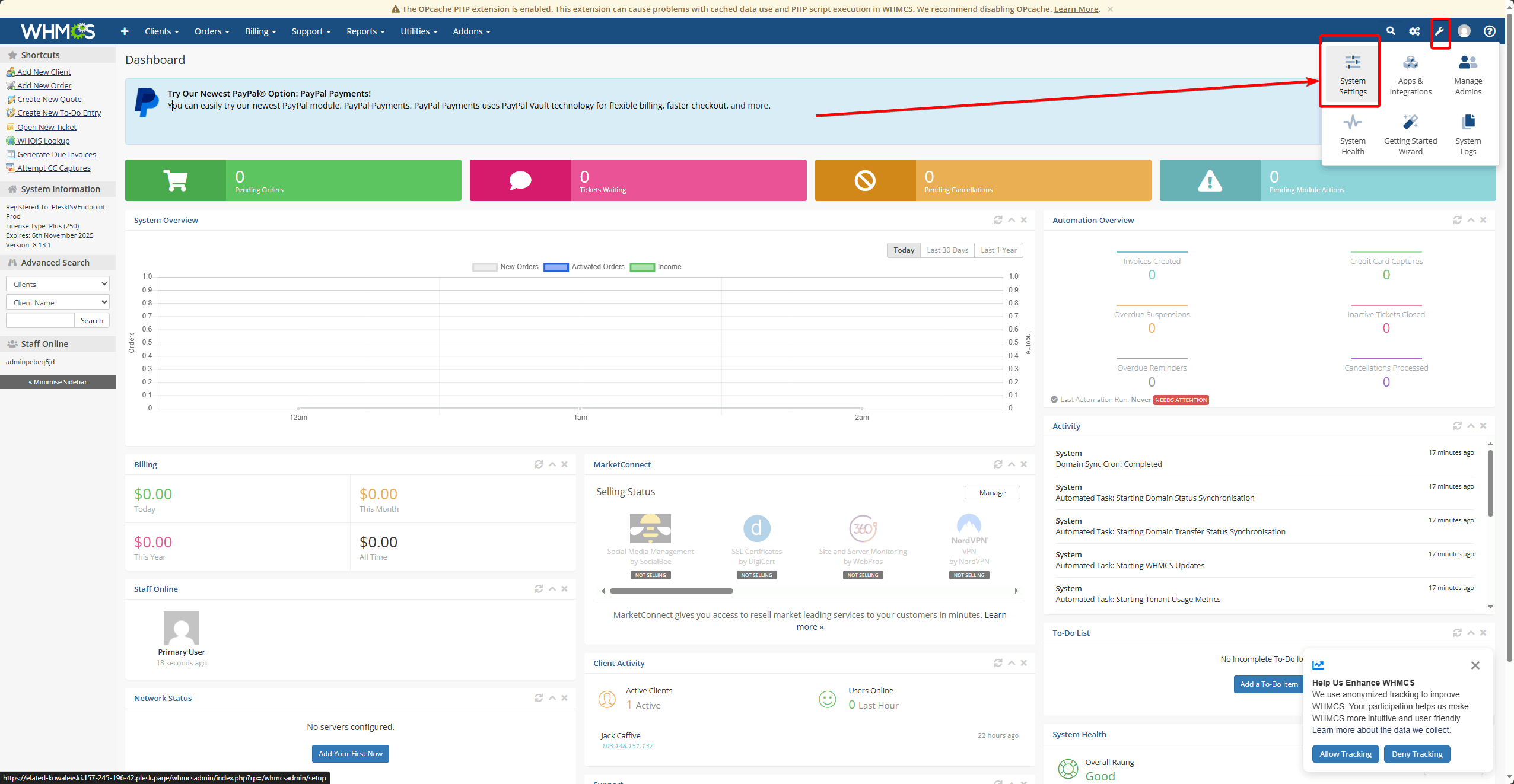
System Settings
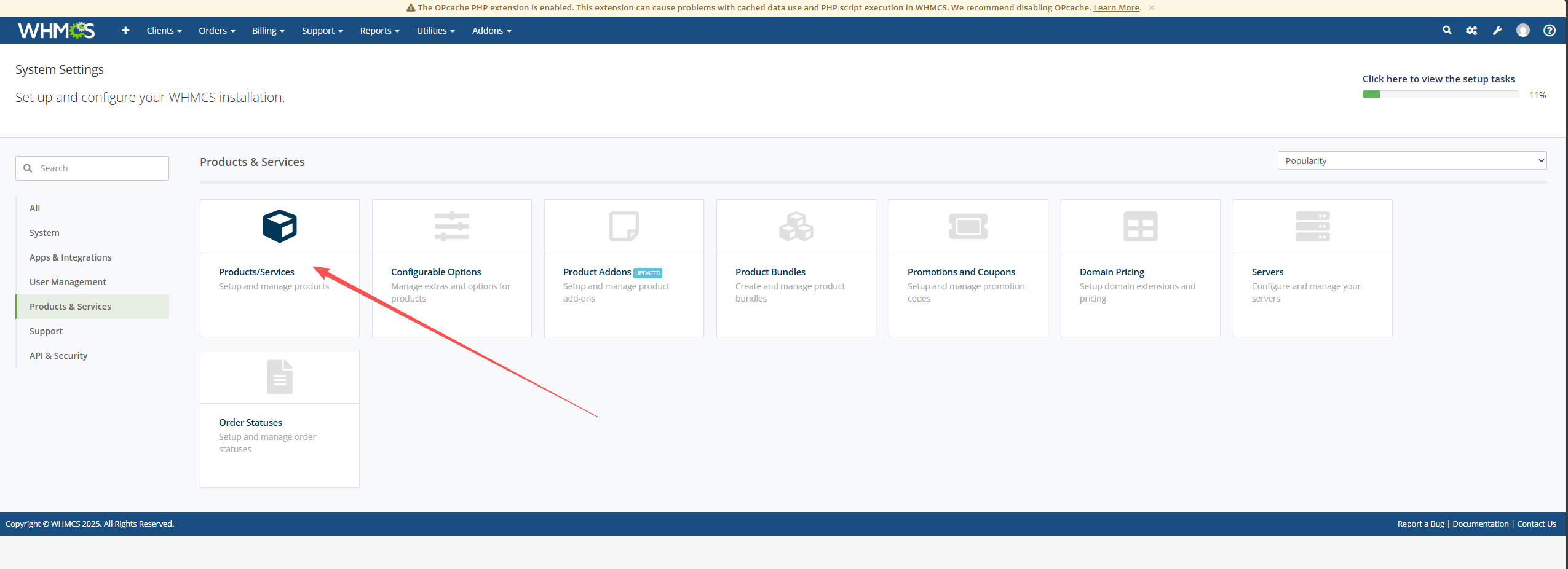
Products & Services
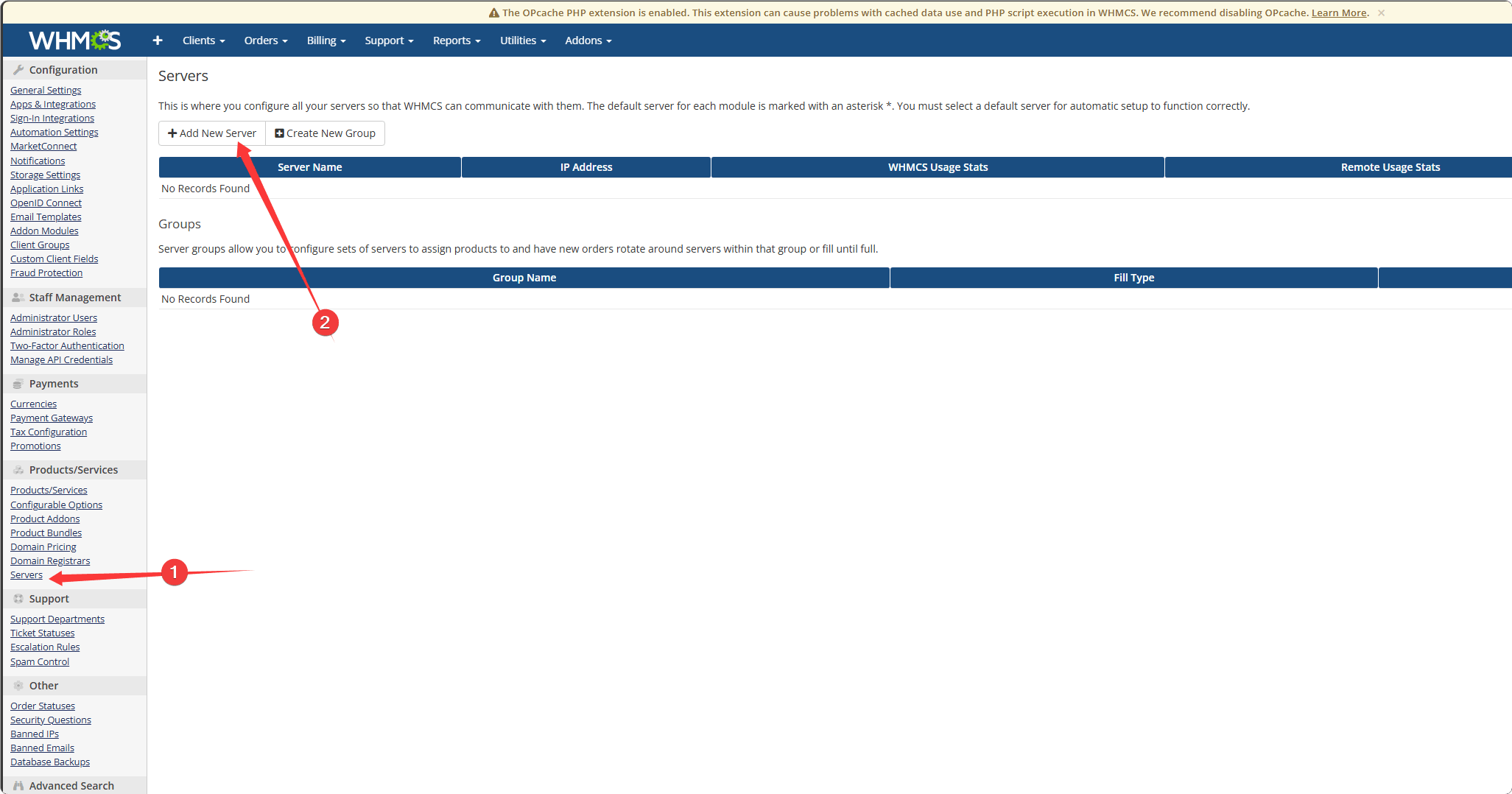
Add New Server
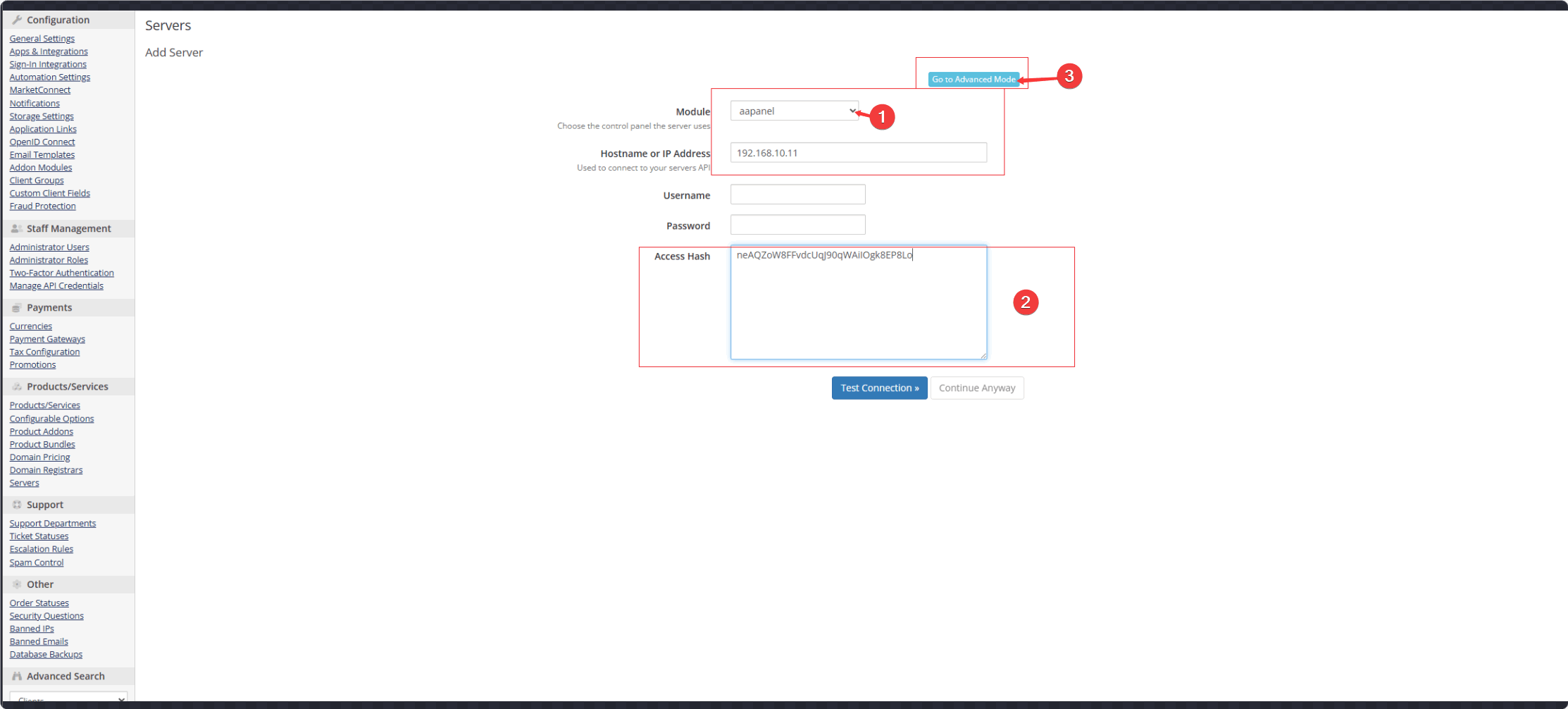
Module: aapanel
Hostname or IP Address: IP address of your aaPanel server
Access Hash: Paste the
API secret keyof aaPanel
Go to Advanced Mode
Override with Custom Port:
Portof your aaPanel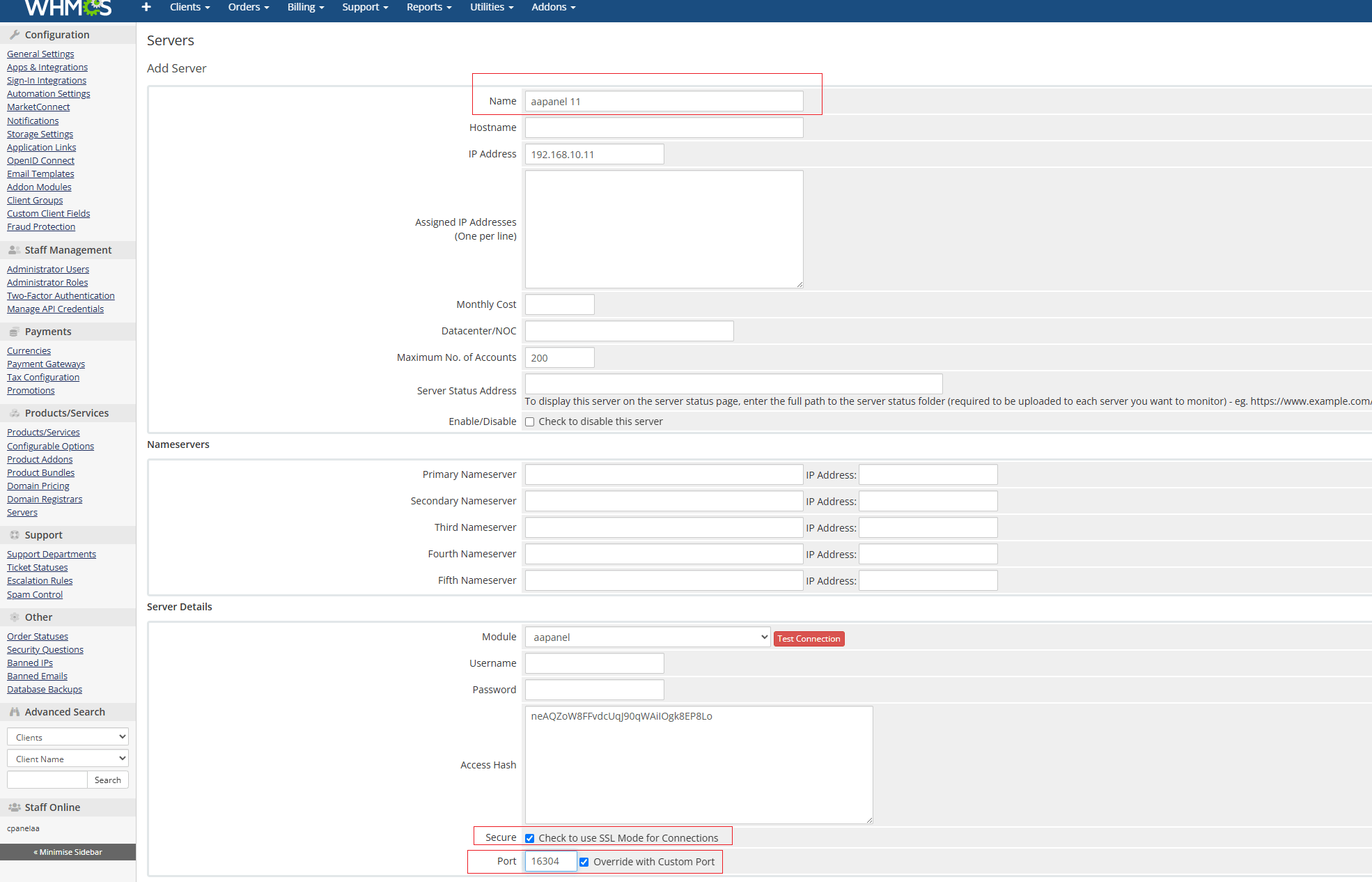
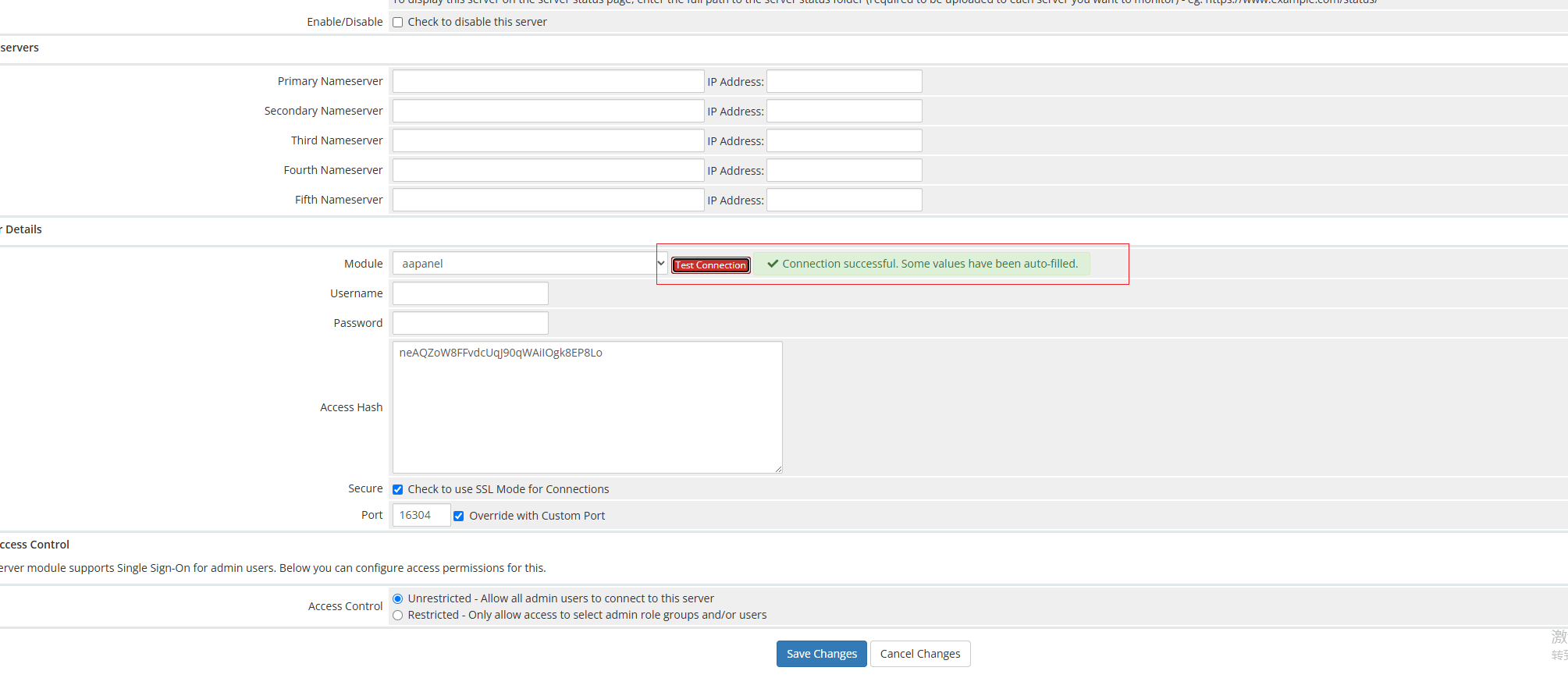
Test Connection.
As shown in the picture, the message "Connection successful. Some values have been auto formed." indicates that the connection is normal. Then click "Save Changes".
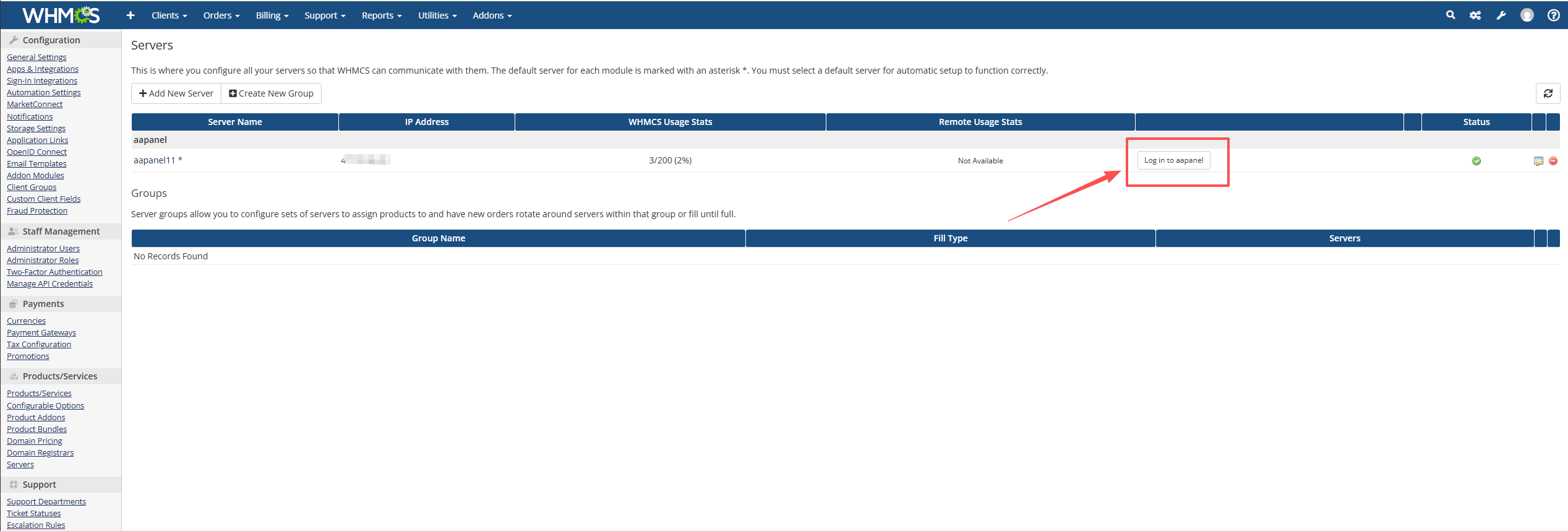
Configure the settings as shown in the picture to enable one-click login to the aaPanel
Create New Product
Products/Services --> Create a New Product
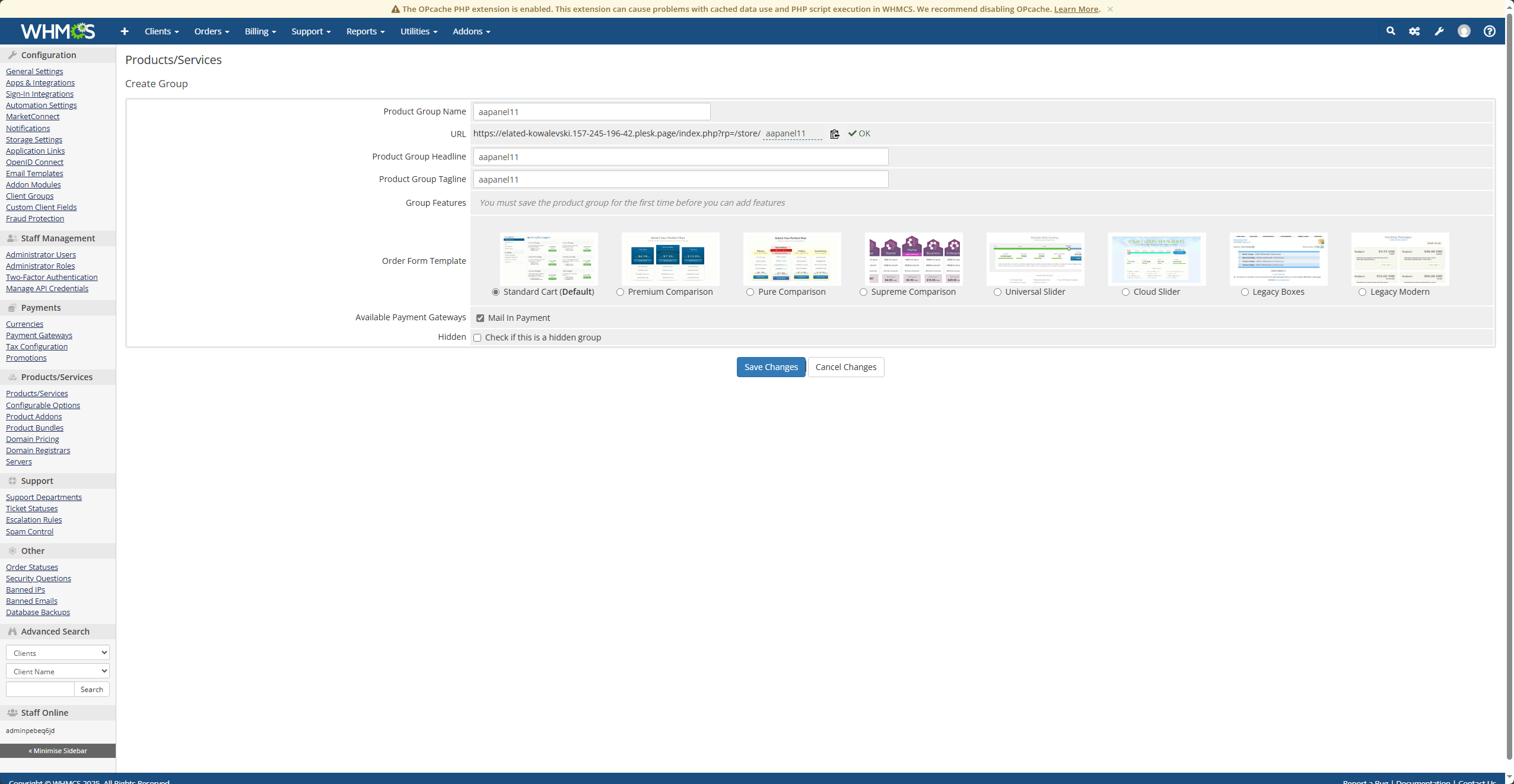
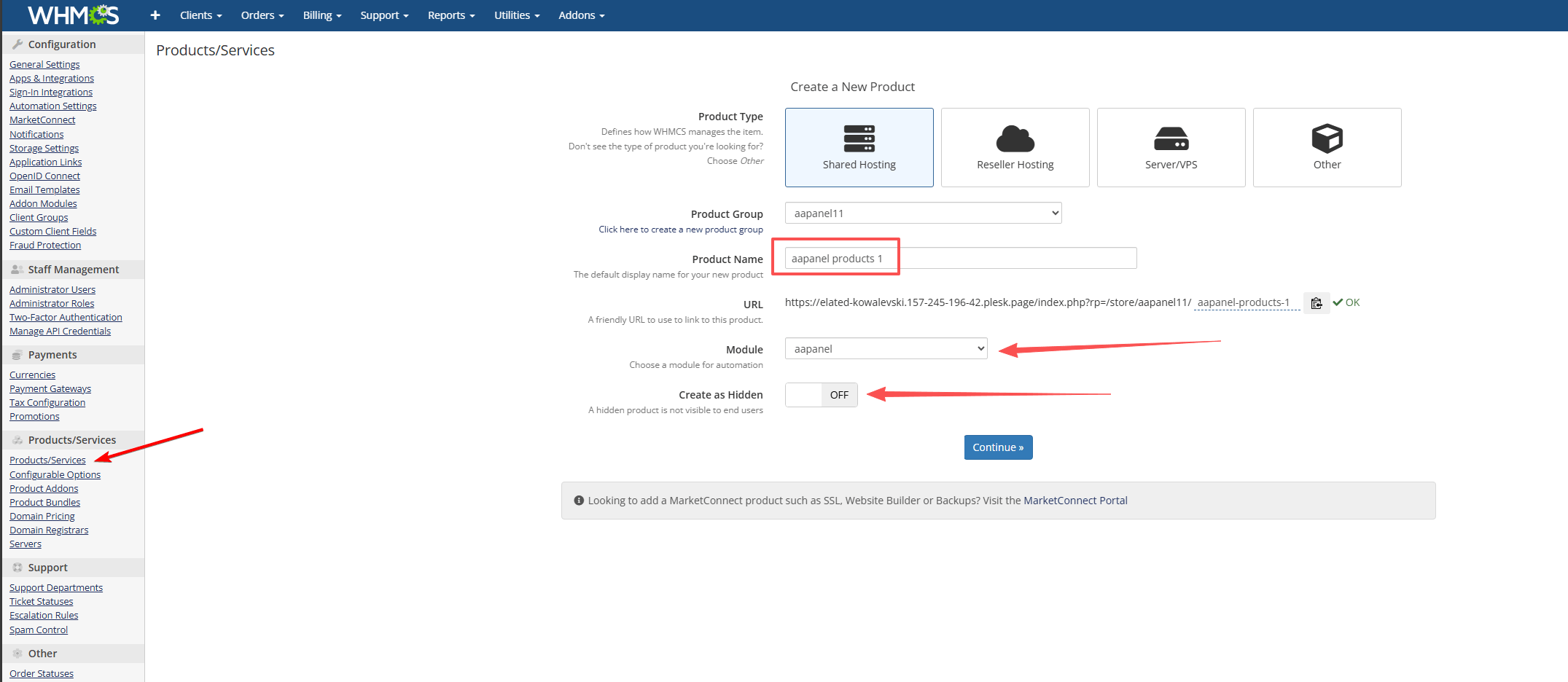
Product Group: Select the Server added earlier
Product Name: Enter your own product name
Module:
aapanelCreate as Hidden:
OFFModule Settings: Choose
Automatically setup the product as soon as an order is placed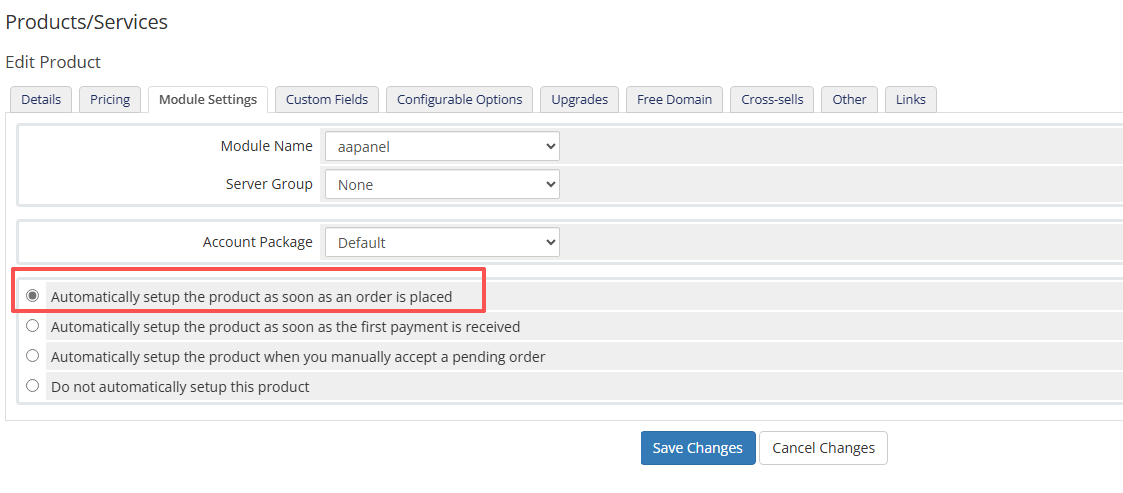
Uncheck
Check to show domain registration options, then click Save Changes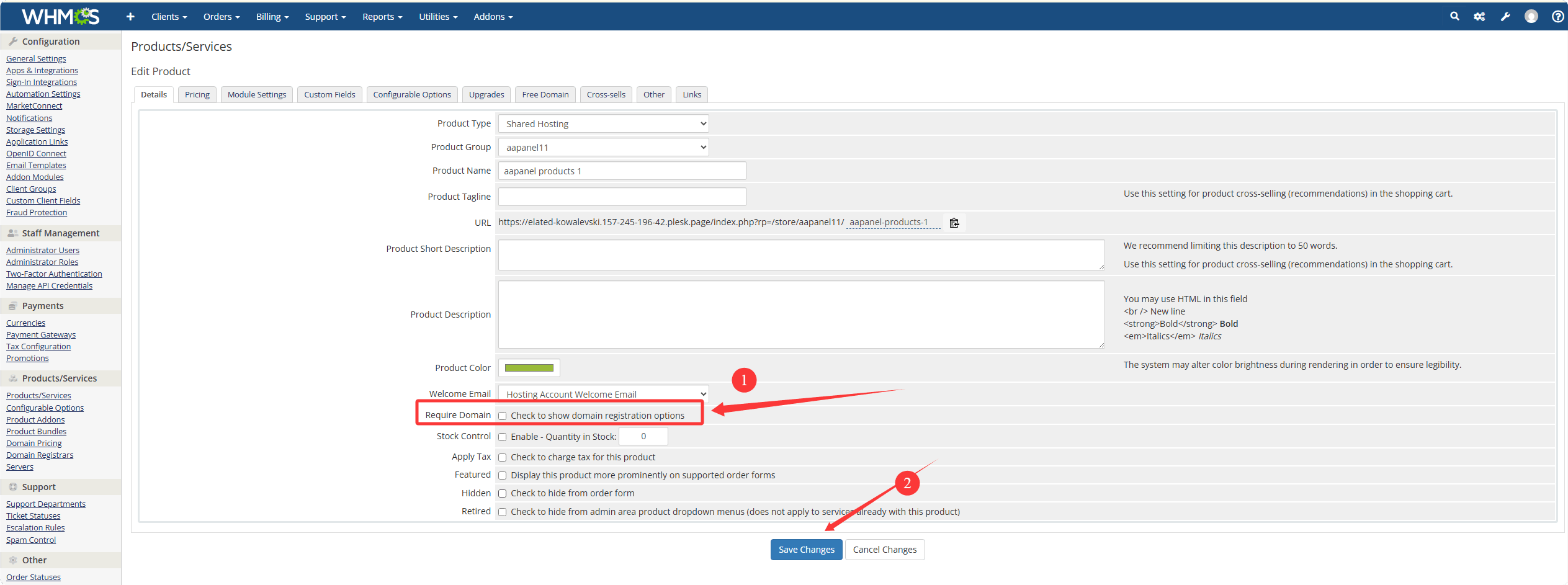
User Purchase Process
Find the corresponding product and purchase it
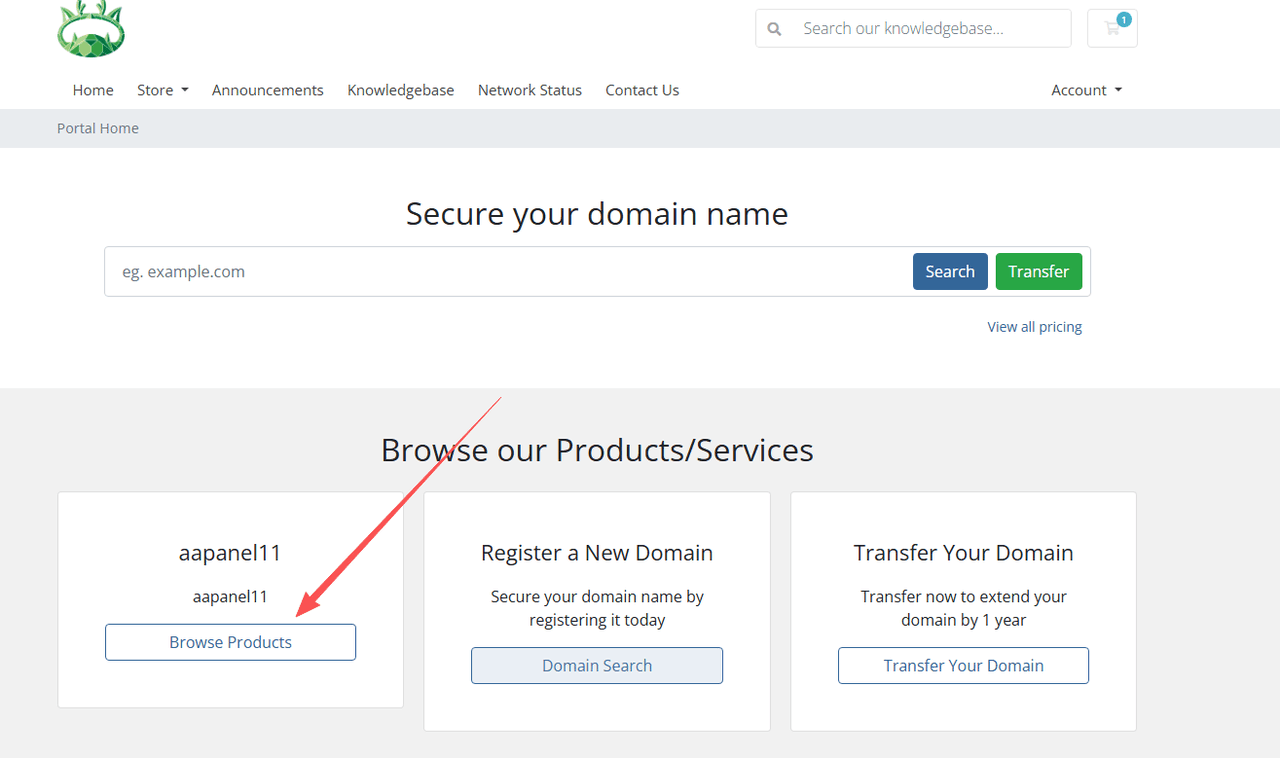
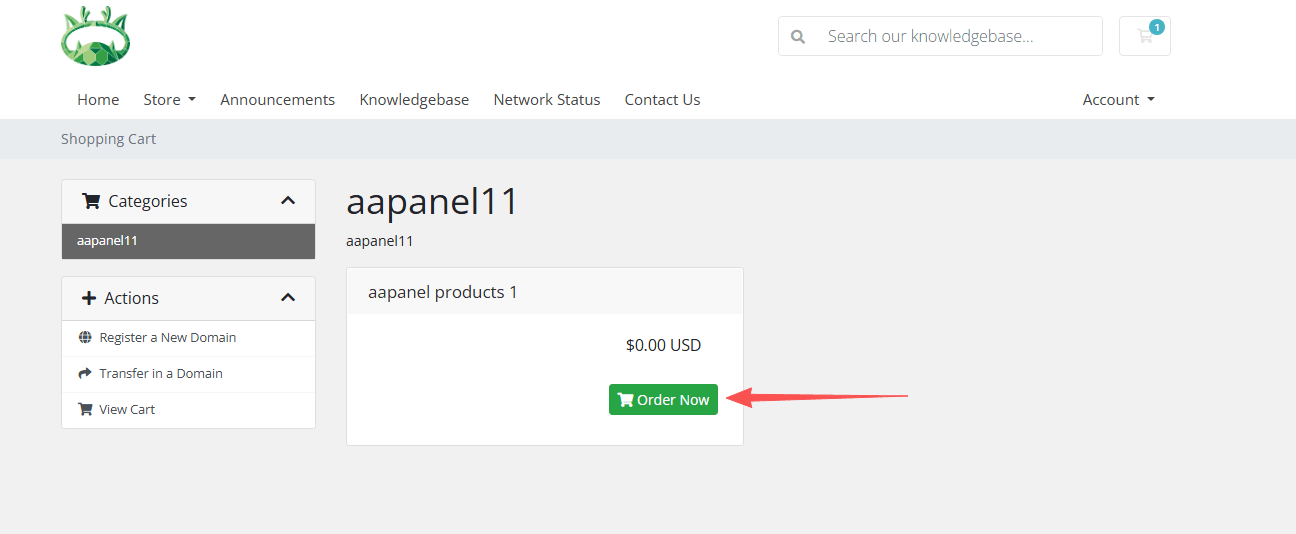
Log in or register an account
Fill in the relevant information and complete the payment
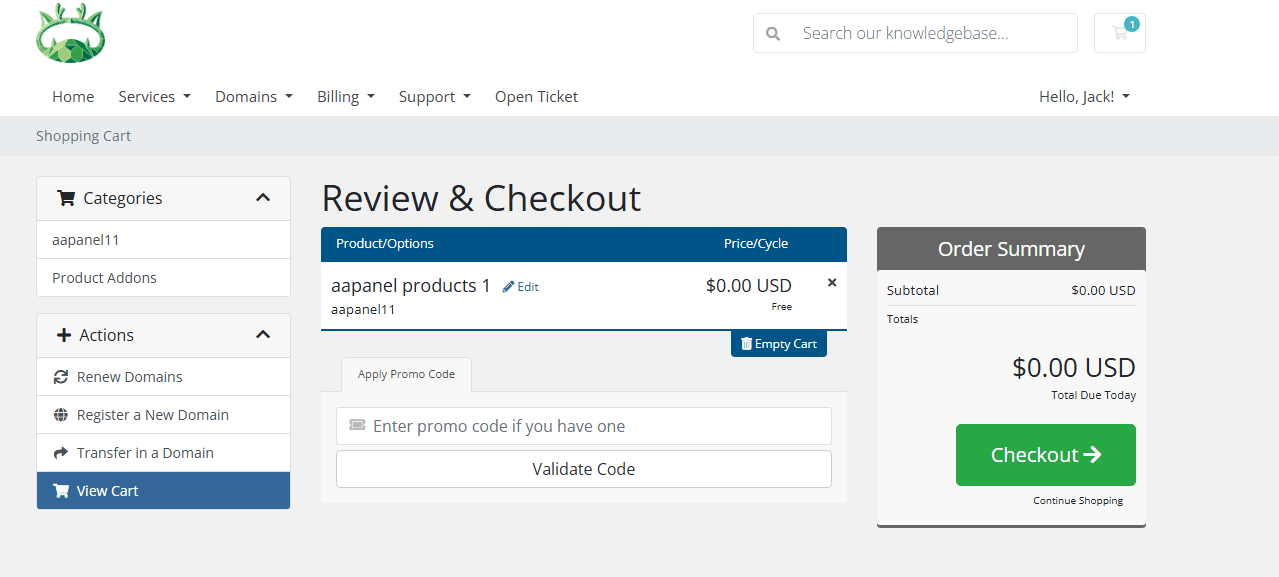
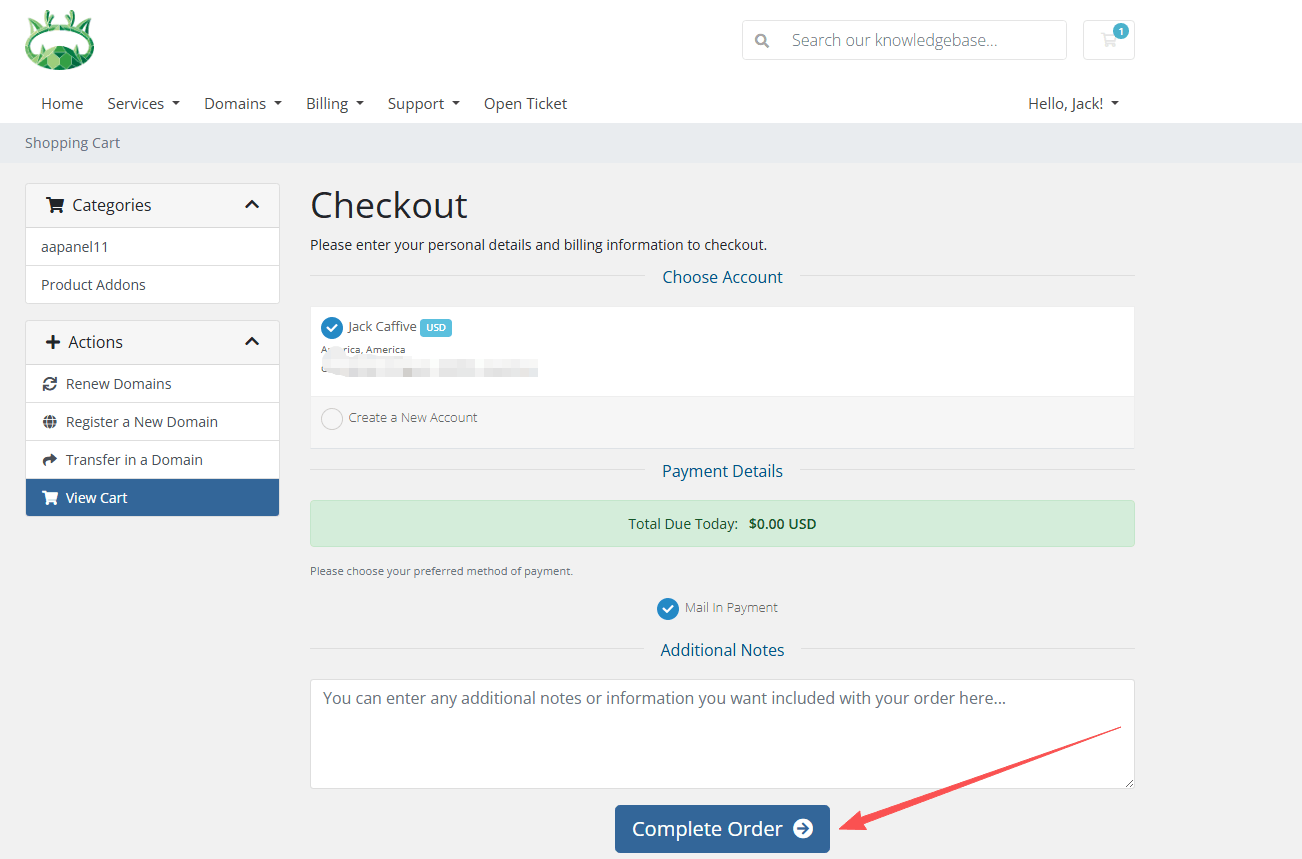
Purchase successful
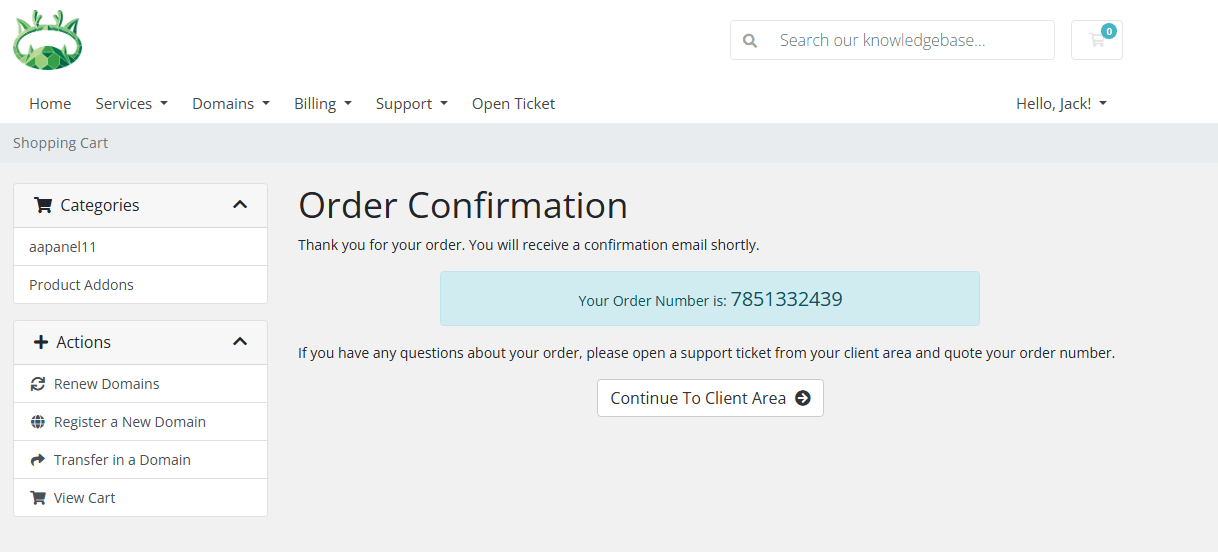
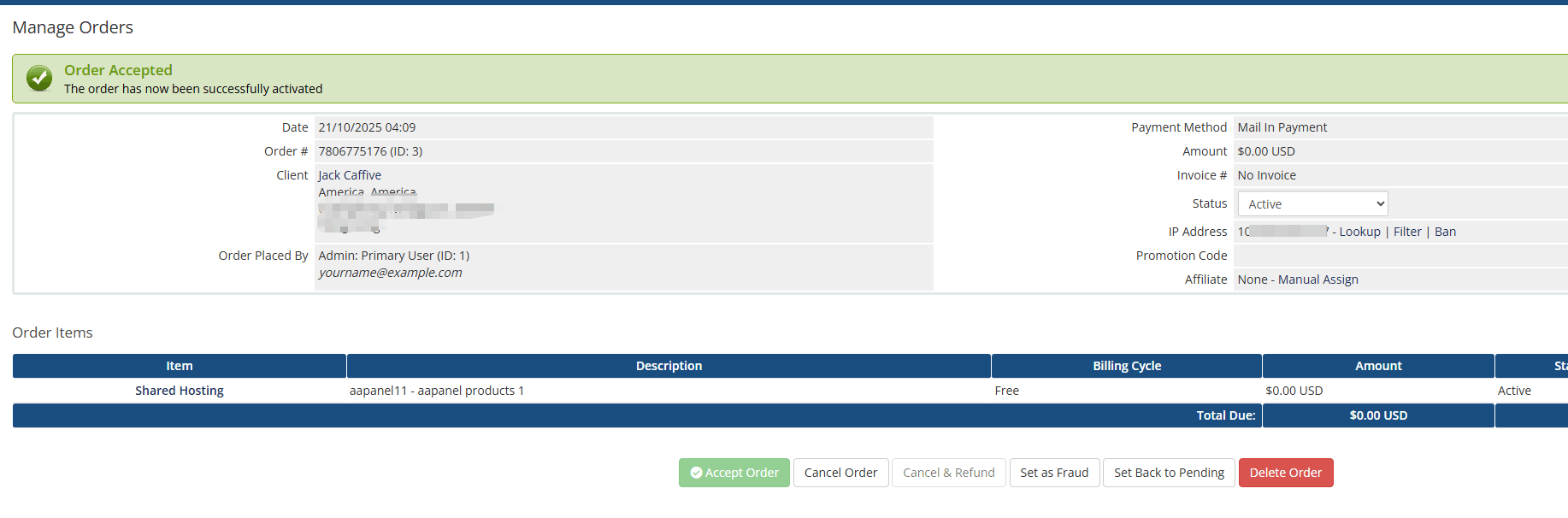
WHMCS Order Confirmation
Order --> List All Orders
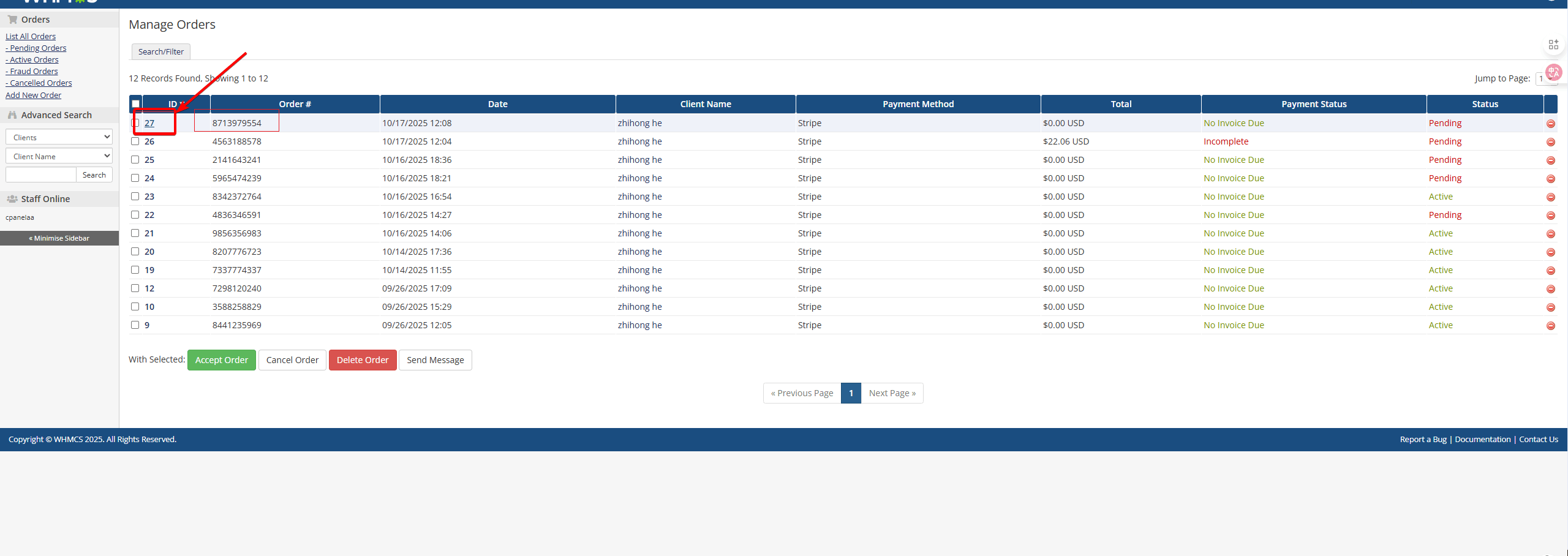
Find the corresponding order
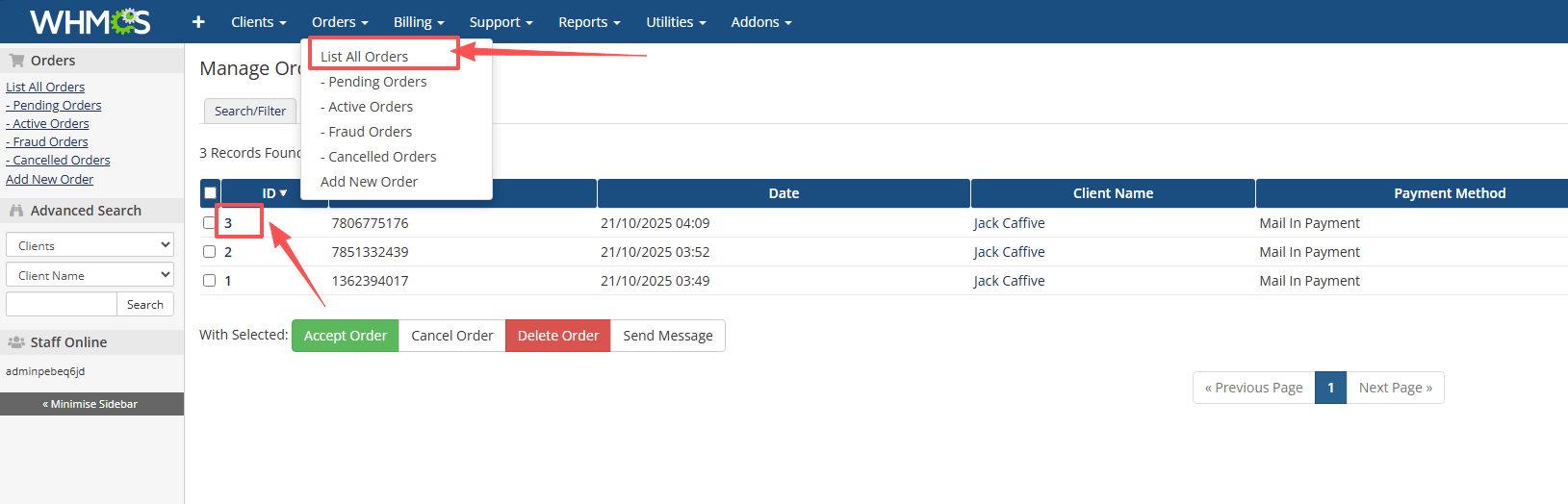
Click the ID to enter the order details page
Add an account, confirm the password, and accept the order
- Must select:
Run Module Create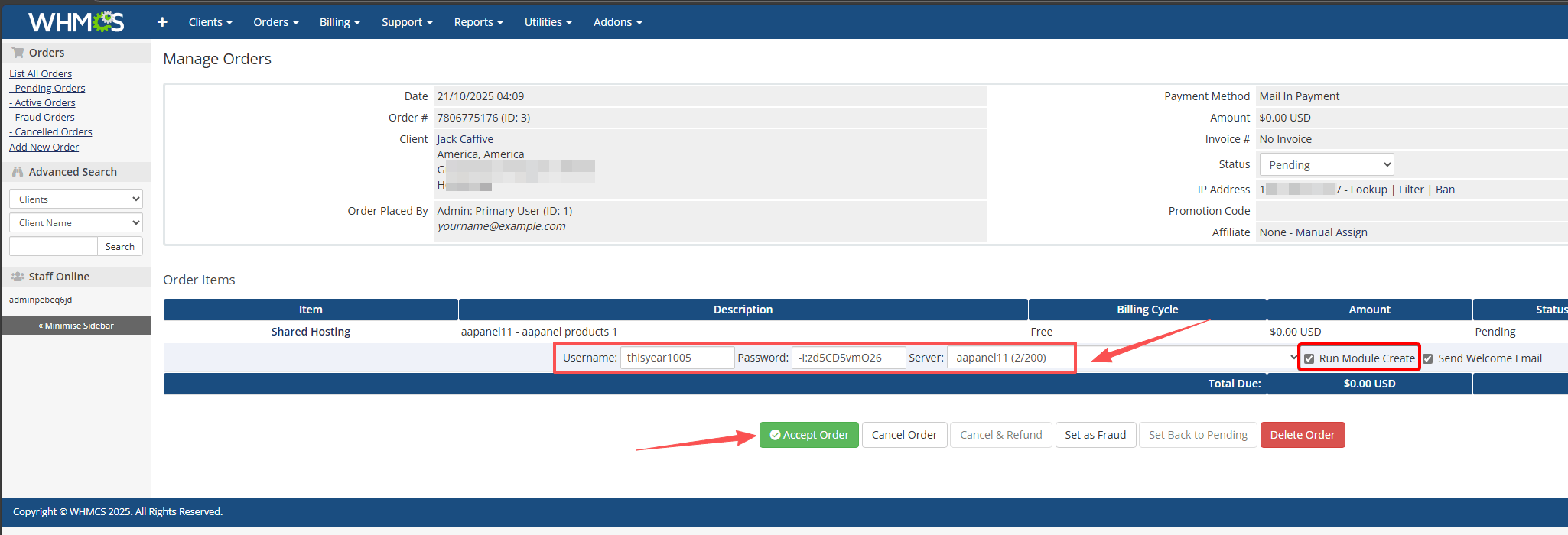
- Must select:
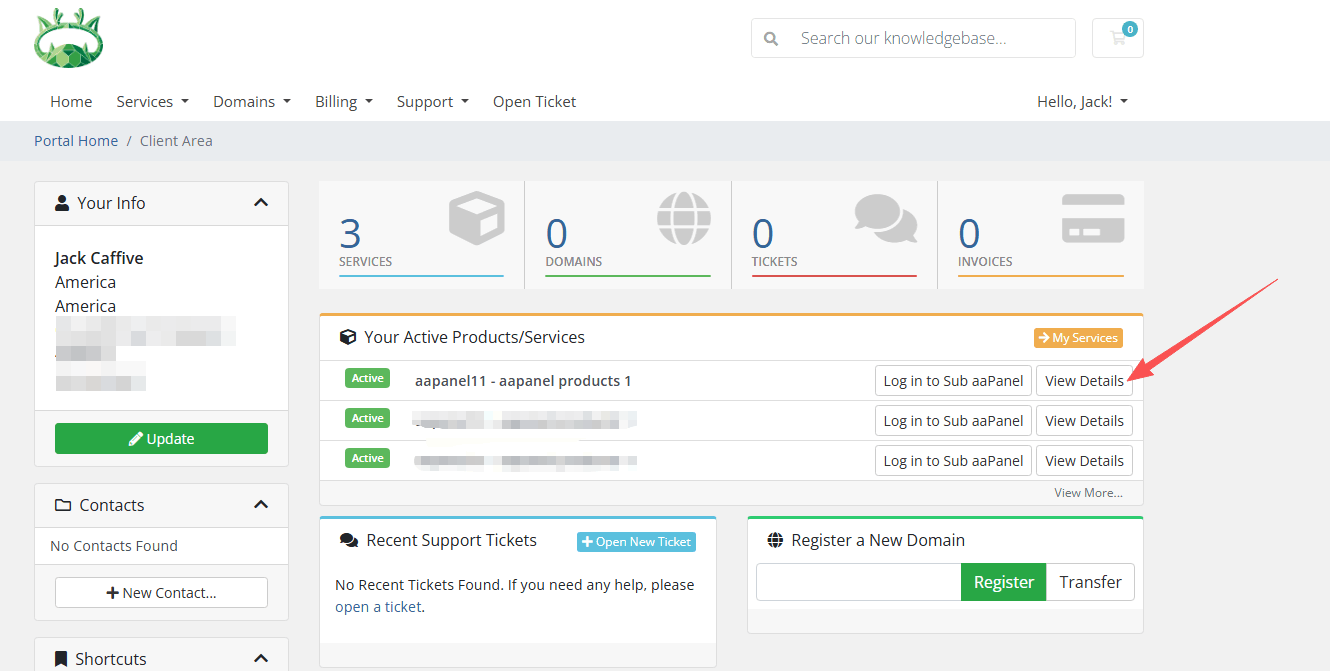
User Usage of Sub aaPanel
View order information
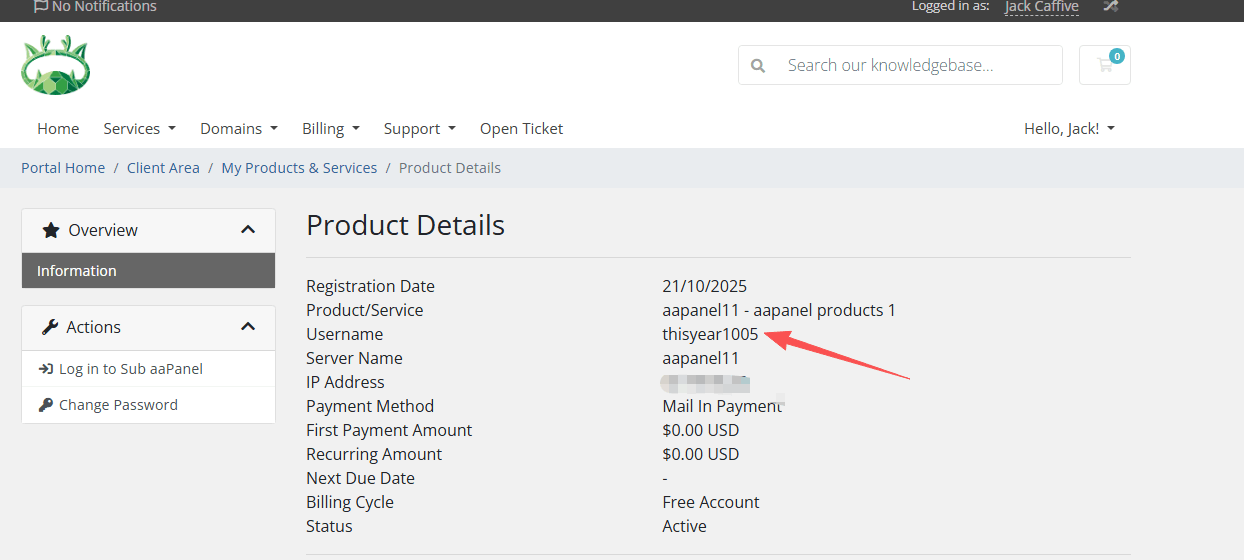
One-click password-free login to Sub aaPanel