
Node Manage and File transfer
Manage remote aaPanel nodes and transfer files between them.
Node Manage Overview
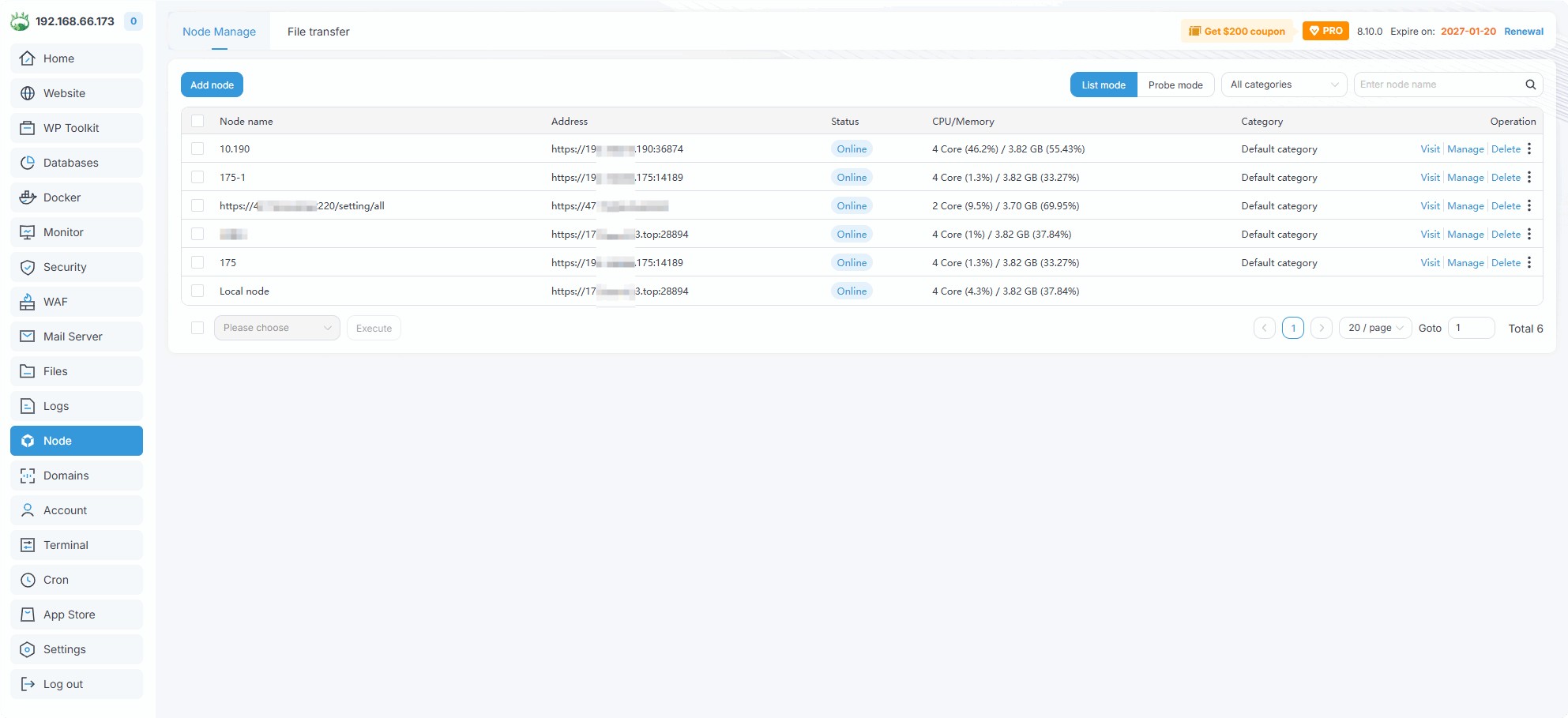
| Function | Describe |
|---|---|
| Add node | Add a remote aaPanel node for management |
| List mode | Switch between list and grid display modes |
| Probe mode | Toggle real-time resource monitoring (CPU/Memory) |
| Node name | Name of the added node, click to visit or manage |
| Address | The panel address of the node |
| Status | Connection status of the node (Online / Offline) |
| CPU/Memory | Display real-time CPU and memory usage of the node |
| Category | Node category for grouping and filtering |
| Visit | Open the remote node's panel directly in a new tab |
| Manage | Manage the node, see options below |
| Delete | Remove the node from the node list |
| Edit node | Modify the node name, panel address, API key, and category etc. |
| Restart panel | Restart the remote panel service |
| Restart service | Restart the remote operating system, please use it with caution |
Add Node
Two methods are supported to add remote aaPanel nodes:
Via Panel API (Recommended)
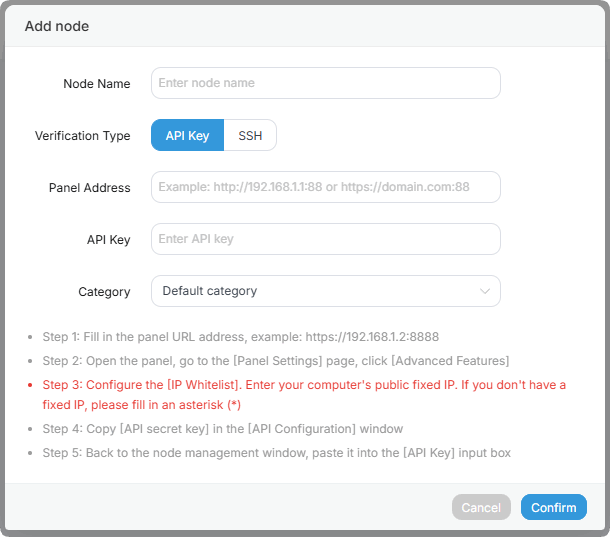
| Function | Describe |
|---|---|
| Node Name | Enter a name to identify the node |
| Verification Type | Select API Key for API-based authentication |
| Panel Address | The remote panel URL, e.g. https://192.168.1.2:8888 |
| API Key | The API secret key from the remote panel |
| Category | Assign the node to category |
Steps to get the API Key:
- Open the remote panel, go to Settings >
Advanced Features.- Configure the
IP Whitelist. Enter your current server's public IP. If you don't have a fixed IP, enter*(not recommended for security).- Copy the
API secret keyfrom theAPI Configurationsection.- Paste the API key into the
API Keyfield and click Confirm.
Via SSH
SSH authentication does not support file transfer functionality.
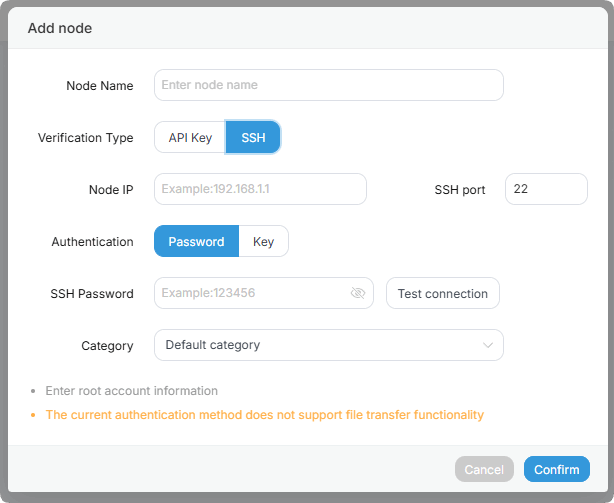
| Function | Describe |
|---|---|
| Node Name | Enter a name to identify the node |
| Verification Type | Select SSH for SSH-based authentication |
| Node IP | The IP address of the remote node |
| SSH port | The SSH port of the remote node (default: 22) |
| Authentication | Choose Password or Key for SSH authentication |
| SSH Password | Enter the SSH password or upload the SSH key file |
| Category | Assign the node to category |
Note: SSH method requires root account information. Use Test connection to verify before confirming.
File transfer
Transfer files between the local node and remote nodes.
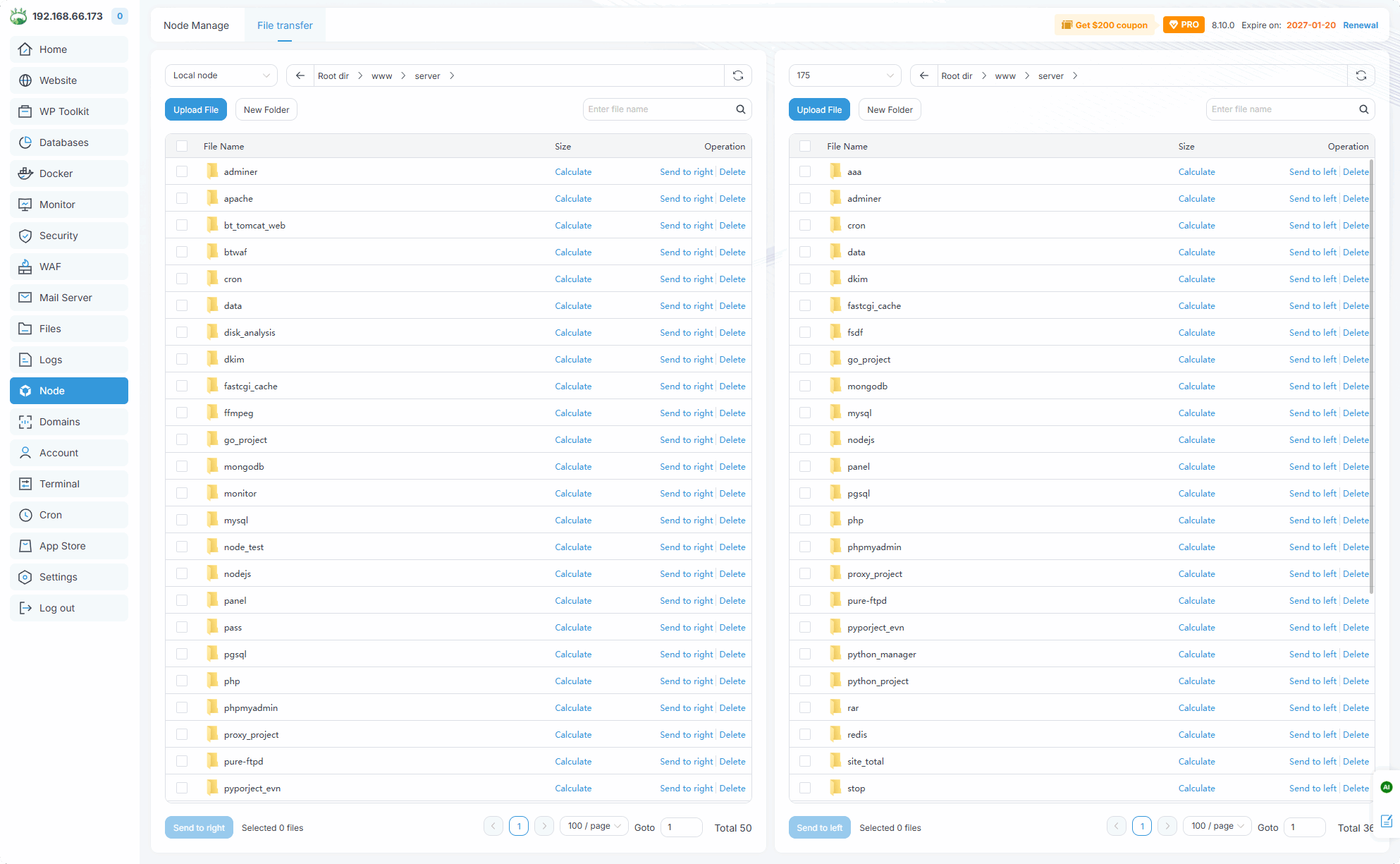
Select the source node on the left and the target node on the right
Select files or directories, then click Send to local node or Send to remote node to transfer
Use the path bar to navigate directories on each node
File transfer is only available for nodes added via API Key. SSH-added nodes do not support file transfer.
Feedback or Suggestions
If you encounter problems or suggestions during use, please contact us through the following methods:
- (Please describe in
detailor providescreenshots)
Email: [email protected]
Discord: https://discord.gg/Tya5yceBpd
Telegram: https://aapanel.com/tg
GitHub: https://github.com/aapanel/aapanel
If you like aaPanel, please give it a Star