
Docker
Docker is a container management platform, which can quickly and easily deploy and manage applications.
aaPanel provides One-Click rapid APP deployment function based on docker container
Docker menu:
| One-Click Install | Overview | Container | Cloud image | Local image |
|---|---|---|---|---|
| Compose | Network | Volume | Repository | Settings |
One-Click Install
aaPanel provides one-click rapid APP deployment function based on docker container
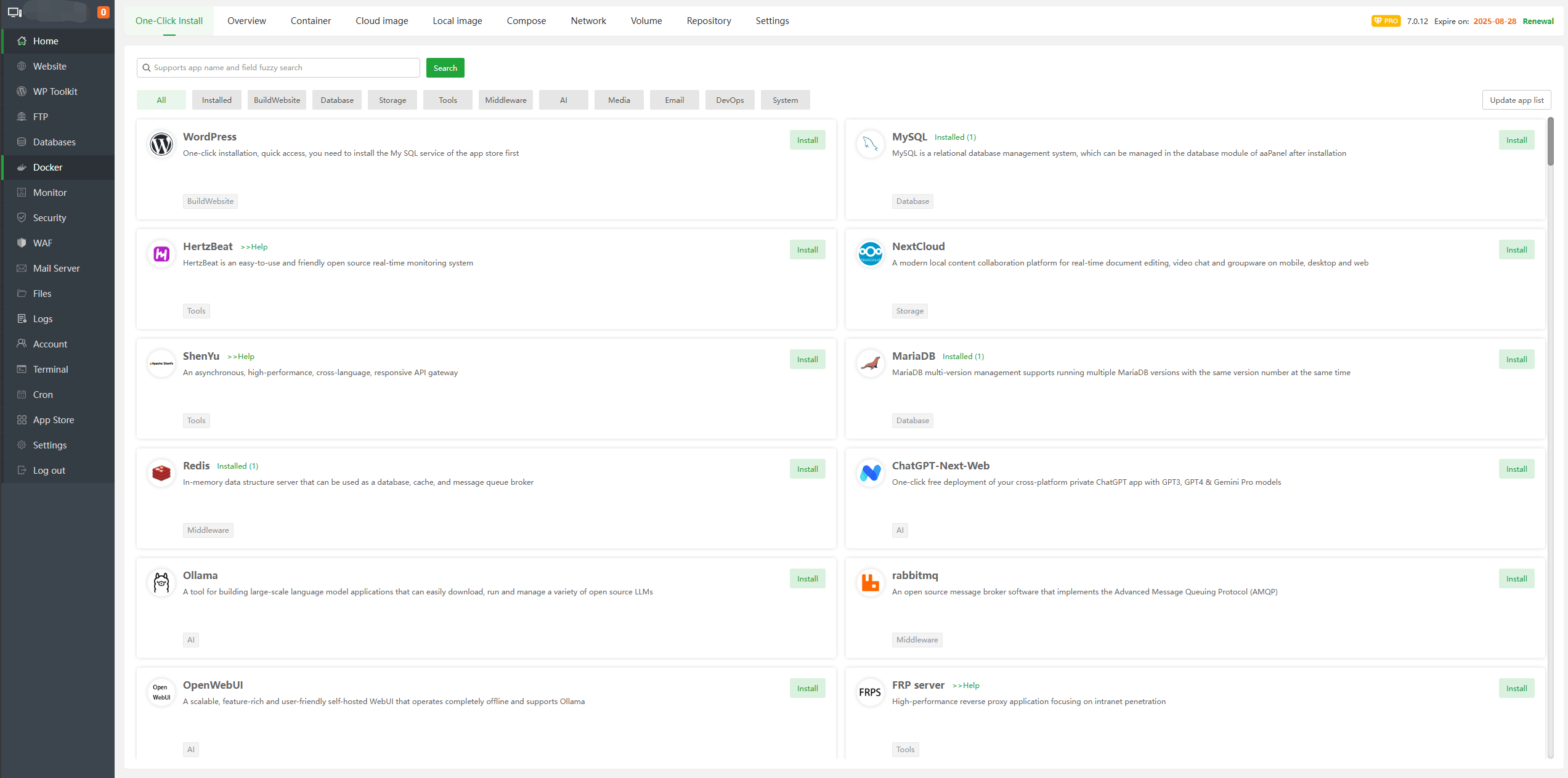
Install : One-Click Install APP
Different one-click installation apps have different requirements, please refer to the display.
- Using
Wiki.jsas an example:
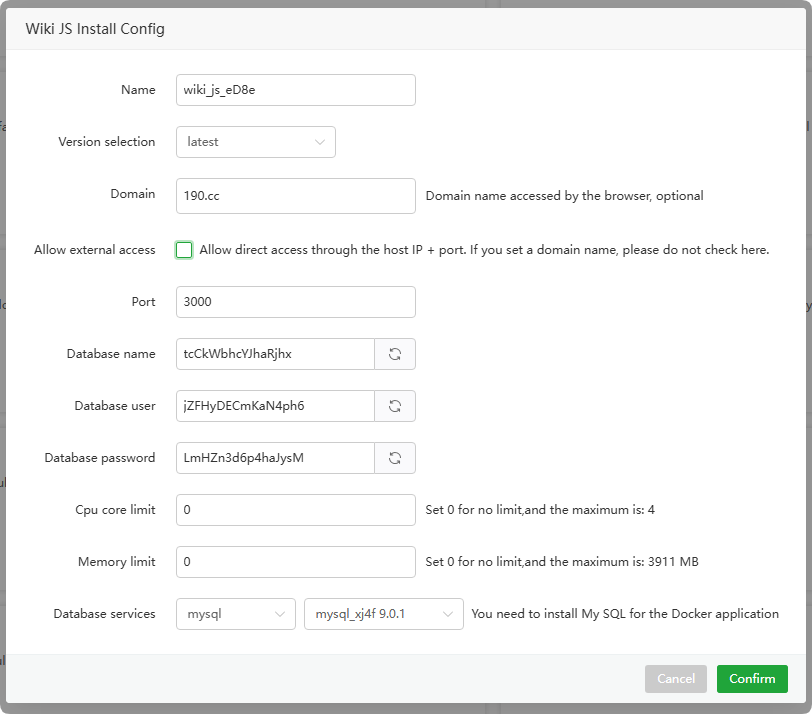
Function Example Describe Name wiki_js_eD8e The name of the one-click installed app Version selectionlatest Selectthe image versionDomain 190.cc Domain name, used to proxy the port mapped by this container in Website --> ProxyAllow external accessDeselect / Option Deselect uses 127.0.0.1:3000listen port, which requires configuringreverse proxyfor access; otherwise, it uses the0.0.0.0:3000listen portPort 3000 The port mappedto the host cannot be an already used portDatabase name tcCkWbhcYJhaRjhx The database name Database user jZFHyDECmKaN4ph6 The database user Database password LmHZn3d6p4haJysM The database password Cpu core limit 0 0 no limit; Max cannot exceed the number of physical CPU cores Memory limit 0 0 no limit; Max cannot exceed the physical memory Database services mysql_xj4f Select the MySQLcontainer name- Complete deployment:

- Using
Update app list : Update One-Click Install APP list
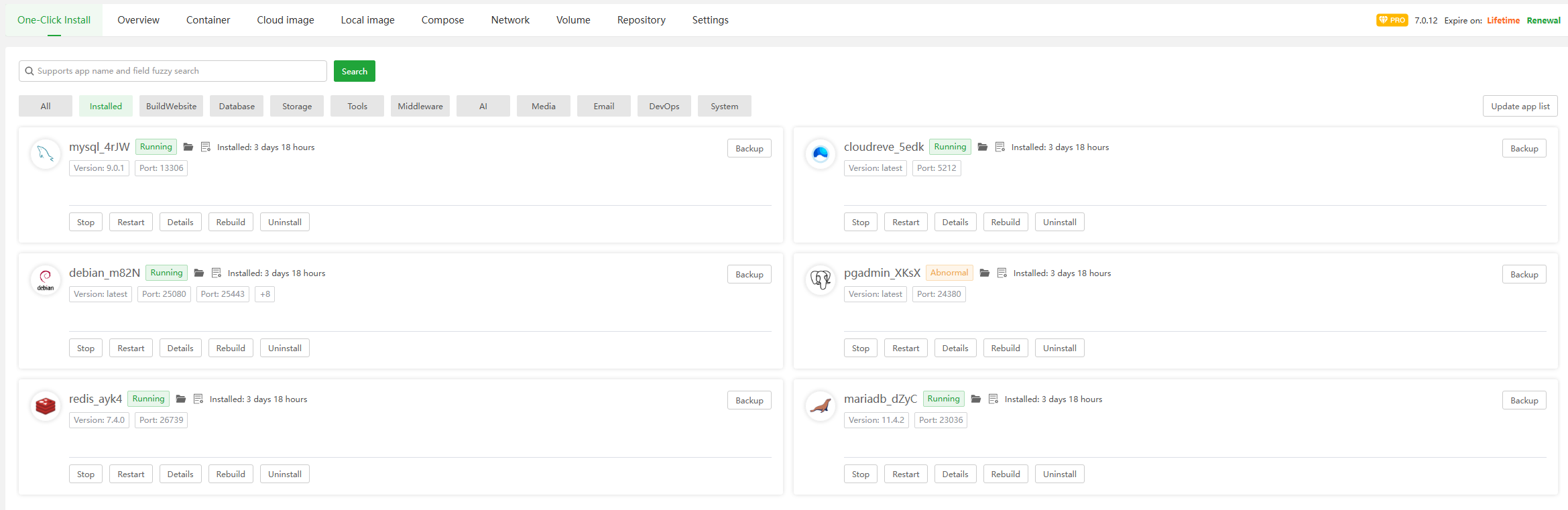
Installed
Show installed one-click installation
- Backup
Display the backup list and back up the persistent data of the one-click install container
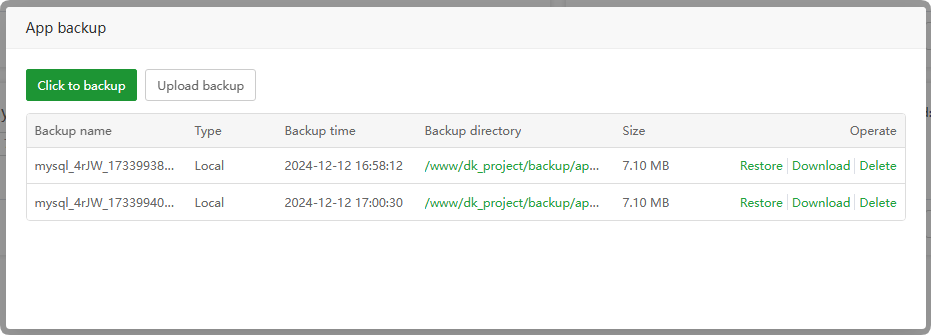
Click to backup : Click to backup now
Upload backup : Upload backup file
Restore : Restore backup
Download : Download backup
Delete : Delete backup
Stop / Restart :
Stopandrestartthis containerDetails : Check the
detailsof one-click installation of APP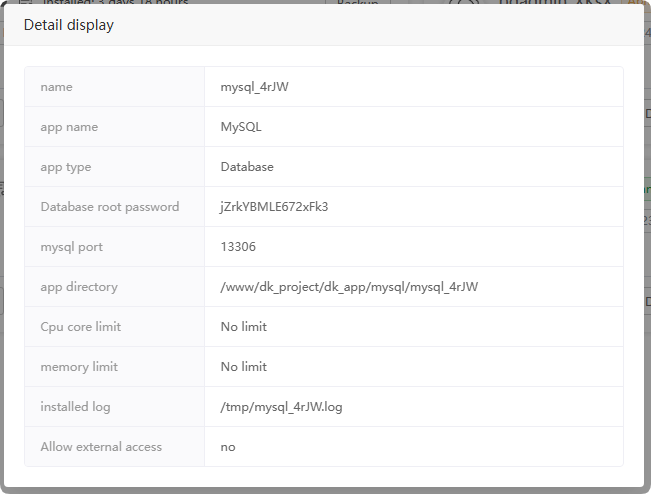
Rebuild
:Rebuildthis container.Please back up databefore operation.Uninstall :
Uninstallthis container.Please back up databefore operation to avoid data loss.Open log
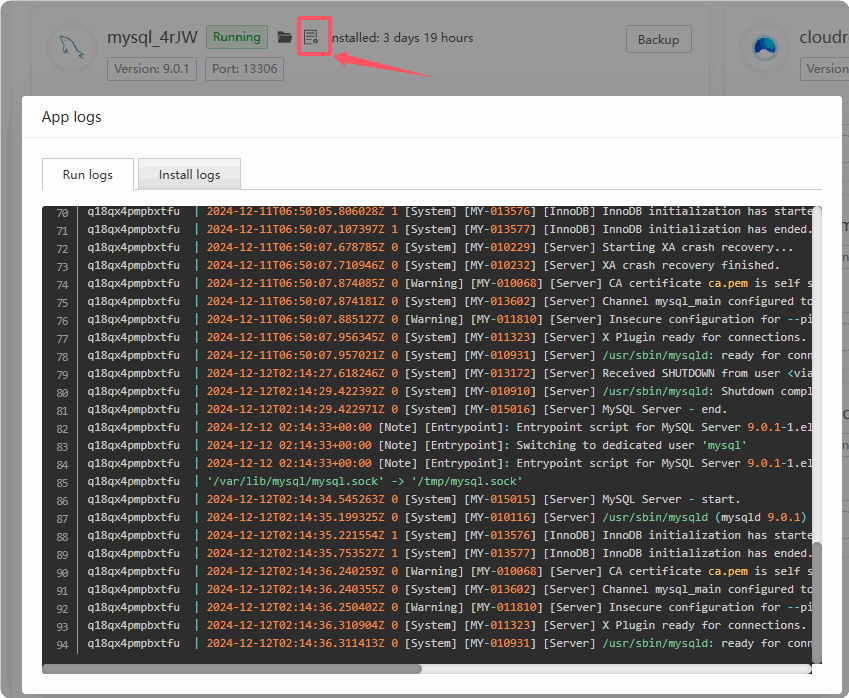
- Run logs: View the container
running log - Install logs: View the
installation logof this APP
- Run logs: View the container
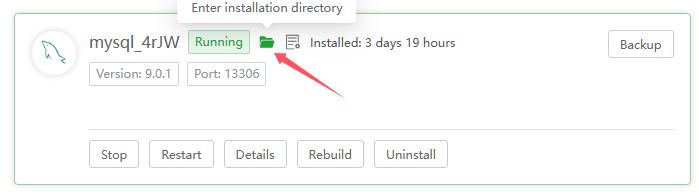
Enter installation directory
Enter the container data directory for one-click install APP
Overview
Check the resource usage of the server and the resource usage of the container.

- Click the
container namemanage the container, see Container name / Manage for details
Container
View the status of the container, start, stop, restart, delete, etc.
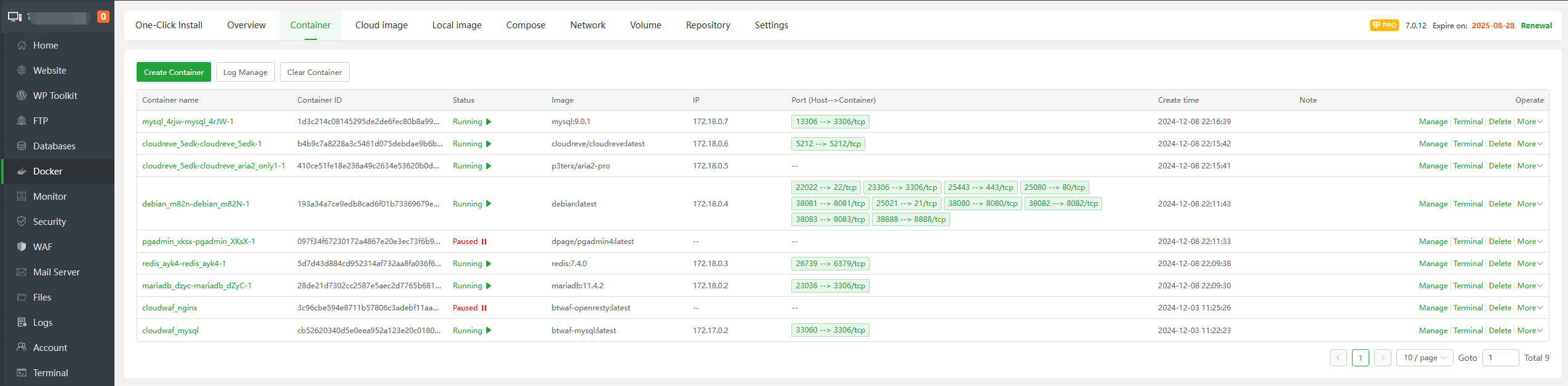
| Function | Example | Describe |
|---|---|---|
| Create Container | Click view Example | Create container from image, form Compose |
| Log Manage | Click view Example | View and manage container logs |
| Clear Container | Clear the container. Do not delete the container while it is in use. Make sure to back up before clearing to avoid data loss. | |
Container name / Manage | Click view Example | Container name, click to manage the container |
| Container ID | afeb6.....24406d124 | Container ID, which is the unique identifier of the container |
| Status | Running | Container status, click to Stop, Start, Restart, Kill, Pause |
| Image | nextcloud:latest | Image used by the container:version |
| IP | 172.19.0.3 | Container’s IPv4 |
Port (Host-->Container) | 8001 --> 80/tcp | The port mapped from the host to the container. Note: The network is port that will not be displayed in host mode |
| Create time | 2024-12-11 17:18:38 | Container creation time |
| Note | Container remarks | |
| Terminal | Click view Example | Enter the container terminal |
| Delete | Delete the container. Make sure to back up before deleting to avoid data loss. | |
| More | Click to use more functions | |
| Rename | Click view Example | Rename container |
| Path | Click view Example | Click to useFilesEnter the container's directory |
Log Manage
Container --> Log Manage
Container --> More --> Log
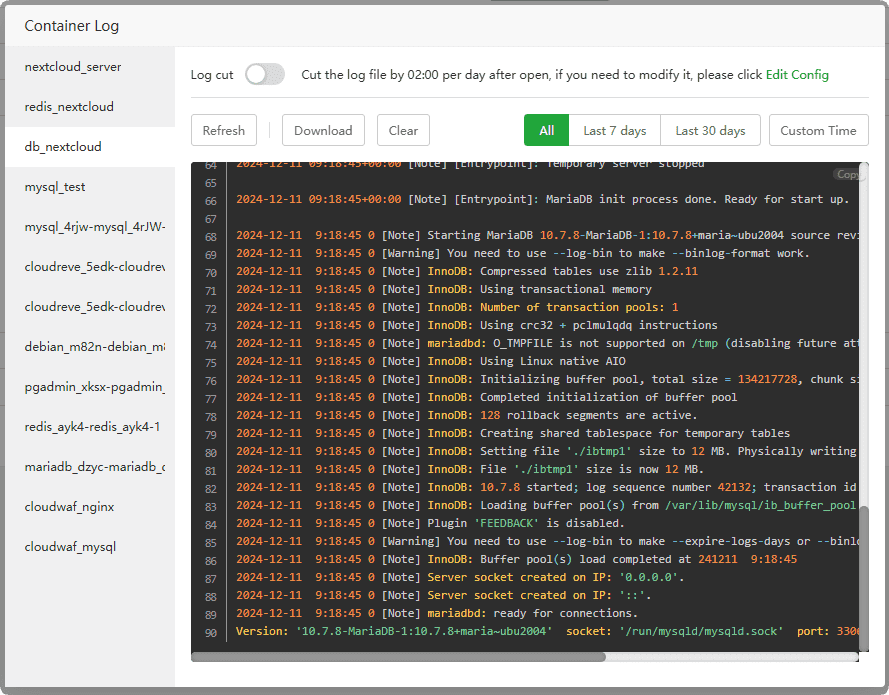
Log cut : To turn on or off log cutting, click
Edit ConfigModify cutting time.Refresh : Refresh the log of the current container
Download : Download the logs of the current container
Clear : Clear container logs
All : Display
all logsof this containerLast 7 days : Display the logs of the last 7 days
Last 30 days : Display the logs of the last 30 days
Custom Time : Display logs at
specified time
Clear Container
Container --> Clear Container
Clearstops unused containers.Please back up databefore operation to avoid data loss.
Container name / Manage
Container --> Container name
Container --> Manage
- Container status
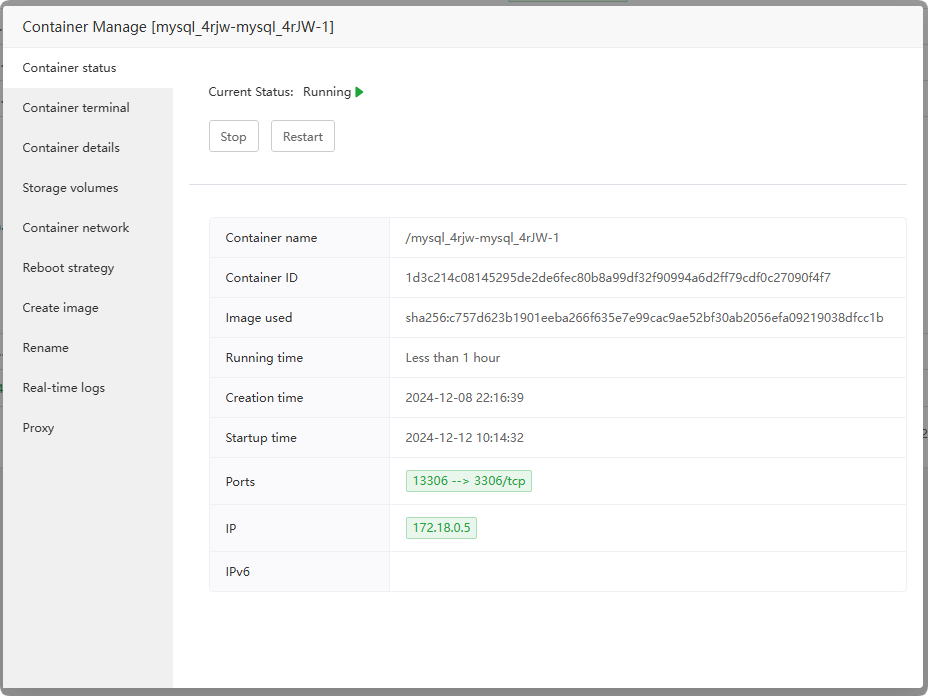
| Function | Example | Describe |
|---|---|---|
| Current Status: | Running | Start, Stopped, Restart Container |
| Container name | /mysql_4rjw-mysql_4rJW-1 | The name of this container |
| Container ID | 1d3c2....7090f4f7 | The ID of this container |
| Image used | sha256:c757d623....8dfcc1b | This container uses the image ID |
| Running time | Less than 1 hour | The running time of this container |
| Creation time | 2024-12-08 22:16:39 | The creation time of this container |
| Startup time | 2024-12-12 10:14:32 | The startup time of this container |
| Ports | 13306 --> 3306/tcp | Ports of host and container Host --> Container |
| IP | 172.18.0.5 | IPv4 for this container |
| IPv6 | fd02:c0a8:10:0:0:0:0:1 | IPv6 for this container |
- Container terminal
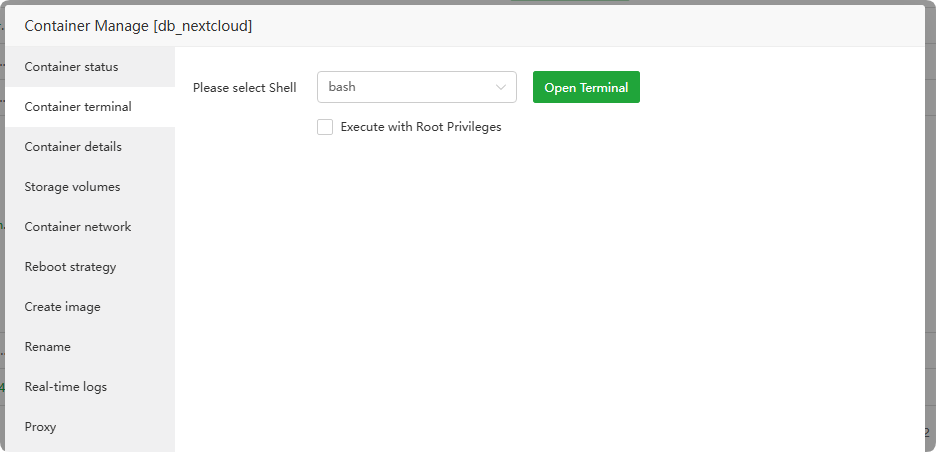
Please select Shell : Select terminal type:
bash,shExecute with Root Privileges : Log in to the container and use the
rootuser
- Container details
View Display
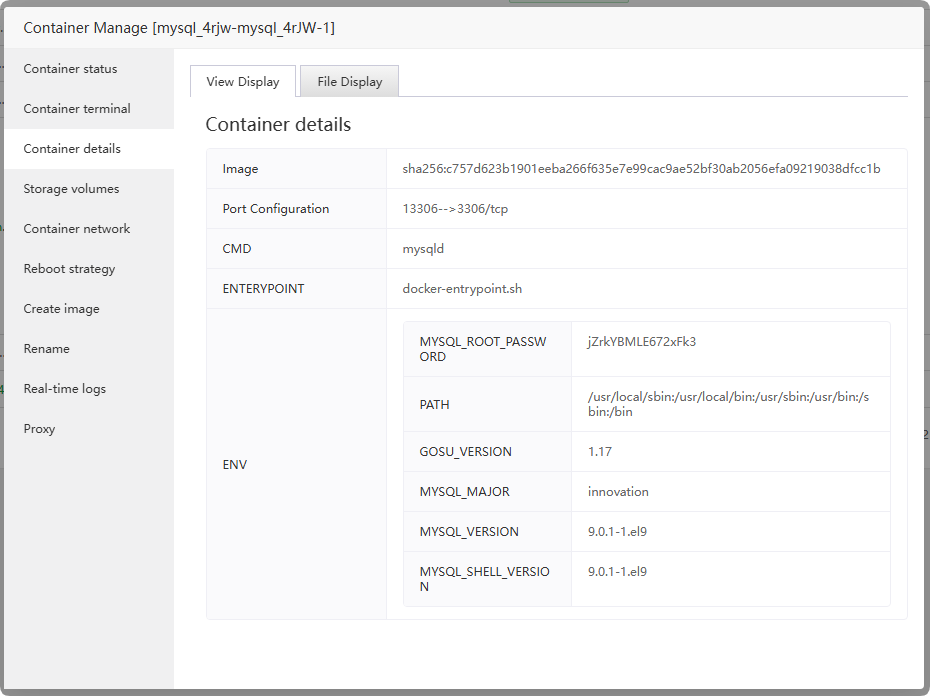
- View Container
details
- View Container
File Display
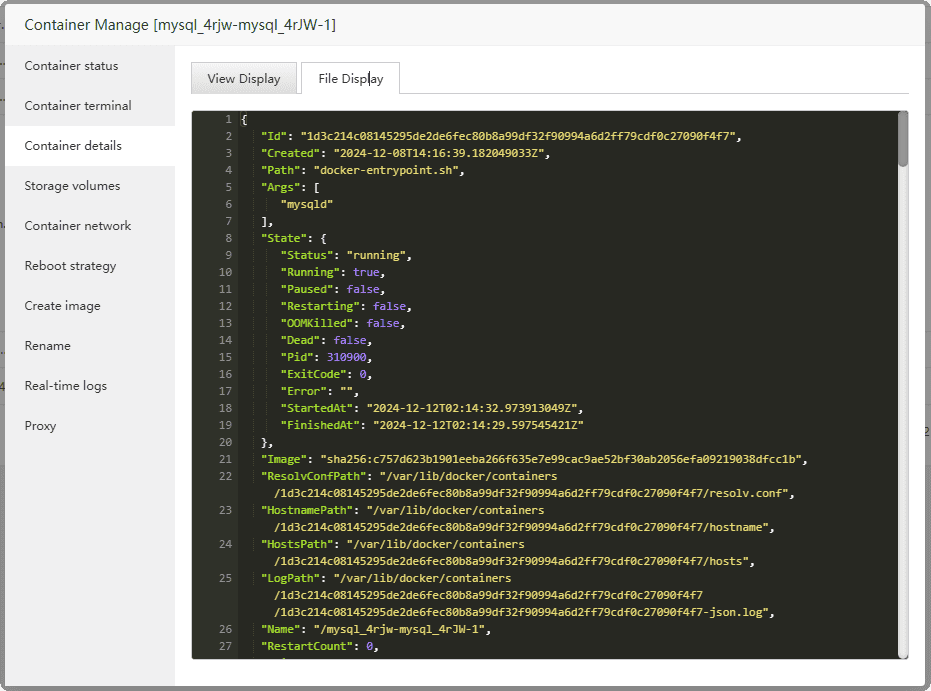
- Display the
inspect informationof the container, that is:docker inspect mysql_4rjw-mysql_4rJW-1
- Display the
Storage volumes
Show container storage volumes
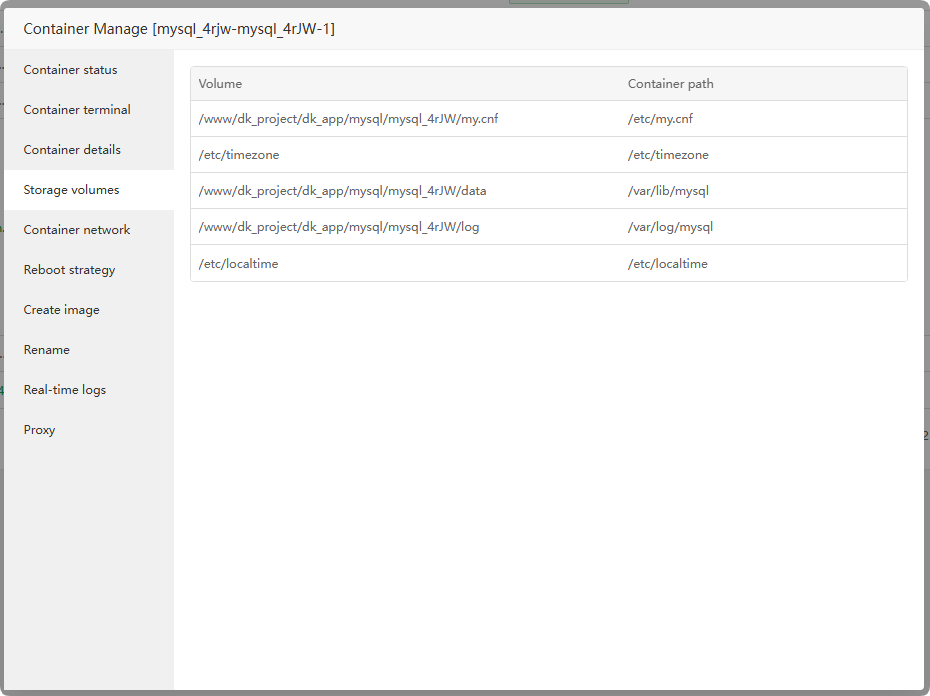
- Volume :
Hostdirectory/file - Container path : Directory/file of the
container
- Volume :
Container network
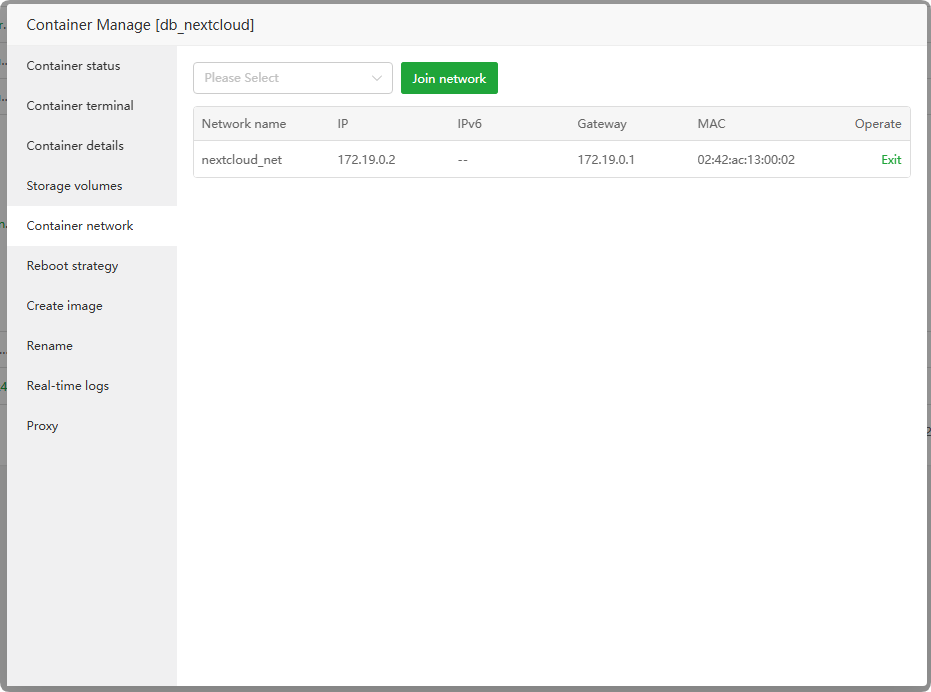
View,join, andexitthe container's network
- Reboot strategy
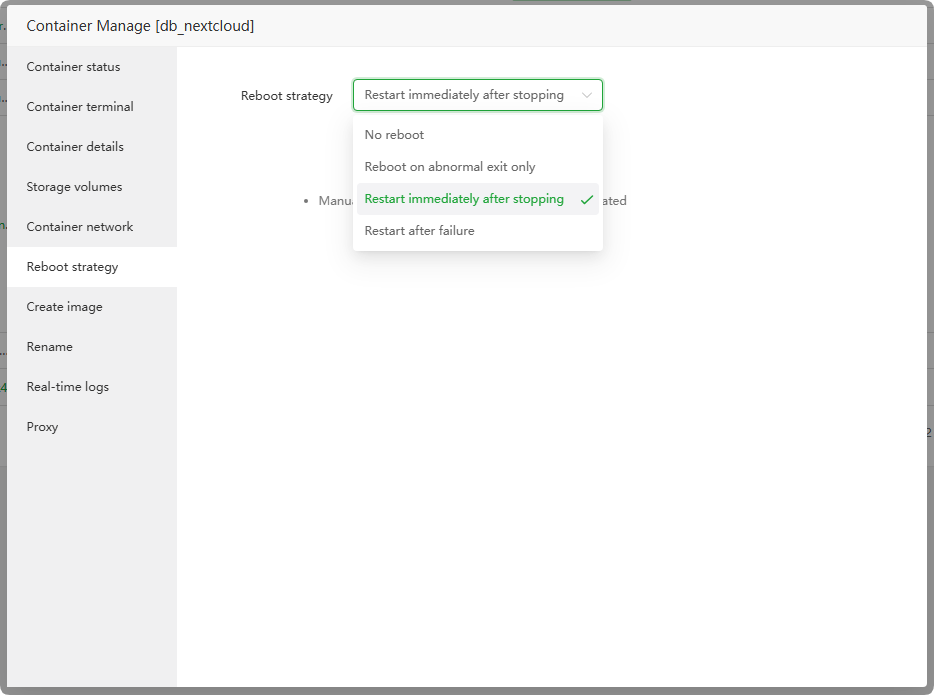
No reboot : Restart the server/restart the Docker service does
not startthe containerReboot after failure (default reboot 5 times) : The container will restart when an error occurs, and it will not restart after more than
5 times. Please check the container log to troubleshoot errorsReboot on abnormal exit only : The container will restart when an
error occursReboot right after stopping : The container will restart after
stopping
Create image
Simple mode
Save the container as a local image in Local image, example:
Image name:
my-mysqlVersion (tag) :
9.0.1
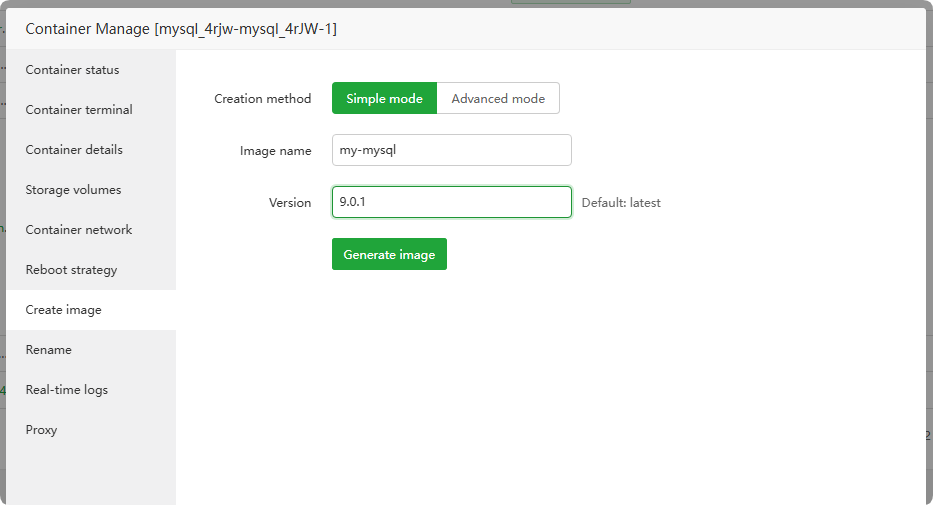
- Advanced mode
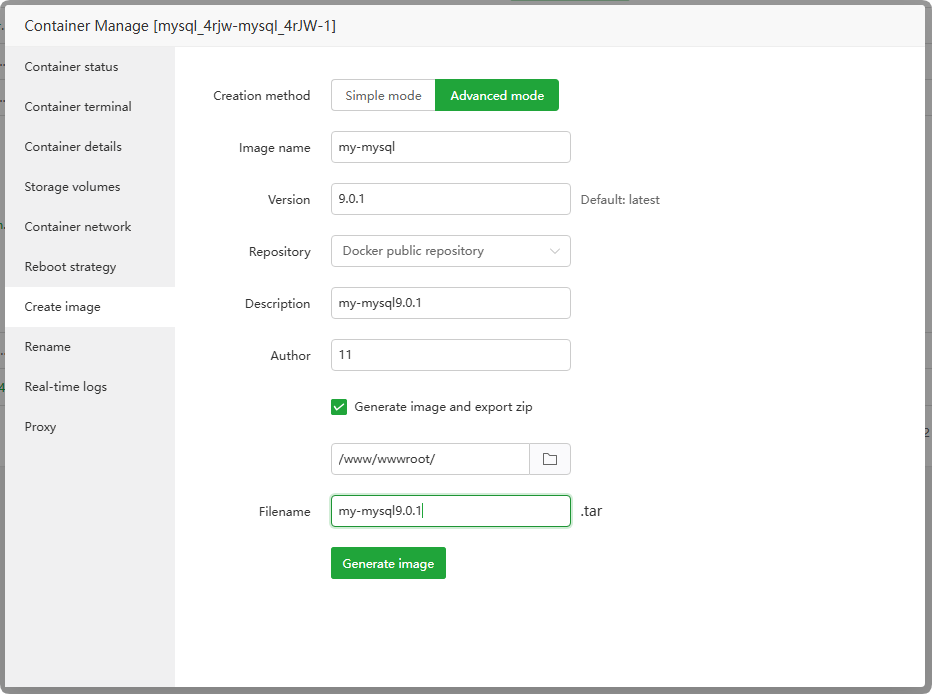
Save the container as a local image, save it in
Local imageandexportthe file
- Rename
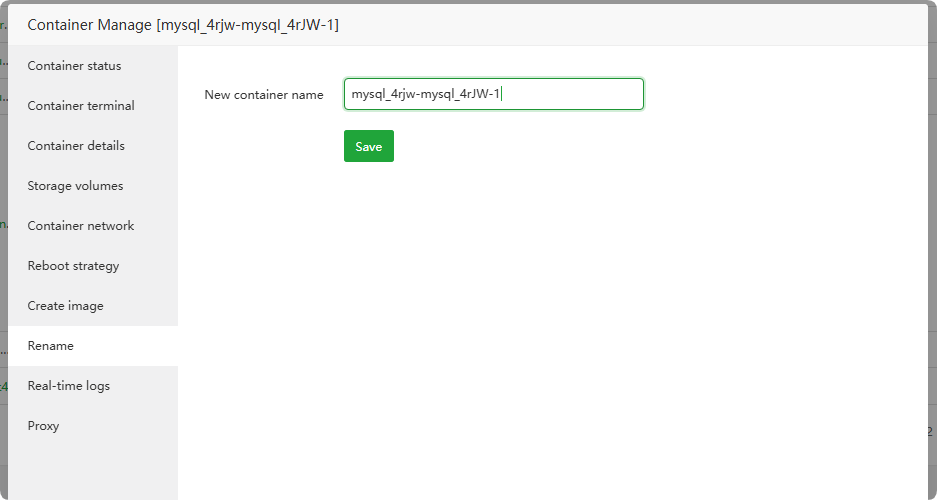 -
- Rename this container
- Real-time logs
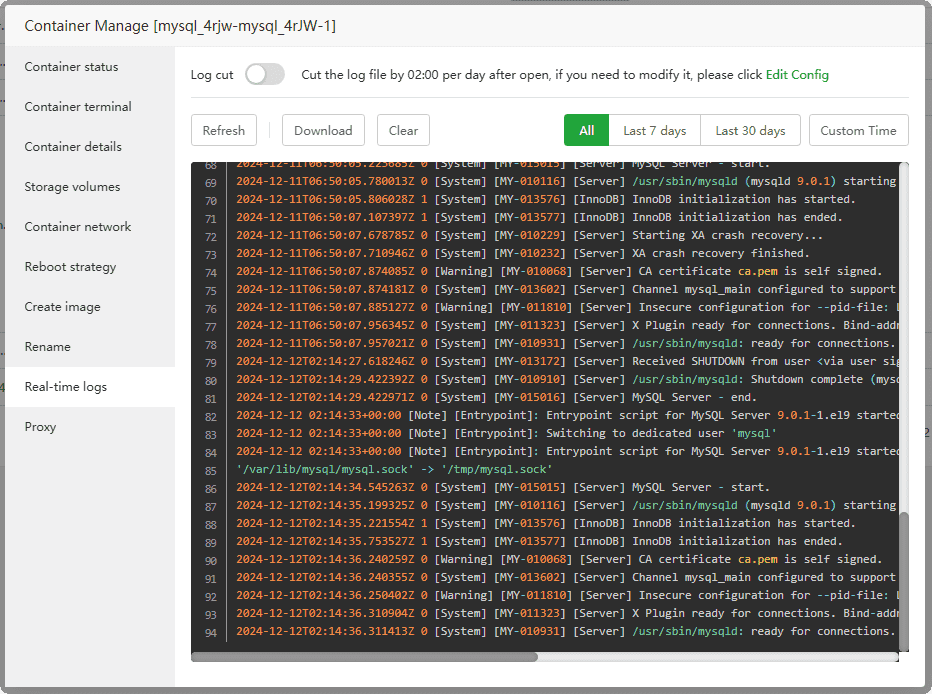
Viewandmanagecontainer logs
- Proxy
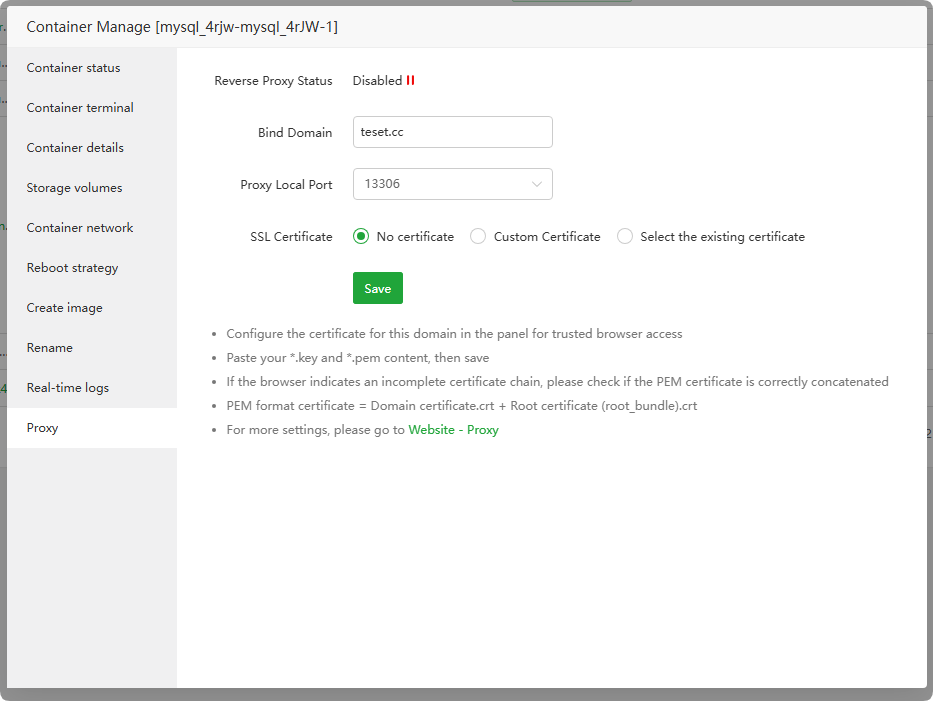
Use Website --> Proxy to proxy the port mapped by this container
The container needs to have corresponding ports
mappedto the host
Only supported when the WEB service is
Nginx
Terminal
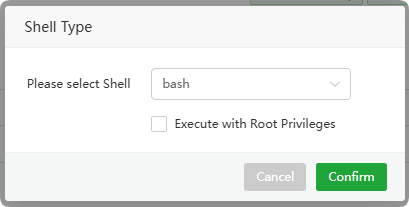
- Select
Shellto confirm and proceed to the terminal of the container.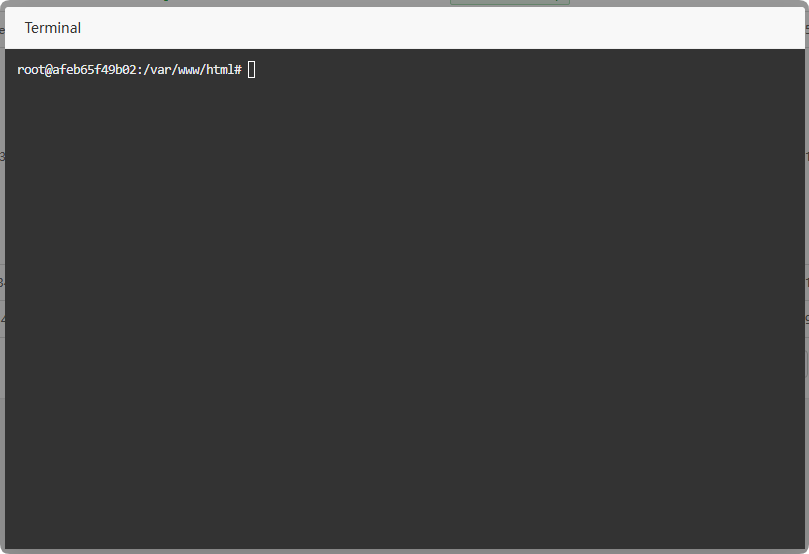
Rename
Container --> More --> Rename
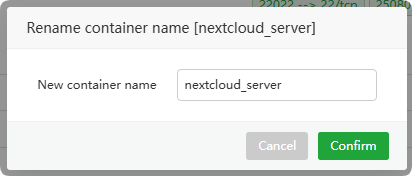
- Rename container name
Path
Container --> More --> Path
- use
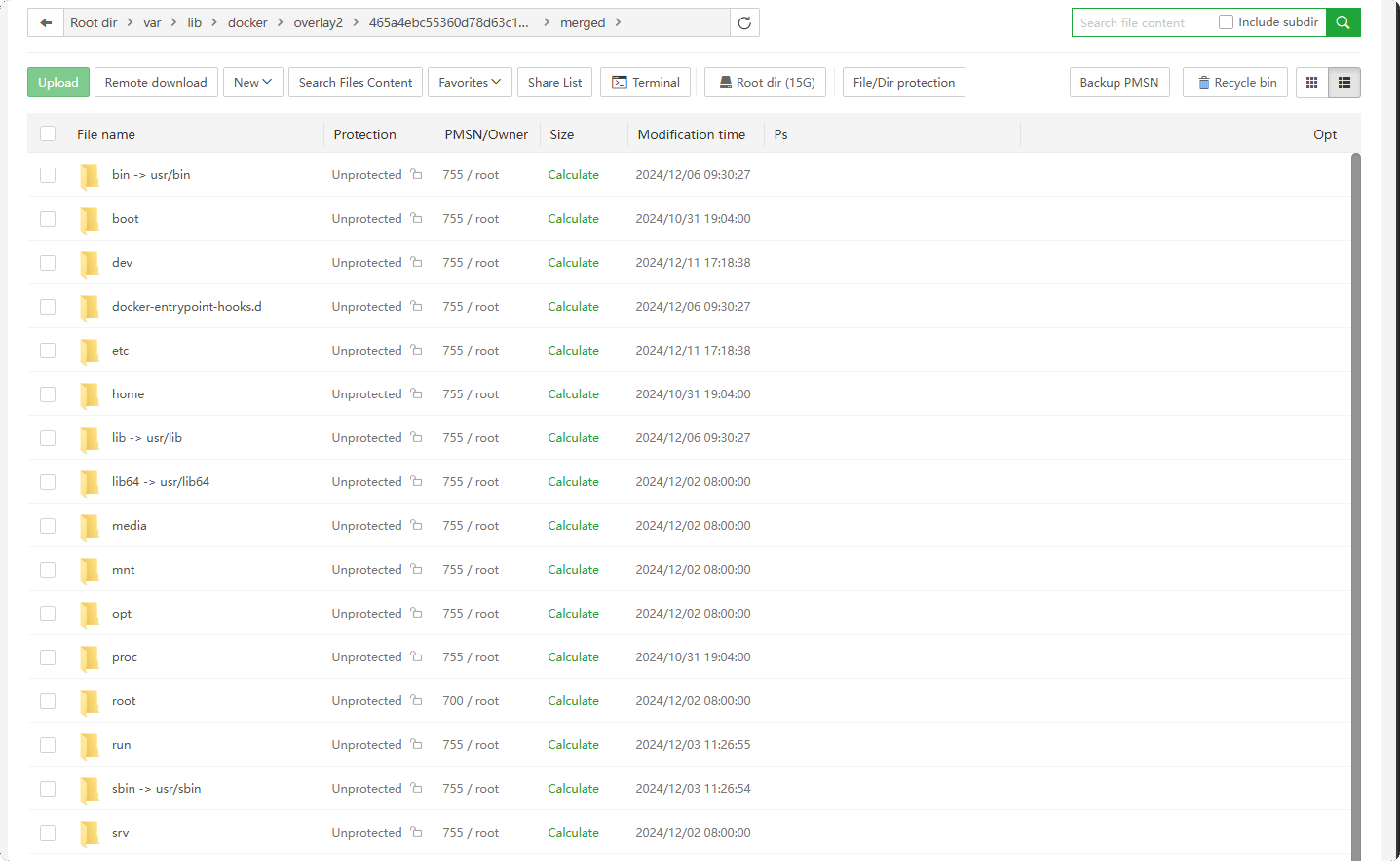
FilesEnter the container directory
Cloud image
Check out the official image on Docker Hub.
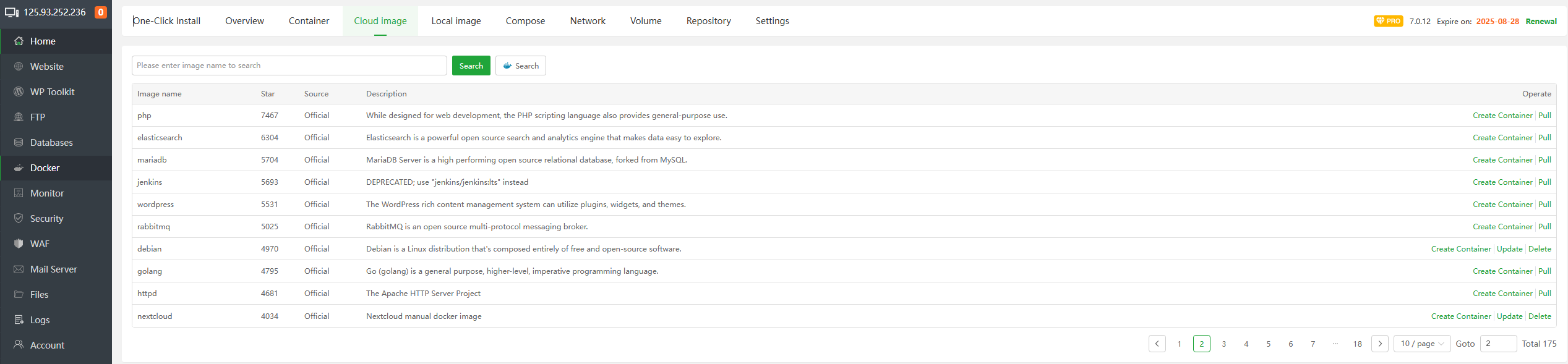
Image name : Image name is php
Star : The number of Image
collectionsis 7467Source : Image source
Official(Docker Hub)Description : Image description
Create Container : Create container
from image,form ComposeUpdate : Image update, if there is an
oldone locally, will be promptedDelete :
Deletethe image. Do not delete the container when it is in use.Pull :
Downloadthe image from Docker Hub. If the download does not take a long time, try modifying the acceleration source in the settings.
Create Container
Container --> Create Container
Cloud image --> Create Container
Local image --> Create Container
- Manual create
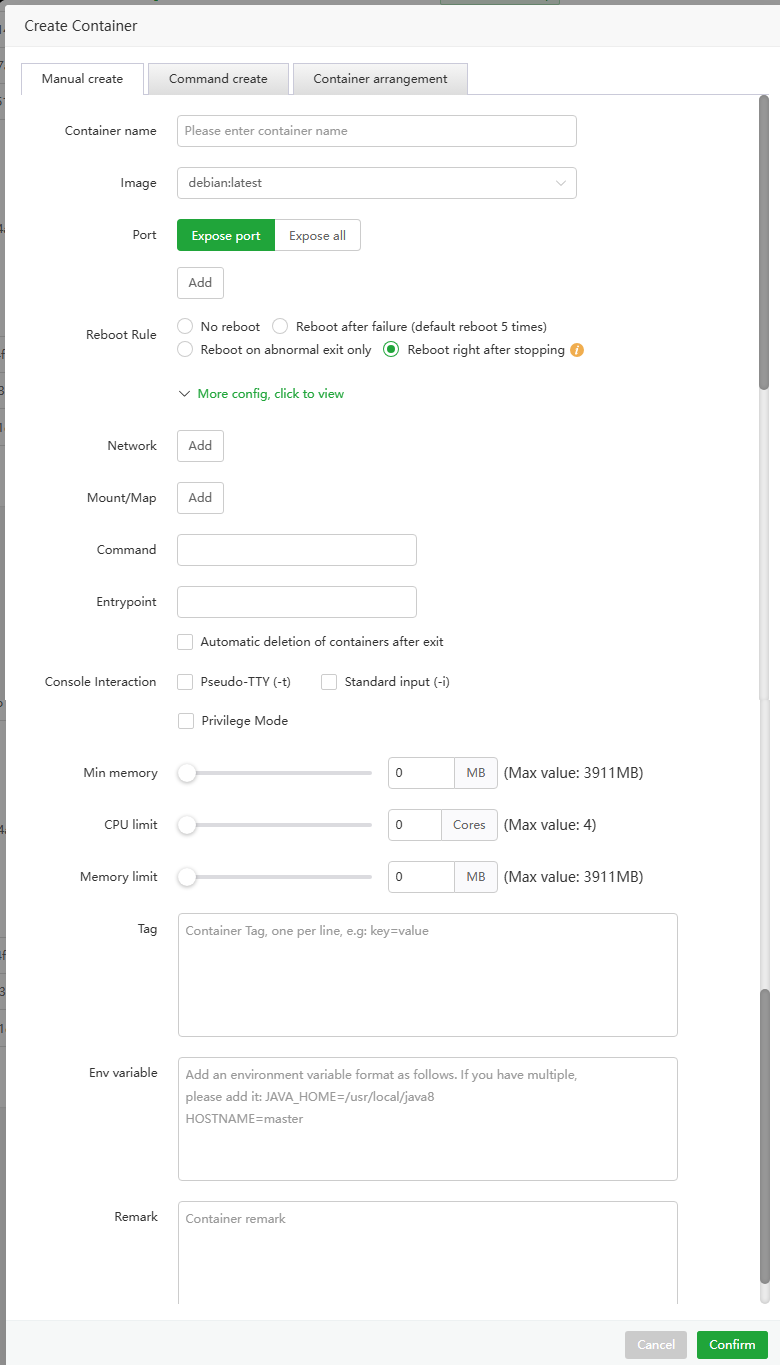
Container name : Enter container name
Image :
Selectcontainer imagePort:
- Expose port: Map the
port specifiedby the container to the port specified by the host - Expose all: Map
all portsof the container to the corresponding ports of the host
- Expose port: Map the
Reboot Rule
- No reboot : Restart the server/restart the Docker service does
not startthe container - Reboot after failure (default reboot 5 times) : The container will restart when an error occurs, and it will not restart after more than
5 times. Please check the container log to troubleshoot errors - Reboot on abnormal exit only : The container will restart when an
error occurs - Reboot right after stopping : The container will restart after
stopping
- No reboot : Restart the server/restart the Docker service does
Network : Select the network mode of the container. The default is
bridge.Mount/Map : Mount the container
directoryto the host, or specify aVolumeCommand : Set the
commandto be executed after the container isstarted. can be emptyEntrypoint : Set the main command of the container. The command that is always
executed when starting, defines how the container runs, can be emptyAutomatic deletion of containers after exit : Automatically delete the container after it is stopped
Console Interaction:
- Pseudo-TTY (-t) : Allocate a
pseudo-TTY - Standard input (-i) : Keep
STDINopen even if not attached - Privilege Mode : Whether the container is running in
privilegedmode
- Pseudo-TTY (-t) : Allocate a
Min memory : Set the
Minallocatedmemoryof the container, which cannot exceed the physical memory.CPU limit : Set the
Maxnumber ofCPU coresused by the container, which cannot exceed the number of physical cores.Memory limit : Set the
Max memoryused by the container, which cannot exceed the physical memory.Tag : Container tag
Env variable : Container environment variable
Remark: Container remarks
- Command create
Create container using the docker command
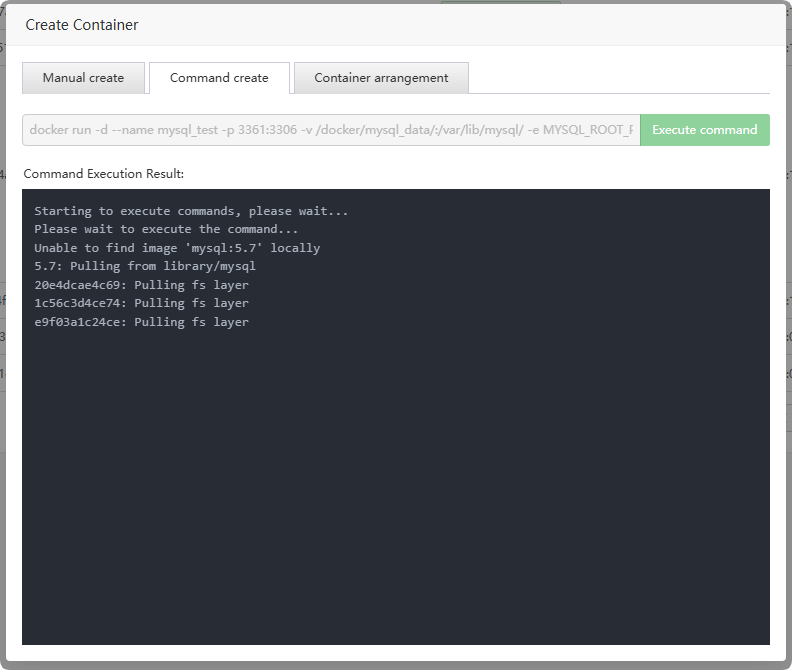
Example:
docker run -d --name mysql_test -p 3361:3306 -v /docker/mysql_data/:/var/lib/mysql/ -e MYSQL_ROOT_PASSWORD=my-passwd mysql:5.7
Command Explanation:
docker run: create a container using the mysql:5.7 image
-d : the container runs in the
background--name: Set the
container name: mysql_test-p 3361:3306: Map
host 3361port tocontainer 3306port-v /docker/mysql_data/:/var/lib/mysql/: Map the
host /docker/mysql_data/directory to thecontainer /var/lib/mysql/directory for data persistence-e MYSQL_ROOT_PASSWORD=my-passwd:
Specify the environment variableand set the MySQL root user password to my-passwd. If this environment variable is not specified in the mysql image, the container will not be able to runmysql:5.7: Use the mysql:5.7
image
- Container arrangement
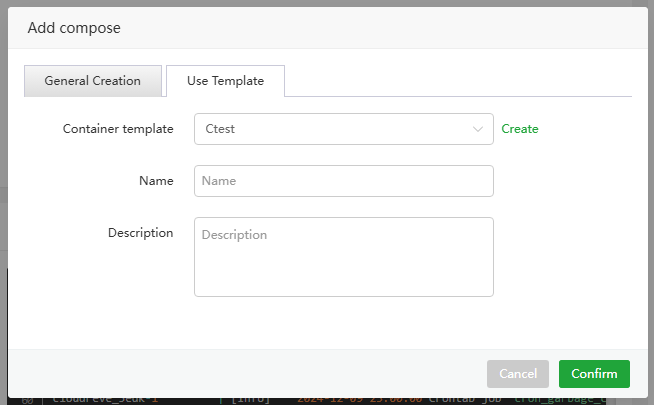
Quickly create containers from Compose templates
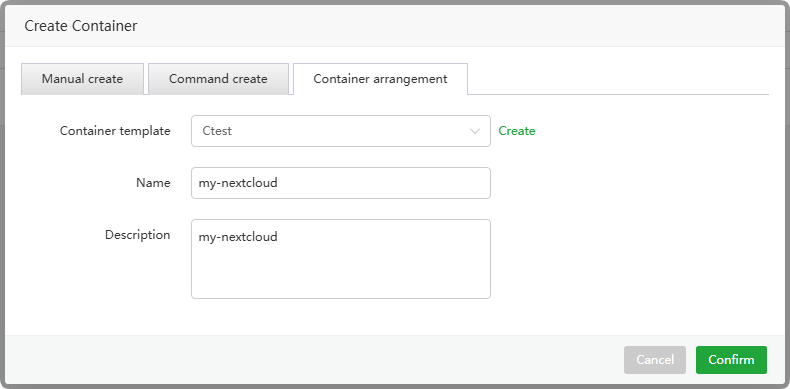
Container template :
Selectthe Compose templateCreate : Create Compose template
Name : Enter name
Description : Enter description
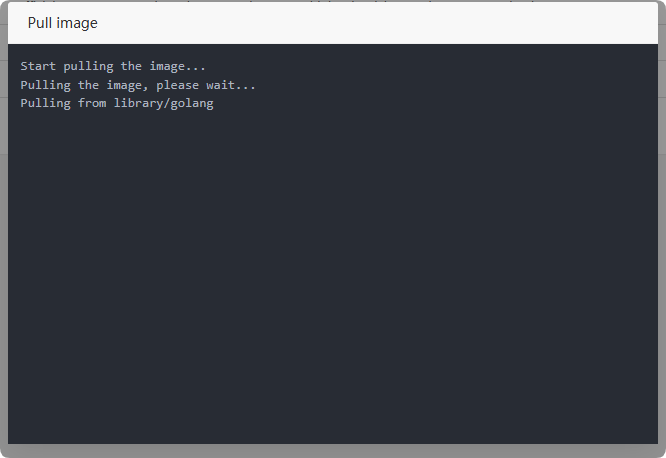
Pull
Download the image from Docker Hub. If the download does not move for a long time, try modifying the acceleration source in the settings.
Local image
Image local to the management server.
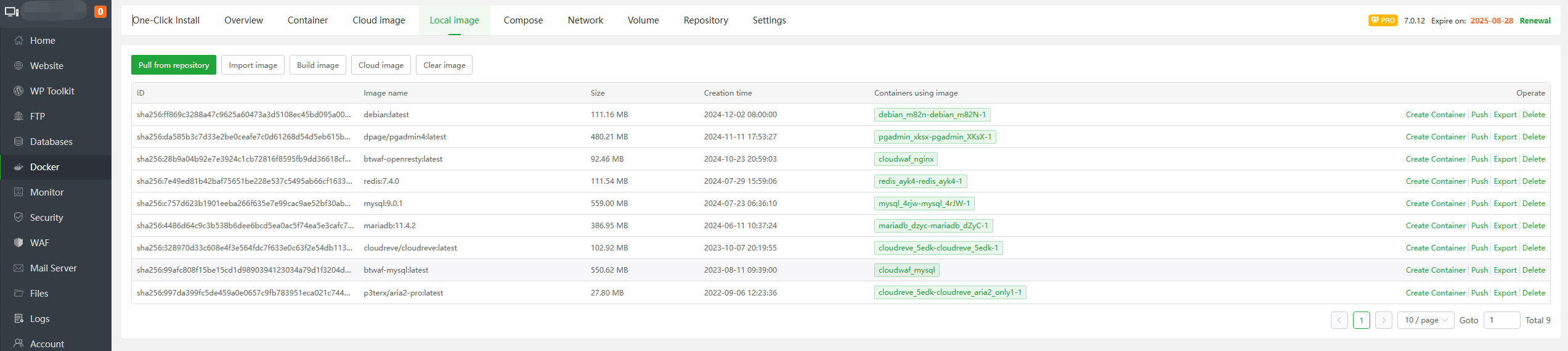
| Function | Example | Describe |
|---|---|---|
Pull from repository | Click view Example | Download the image from the Docker repository |
| Import image | Click view Example | Select a file image from the server and import the image |
| Build image | Click viewExample | Build image from content or file |
| Cloud image | Click view Example | Download image from Docker Hub |
| Clear image | Delete unused local images | |
| ID | sha256:fb....991 | Image ID |
| Image name | nextcloud:latest | Image name |
| Size | 1.18 GB | Image size |
| Creation time | 2024-12-06 04:29:40 | Image creation time |
Containers using image | nextcloud_server | The name of the container using this image. Click to view the container details |
| Create Container | Click view Example | Create container from image, form Compose |
| Push | Click view Example | Push image to repository |
| Export | Click view Example | Export image to file |
| Delete | Delete the image. Do not delete the image when the container is in use |
Pull from repository
Local image --> Pull from repository
Docker repository download image
- Regular pull
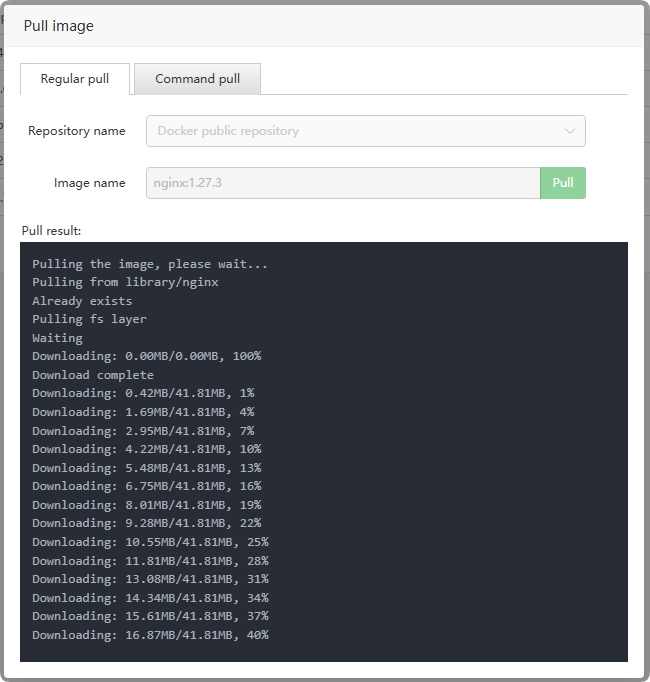
Example: nginx:1.27.3
Description: Image name: nginx, image version (tag): 1.27.3
- Command pull
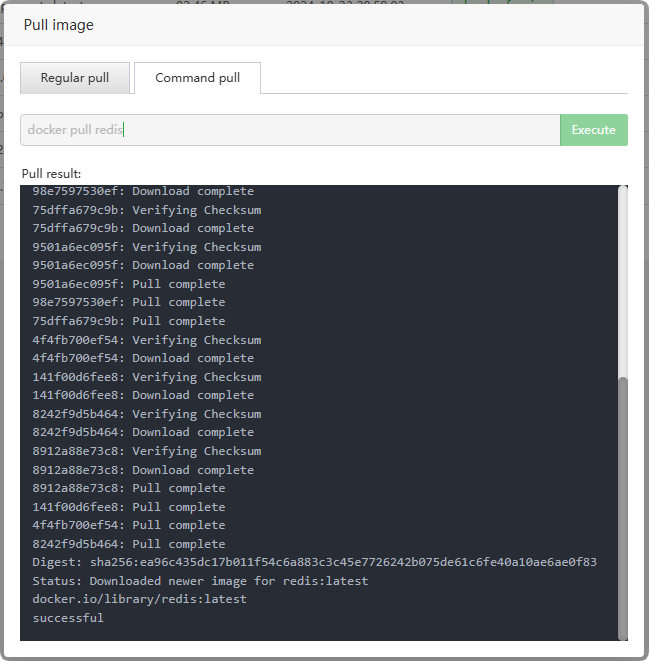
Example: docker pull redis
Description: Image name:redis, image version (tag):latest
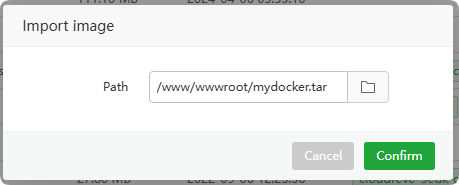
Import image
Local image --> Import image
Select the file image from the server and import the image
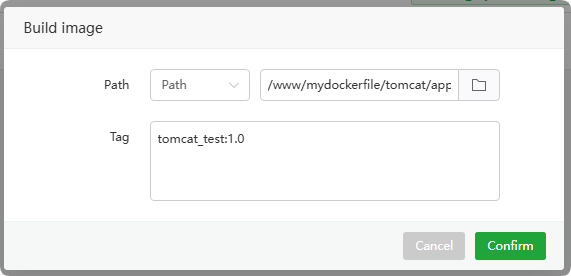
Build image
Local image --> Build image
Path: Build the image from the directory. Reference
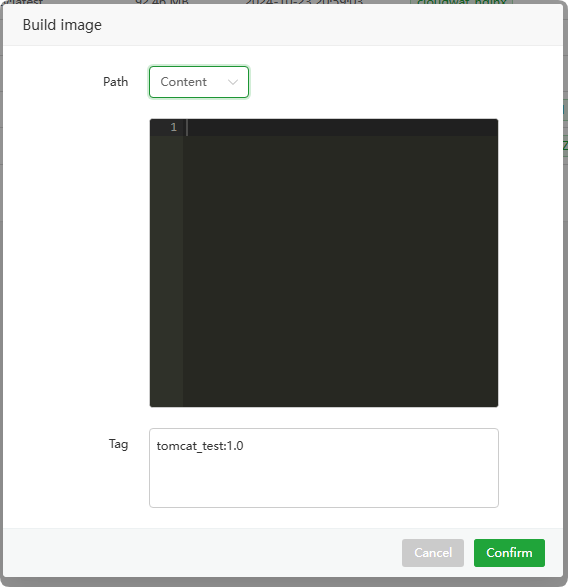
Content: Enter content to build the image
Cloud image
Local image --> Cloud image
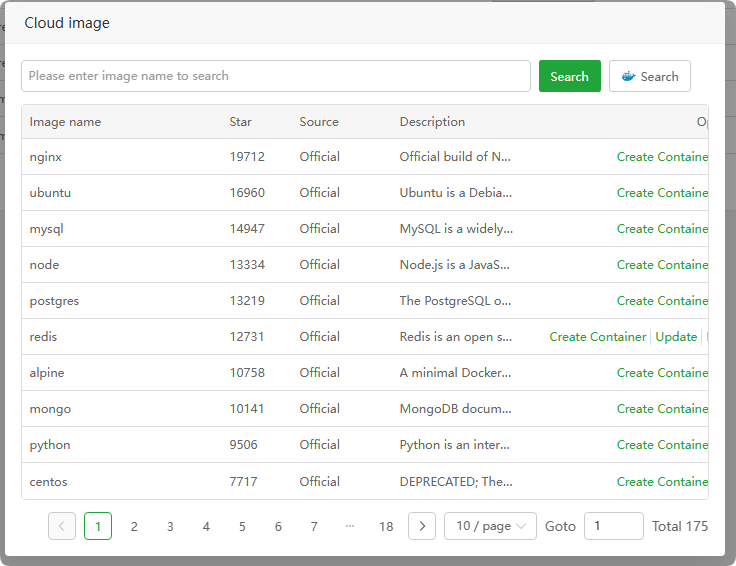
Clear image
Local image --> Clear image
- Delete unused local images
Push
Local image --> Push
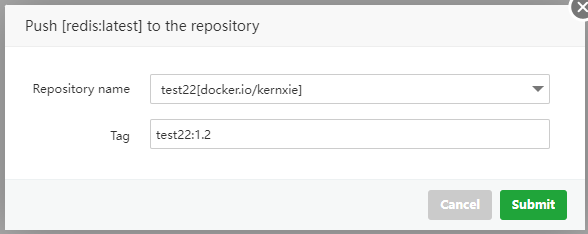
- push the image to the specified repository
Export
Local image --> Export
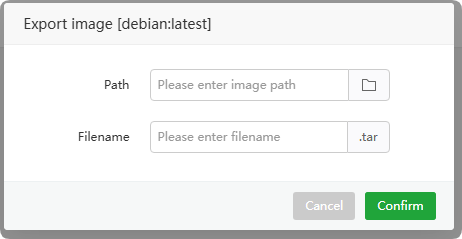
- Export the image to the specified file
Compose
Used to define and run multiple containers. Configure through the
compose.yamlfile to simplify container management and deployment.
Docker compose
- Compose Overview:
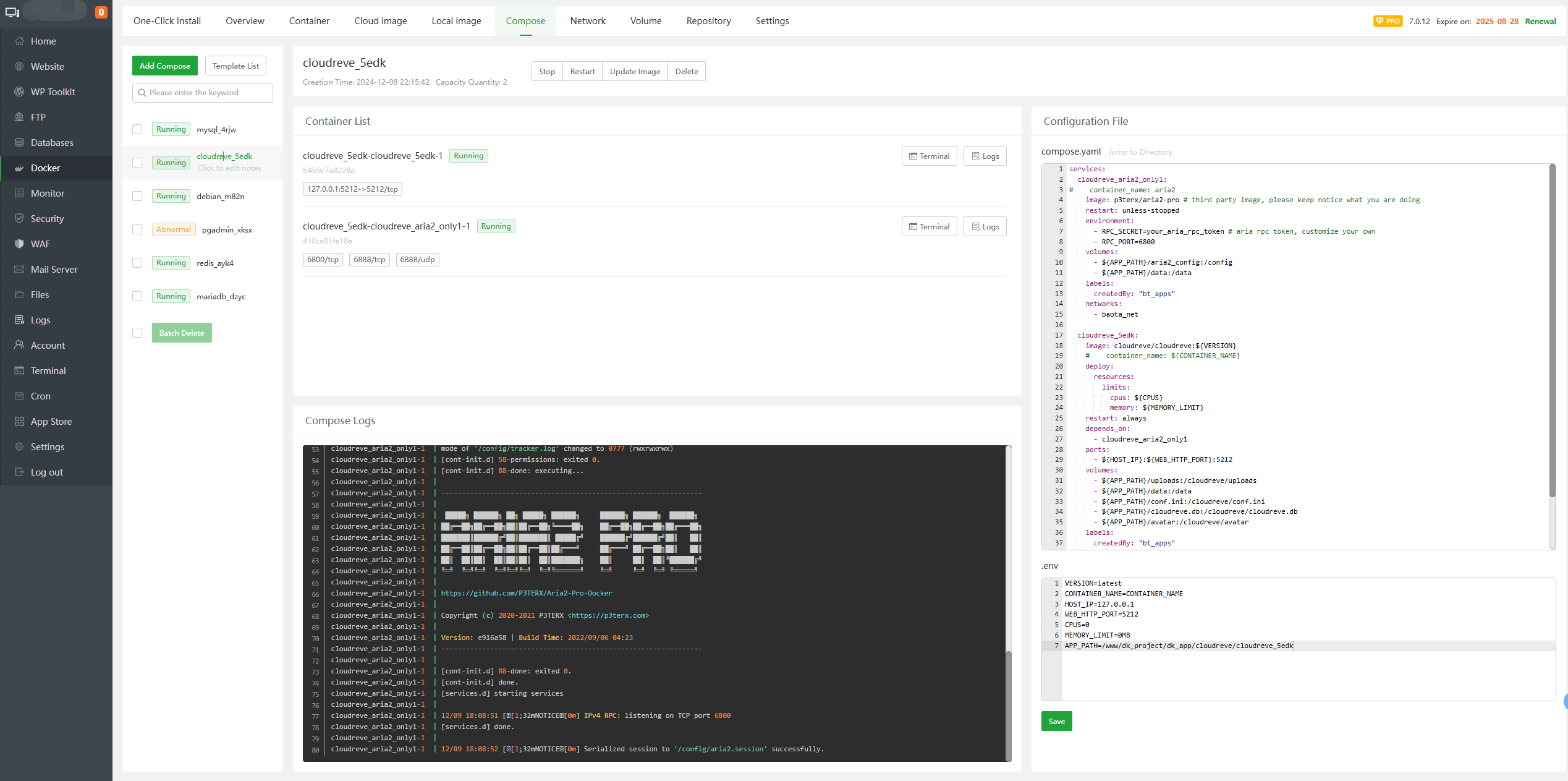
Compose function introduction:
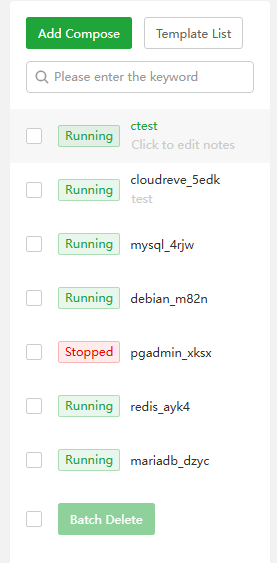
Add Compose : Click to
add,use ComposeTemplate List : Click to
viewandadd Compose templatelistSearch: Search Compose from this list
Running/Stopped : Compose running
statusBatch Delete : Delete Compose in batches

ctest : Compose name
Creation Time: 2024-12-10 11:02:28 : Compose creation time
Capacity Quantity: 3 : Number of containers of Compose
Start : Start this Compose
Stop : Stop this Compose
Restart : Restart this Compose
Update lmage : Update the Compose image according to the
image version of compose.yaml.Delete : Delete this Compose. If the container data is not persisted, the container data will be lost.
Please pay attention to data backup.
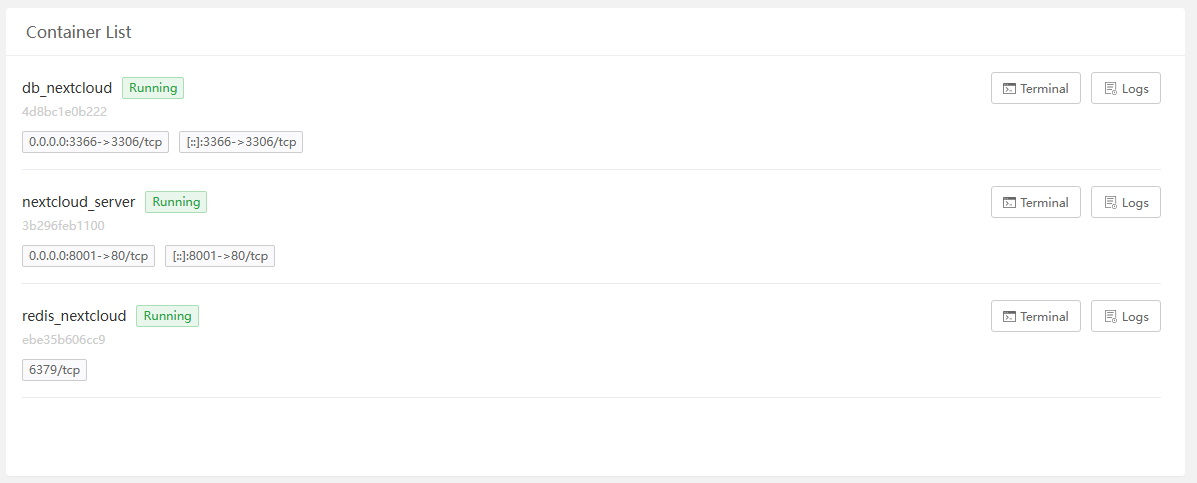
Container List : Display all containers under Compose
db_nextcloud : Container name
4d8bc1e0b222 : Container ID
Running : Container status, operable:
Stop,Start,Kill0.0.0.0:3366->3306/tcp, [::]:3366->3306/tcp : Container network information, convert the host’s
3366Port mapping to container3306port.Terminal : Execute the command in the container terminal
Logs : View single container log
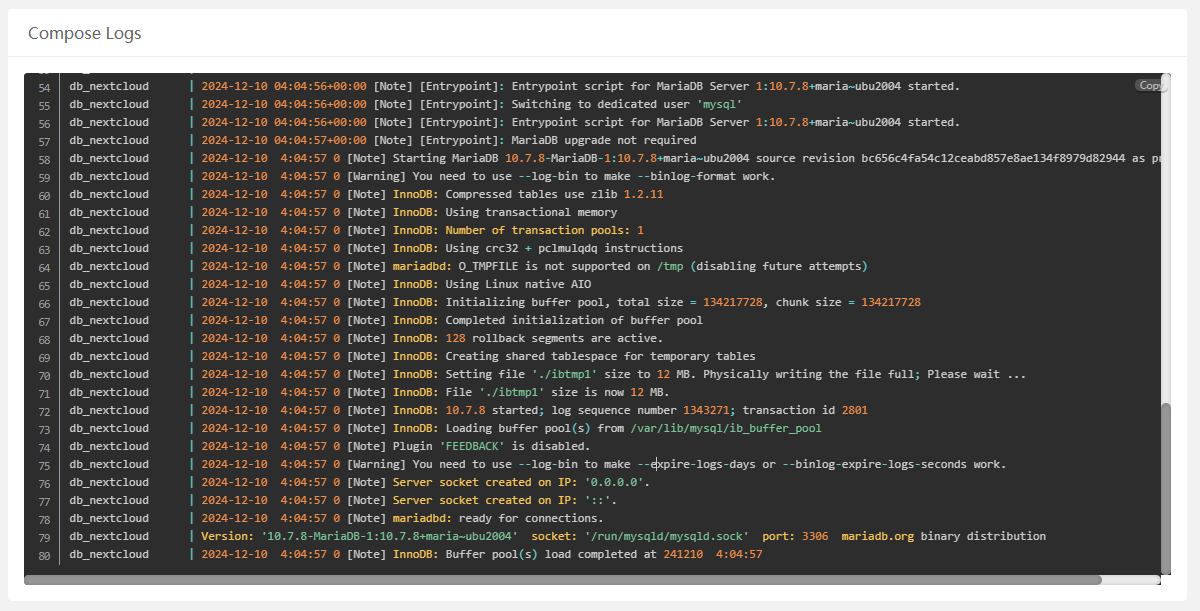
- Compose Logs : View all Compose container logs
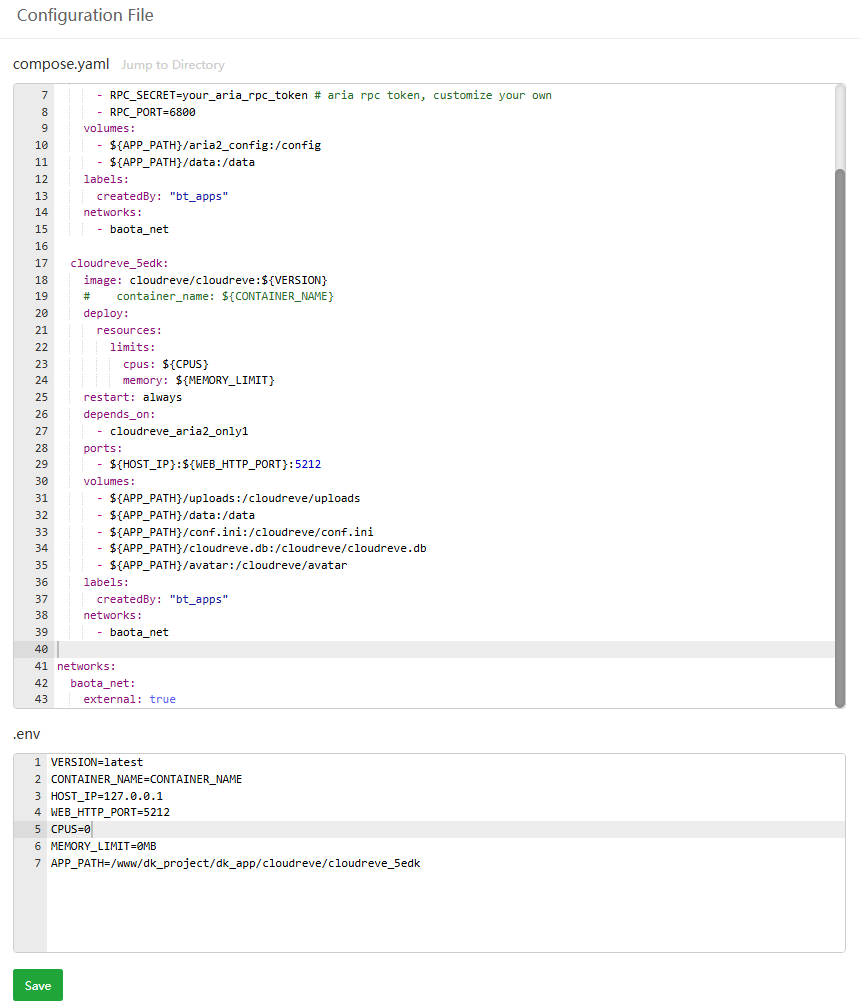
- compose.yaml :
Compose configuration file, including container configuration, .env file definition environment variables, etc. - .env : Define the
environment variablesthat this Compose needs to use, can be empty.
Add Compose
Compose --> Add Compose
- General Creation
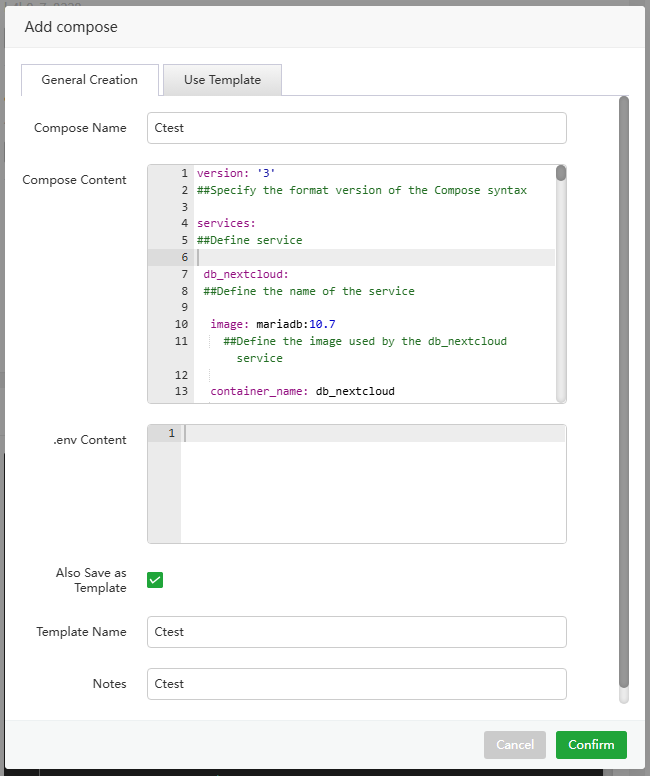
| Function | Example | Describe |
|---|---|---|
| Compose Name | Ctest | Compose name |
Compose Content | Click to view Content | Compose configuration file content |
| .env Content | Click to view Content | Define environment variables in Compose Content to make the configuration more flexible and maintainable |
Also Save as Template | Save as Compose template, otherwise it is a one-time use | |
| Template Name | Ctest | Save Compose template name |
| Notes | Ctest | Compose Remarks |
- Compose Content
Here is an example of the Compose configuration file for reference.
services:
  cloudreve_aria2_only1:
    image: p3terx/aria2-pro # third party image, please keep notice what you are doing
    restart: unless-stopped
    environment:
      - RPC_SECRET=your_aria_rpc_token # aria rpc token, customize your own
      - RPC_PORT=6800
    volumes:
      - ${APP_PATH}/aria2_config:/config
      - ${APP_PATH}/data:/data
    labels:
      createdBy: "bt_apps"
    networks:
      - baota_net

  cloudreve_5edk:
    image: cloudreve/cloudreve:${VERSION}
    deploy:
      resources:
        limits:
          cpus: ${CPUS}
          memory: ${MEMORY_LIMIT}
    restart: always
    depends_on:
      - cloudreve_aria2_only1
    ports:
      - ${HOST_IP}:${WEB_HTTP_PORT}:5212
    volumes:
      - ${APP_PATH}/uploads:/cloudreve/uploads
      - ${APP_PATH}/data:/data
      - ${APP_PATH}/conf.ini:/cloudreve/conf.ini
      - ${APP_PATH}/cloudreve.db:/cloudreve/cloudreve.db
      - ${APP_PATH}/avatar:/cloudreve/avatar
    labels:
      createdBy: "bt_apps"
    networks:
      - baota_net

networks:
  baota_net:
external: true- .env Content
Here is an example of .env Content for reference.
VERSION=latest
CONTAINER_NAME=CONTAINER_NAME
HOST_IP=127.0.0.1
WEB_HTTP_PORT=5212
CPUS=0
MEMORY_LIMIT=0MB
APP_PATH=/www/dk_project/dk_app/cloudreve/cloudreve_5edk
Use Template
Compose --> Add Compose --> Use Template
Select a saved Compose template and use it directly.
Template List
Compose --> Template List
View saved Compose templates and perform operations such as editing and deletion.
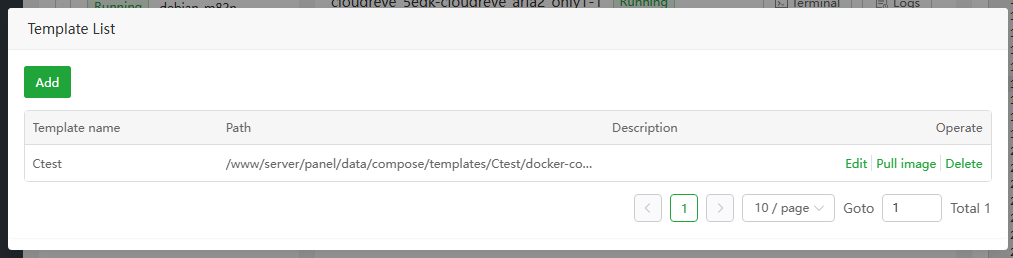
| Function | Describe |
|---|---|
| Add | Add Compose template |
| Template name | Template name |
| Path | Template storage path |
| Description | Description of the template |
| Edit | Edit Compose template |
| Pull image | Obtain the image name from the Compose template and download the image, the container will not be created |
| Delete | Delete the Compose template. It cannot be restored after deletion. Please make backup |
Add Yaml Template
Compose --> Template List --> Add
Add a Compose template and only add Yaml files
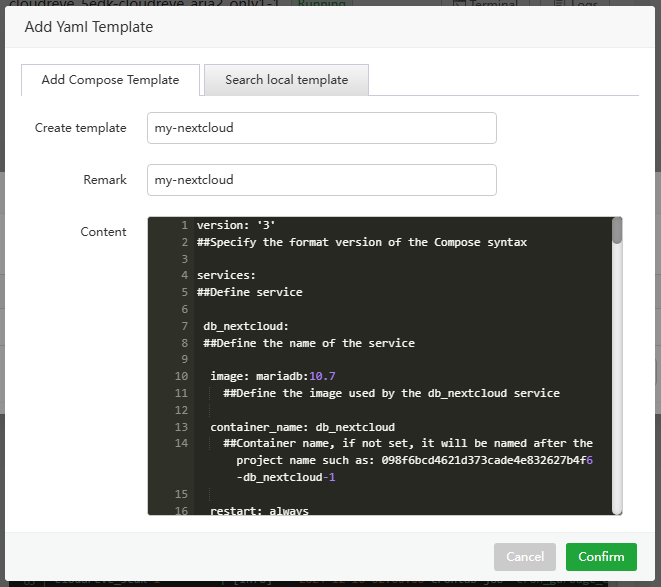
| Function | Example | Describe |
|---|---|---|
| Create template | my-nextcloud | Compose template name |
| Remark | my-nextcloud | Compose template description |
| Content | Click to view Content | Compose Template content |
Compose Template Example:
version: '3'
services:
 db_nextcloud:
  image: mariadb:10.7
  container_name: db_nextcloud
  restart: always
  ports:
   - 3366:3306
  networks:
   nextcloud_net: {}
  command: ["--transaction-isolation=READ-COMMITTED","--binlog-format=ROW","--innodb_read_only_compressed=off"]
  volumes:
   - db_data:/var/lib/mysql
  environment:
   - MYSQL_ROOT_PASSWORD=btnextcloud
   - MYSQL_DATABASE=nextcloud
   - MYSQL_USER=nextcloud
   - MYSQL_PASSWORD=nextcloud

 redis_nextcloud:
  image: redis:6.2.6
  container_name: redis_nextcloud
  restart: always
  networks:
   nextcloud_net: {}
  command: ["--databases", "1"]
  volumes:
   - redis_data:/data

 nextcloud:
  image: nextcloud:latest
  container_name: nextcloud_server
  restart: always
  networks:
   nextcloud_net: {}
  ports:
   - 8001:80
  volumes:
   - nextcloud_data:/var/www/html
  environment:
   - MYSQL_PASSWORD=nextcloud
   - MYSQL_DATABASE=nextcloud
   - MYSQL_USER=nextcloud
   - MYSQL_HOST=db_nextcloud
   - REDIS_HOST=redis_nextcloud
   - REDIS_HOST_PORT=6379
   - NEXTCLOUD_ADMIN_USER=mynextcloud
   - NEXTCLOUD_ADMIN_PASSWORD=mynextcloud
   - NEXTCLOUD_TRUSTED_DOMAINS= 127.0.0.1 localhost 192.168.247.129 docker129-nextcloud.com

  depends_on:
   - db_nextcloud
   - redis_nextcloud

volumes:
 nextcloud_data:
 db_data:
  name: "nextcloud-mariadb-data"
 redis_data:

networks:
 nextcloud_net:
  name: "nextcloud_net"
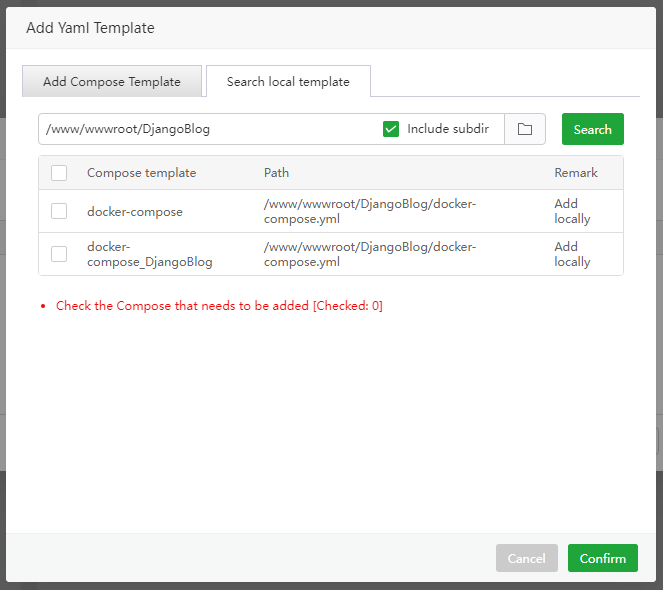
Search local template
Compose --> Template List --> Add
Search for local templates on the server and add them to the Template List
Network
Networks allow communication between containers and between containers and the outside world.

| Function | Describe |
|---|---|
| Add Network | Add Network |
| Clear Network | Delete unused Network, it cannot be restored after deletion |
| Network name | Network Name |
| Driver | Network driver, default isbridge |
| IPv4 | IPv4 version |
| IPv4 Gateway | IPv4 gateway address |
| IPv6 | IPv6 version |
| IPv6 Gateway | IPv6 gateway address |
| Tag | network tags |
| Creation time | Network creation time |
| Delete | Delete Network |
Add network
Network --> Add Network
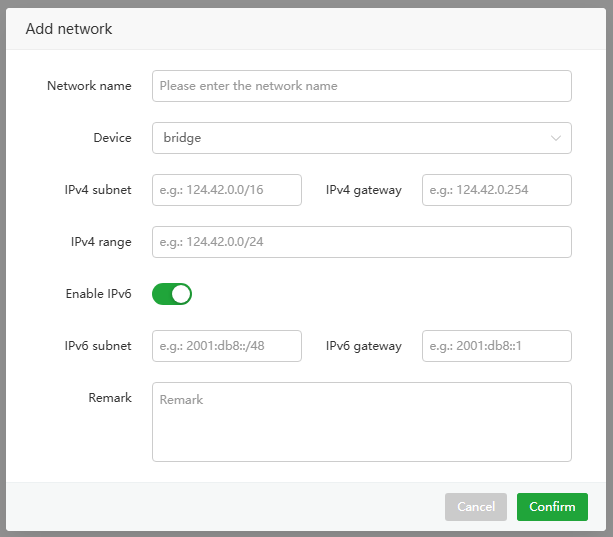
| Function | Example | Describe |
|---|---|---|
| Network name | my-network | network name |
| Device | bridge | network driver |
| IPv4 subnet | 124.42.0.0/16 | IPv4 subnet mask |
| IPv4 gateway | 124.42.0.254 | IPv4 gateway address |
| IPv4 range | 124.42.0.0/24 | IPv4 range |
| Enable IPv6 | Enable or disable IPv6 | |
| IPv6 subnet | 2001:db8::/48 | IPv6 subnet mask |
| IPv6 gateway | 2001:db8::254 | IPv6 gateway address |
| Remark | my-network | network remarks |
Clera network
Network --> Clear Network
Delete unused networks, which cannot be restored after deletion
Volume
Persistent and shared data for containers

| Function | Describe |
|---|---|
| Add Volume | Add a volume |
| Volume name | Volume name |
| Mount point | Directory to store data |
| Container | Using Volume Container Name |
| Driver | Driver for the volume, default islocal |
| Creation time | Volume creation time |
| Tag | Volume label |
| Delete | Delete the volume. It cannot be recovered after deletion. Be sure to back up the data |
Add volume
Volume --> Add Volume
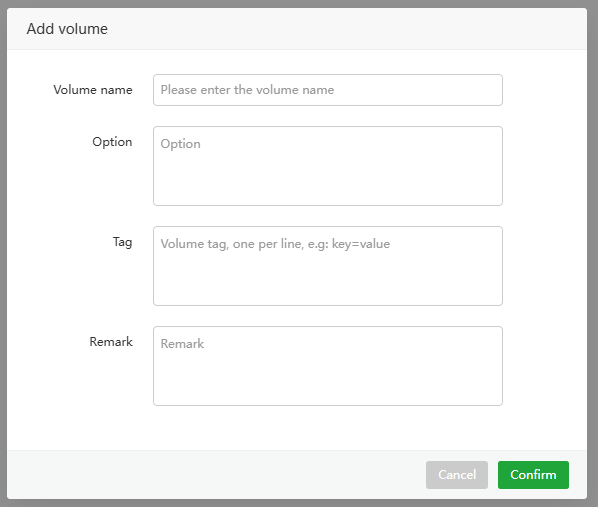
| Function | Describe |
|---|---|
| Volume name | Volume name |
| Option | Options when creating volumes |
| Tag | Volume labels to classify and manage volumes |
| Remark | Volume remark information |
Clear volume
Volume --> Clear Volume
Deleteunused volumes. They cannot be recovered after deletion. Be sure toback up data.
Repository
A repository for storing and distributing container images

| Function | Describe |
|---|---|
| Add Repository | Add a images repository |
| URL | images repository address |
| Username | Repository username |
| Repository name | Repository name |
| Description | Repository Remarks |
| Edit | Edit repository information |
| Delete | Delete repository |
Add Repository
Repository --> Add Repository
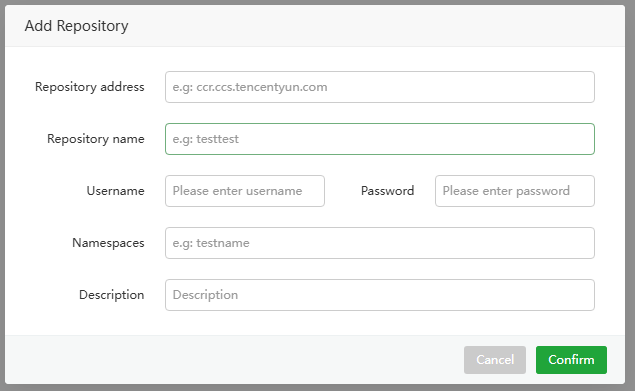
| Function | Describe |
|---|---|
| Repository address | Docker image repository address |
| Repository name | Docker repository name |
| Username | Docker repository username |
| Password | Docker repository password |
| Namespaces | Docker repository namespace |
| Description | repository Remarks |
Settings
Docker configuration, service management
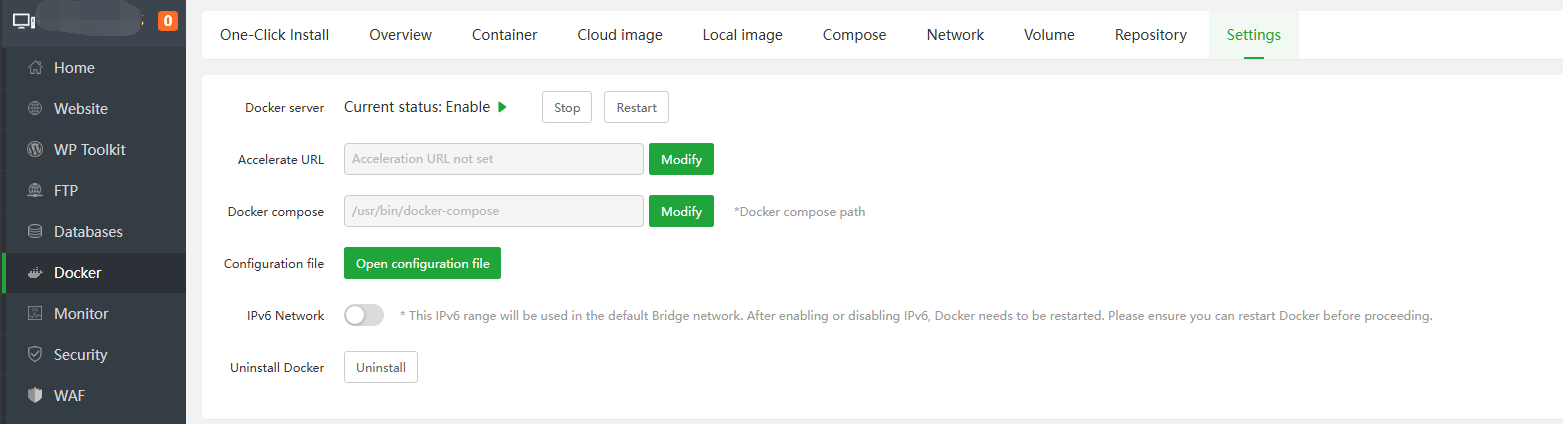
| Function | Describe |
|---|---|
Docker server Current status | Start up, Restart, Repair, Stop Docker service, this operation will affect the status of the container, please operate with caution |
| Accelerate URL | Set acceleration URL can solve the problem of slow image download speed. Docker needs to be restarted after modification |
| Docker compose | Set Docker compose path |
| Configuration file | Set Dockerconfigurationfile path, you need to restart Docker after modification |
| IPv6 Network | Docker enable or disableIPv6Network, Docker needs to be restarted after modification |
| Uninstall Docker | UninstallDocker, please back up data before operation |
Feedback or Suggestions
If you encounter problems or suggestions during use, please contact us through the following methods:
- (Please describe in
detailor providescreenshots)
Email: [email protected]
Discord: https://discord.gg/Tya5yceBpd
Telegram: https://aapanel.com/tg
GitHub: https://github.com/aapanel/aapanel
If you like aaPanel, please give it a Star