
Clone Git Repository to Create and Auto-Update Site
- Taking GitHub as an example, how to clone Git repository in aaPanel to create website, and setup Webhook to achieve automatic synchronization and updates of the website when the repository is updated.
Clone Repository and Create Website
Copy
SSH Key from aaPaneland add it to GitHubWebsite --> Add site --> Create for Git
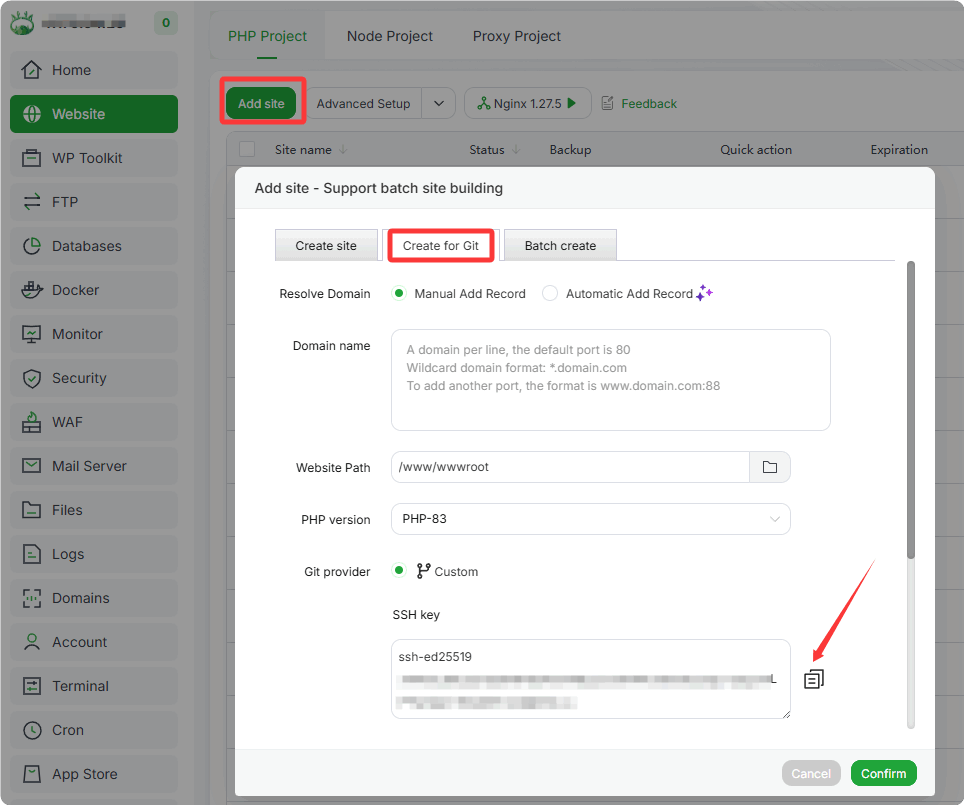
Log in to GitHub and add the SSH Key
Add key at single warehouse level (only applicable to single warehouse)
You_Repository --> Settings --> Deploy Keys --> Add deploy key
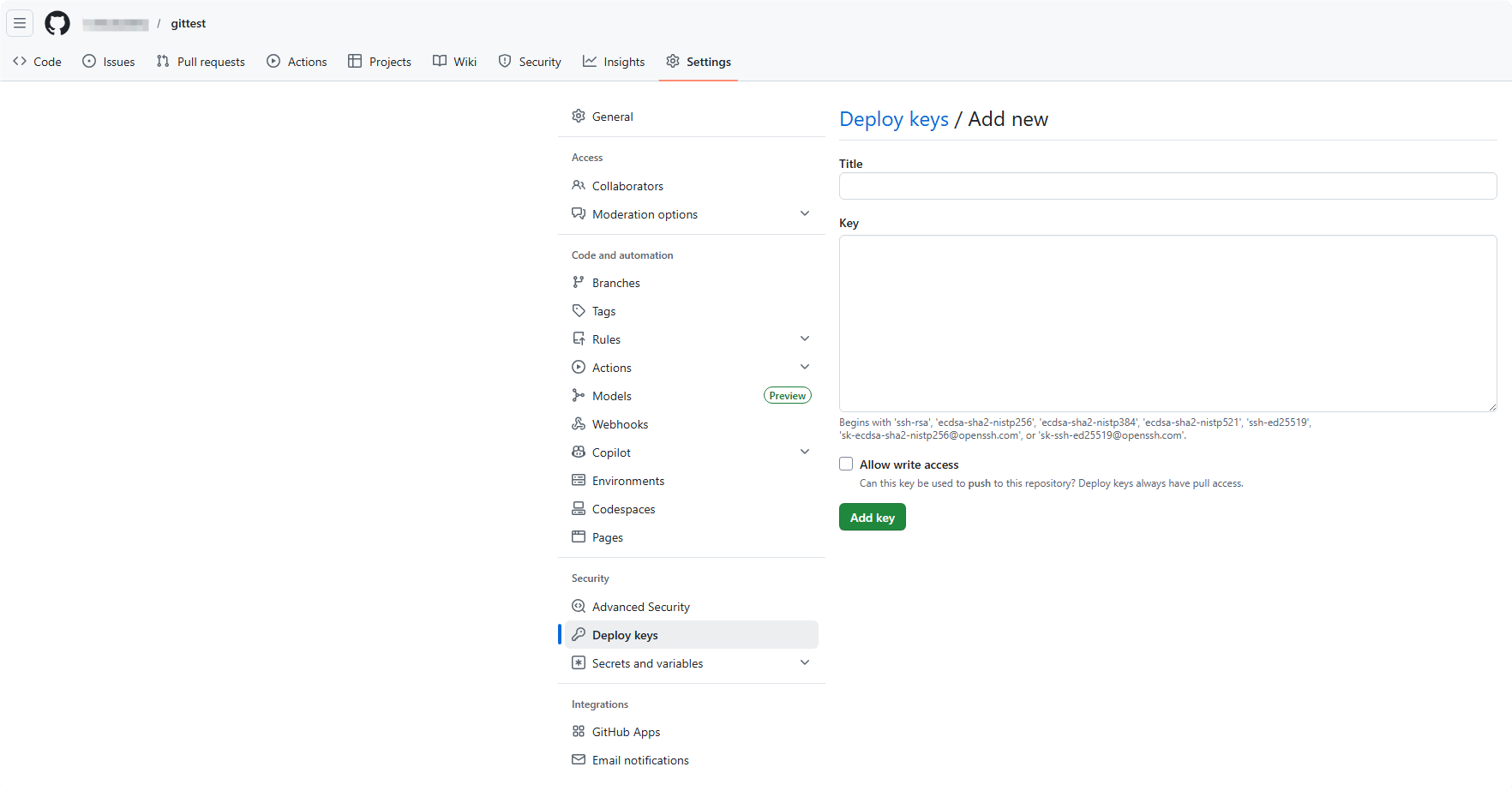
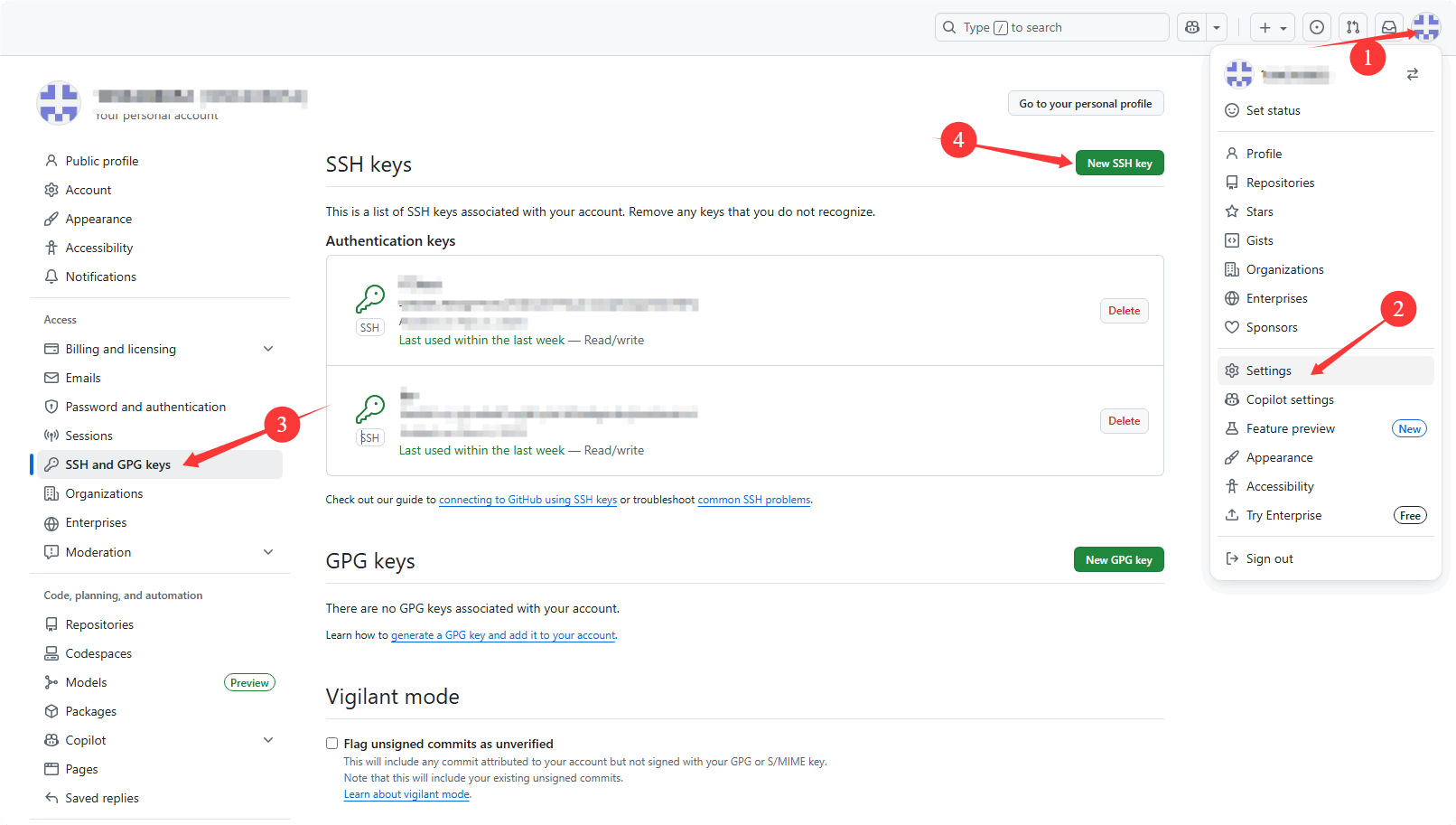
Global (valid for all warehouses under this account)
Profile Photo --> Settings --> SSH and GPG keys --> New SSH key
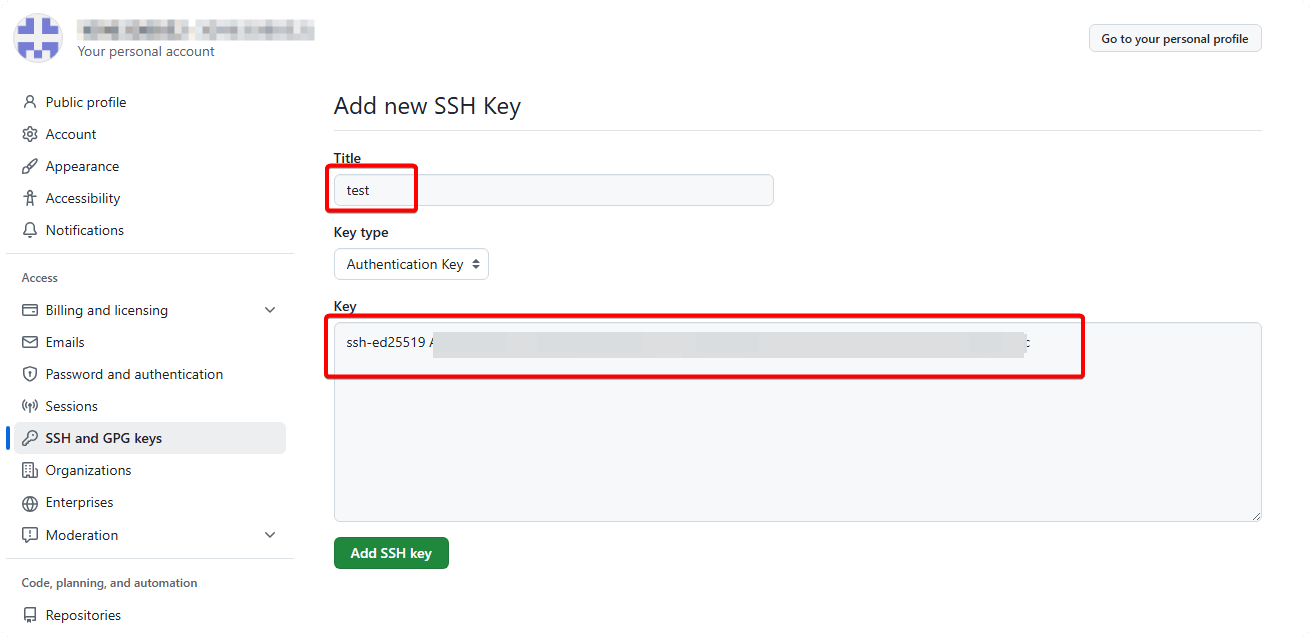
- Enter a
Titleand paste the SSH key copied from aaPanel into theKeyfield.
- Enter a
Create new repository or select an existing one
Copy the repository URL; you can choose either
HTTPSorSSHfor cloning- Note down the
branchyou need, as you will have to enter the correct branch when creating the website later.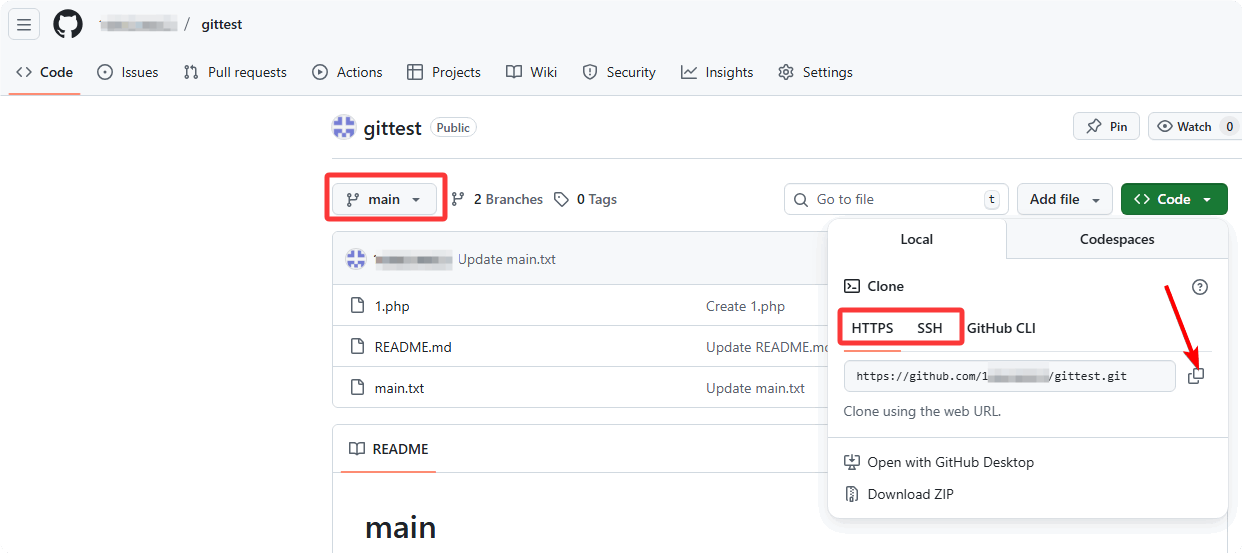
- Note down the
Create website in aaPanel and clone repository
Website --> Add site --> Create for Git
Enter your domain and select the PHP version.
Site directory (e.g.,
/www/wwwroot/your_site). Note that this directory must beempty.Paste the repository URL (e.g.,
https://github.com/username/repository.gitor[email protected]:username/repository.git).Enter the branch (e.g.,
main).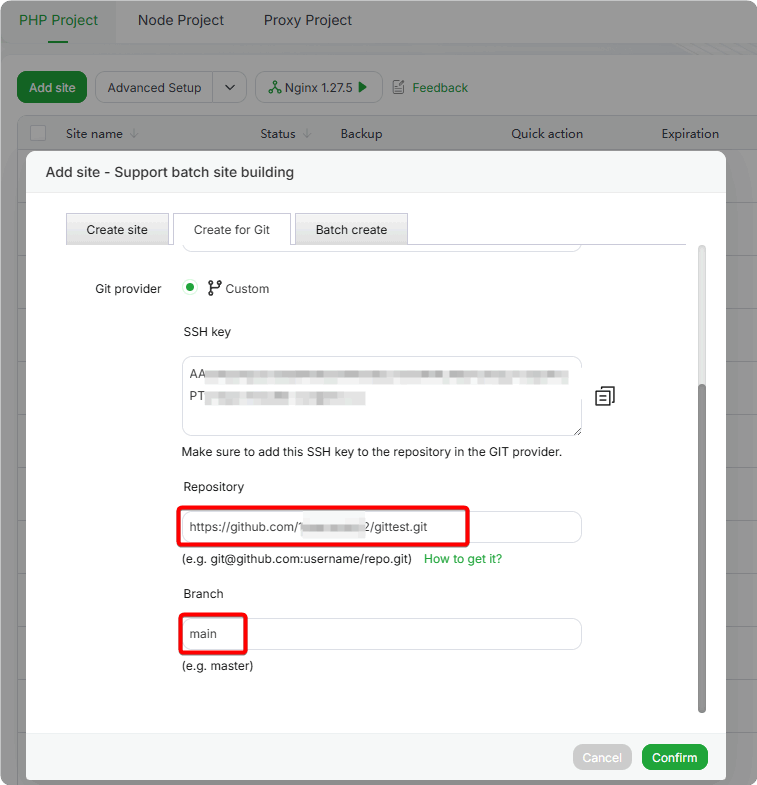
After confirmation, the website will be created automatically and the repository will be cloned.
Tip: If an error occurs during cloning, troubleshoot based on the on-screen prompts (e.g., incorrect SSH Key configuration, invalid repository URL, invalid branch, network connection issues, etc.).
Automatic Website Updates
- When the repository is updated, configure Webhook to trigger the execution of specified script. This will automatically sync the latest code from the repository to the website directory, enabling automatic website updates.
Use
Create for Gitby default install the Webhook plugin in then App Store
Your_site --> Conf --> Git Manager
In aaPanel, find the Git website, click
Confto accessGit Manager, then go toScriptto add scriptGit Manager --> Script
- Enter an
aliasfor the Script. Use the defaultDeploy Script.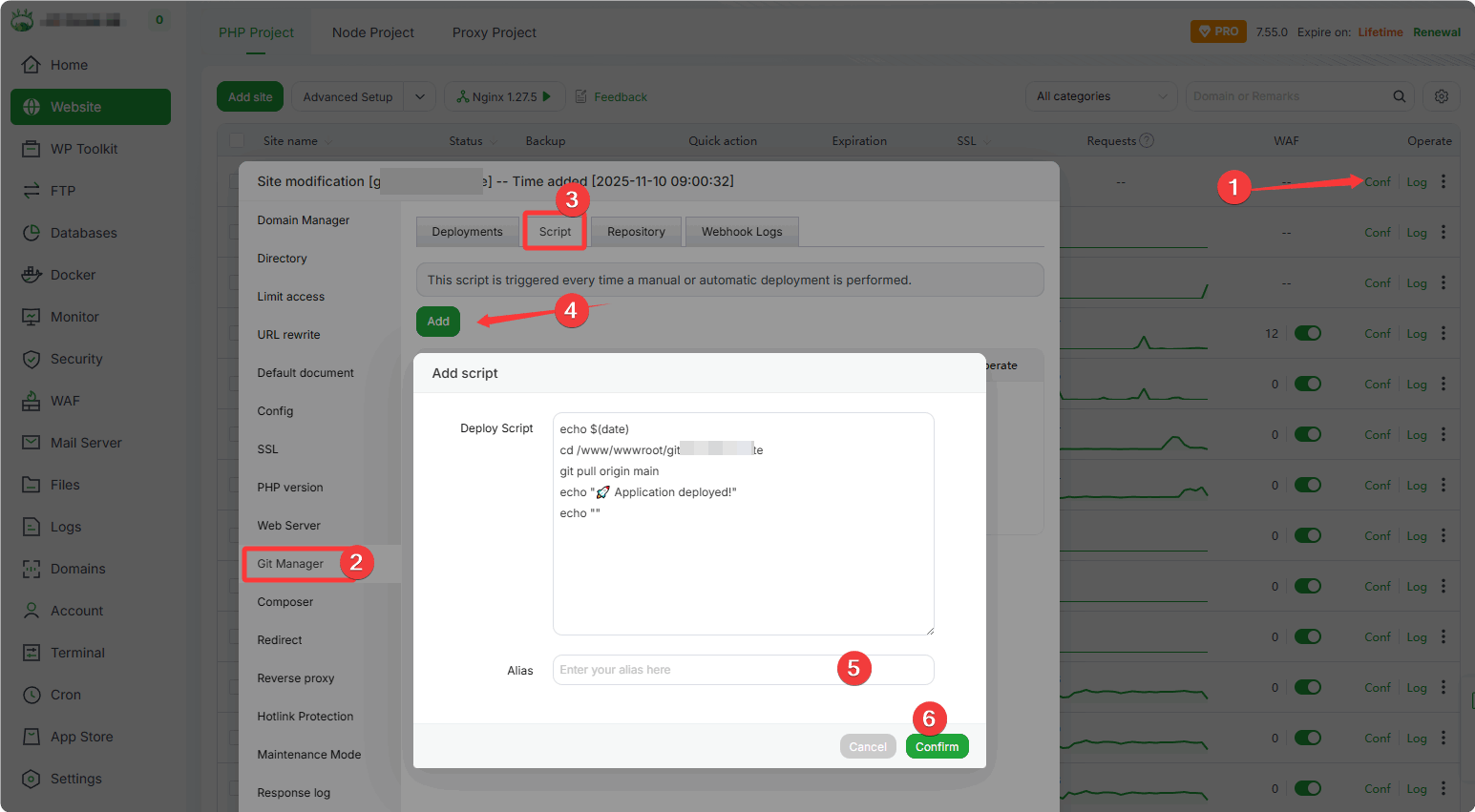
- Enter an
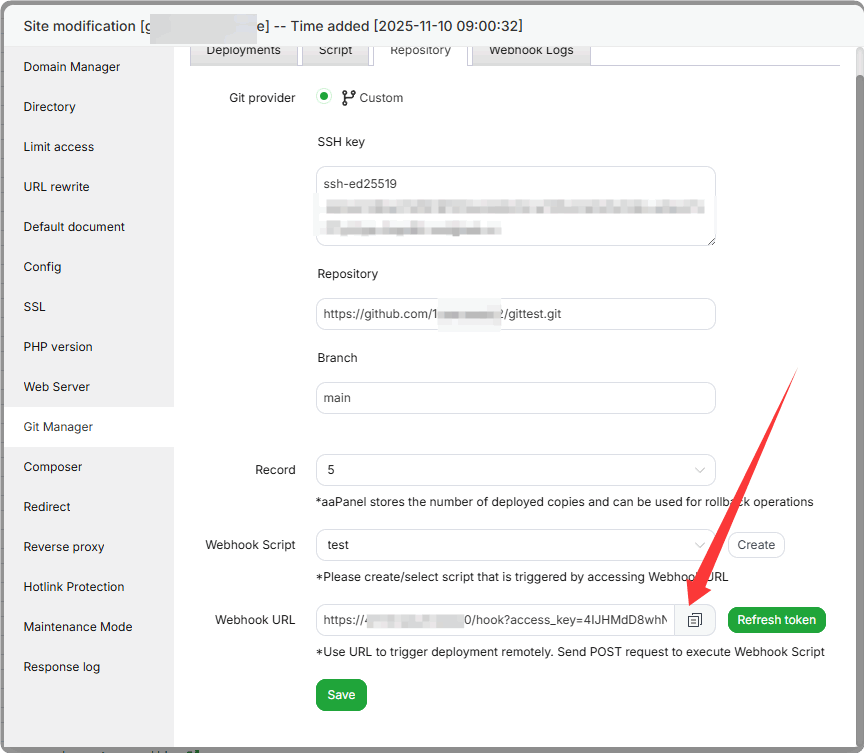
Associate the Webhook with the Script in the Repository
Git Manager --> Repository
- Select the Script added earlier and click
Save.
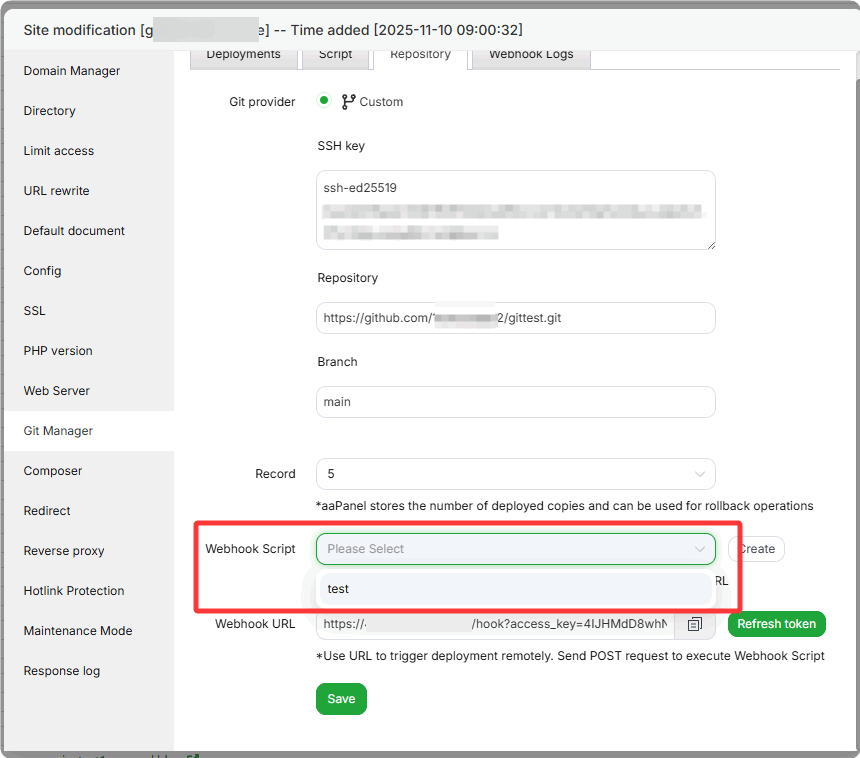
- Select the Script added earlier and click
Copy the
Webhook URLGit Manager --> Repository
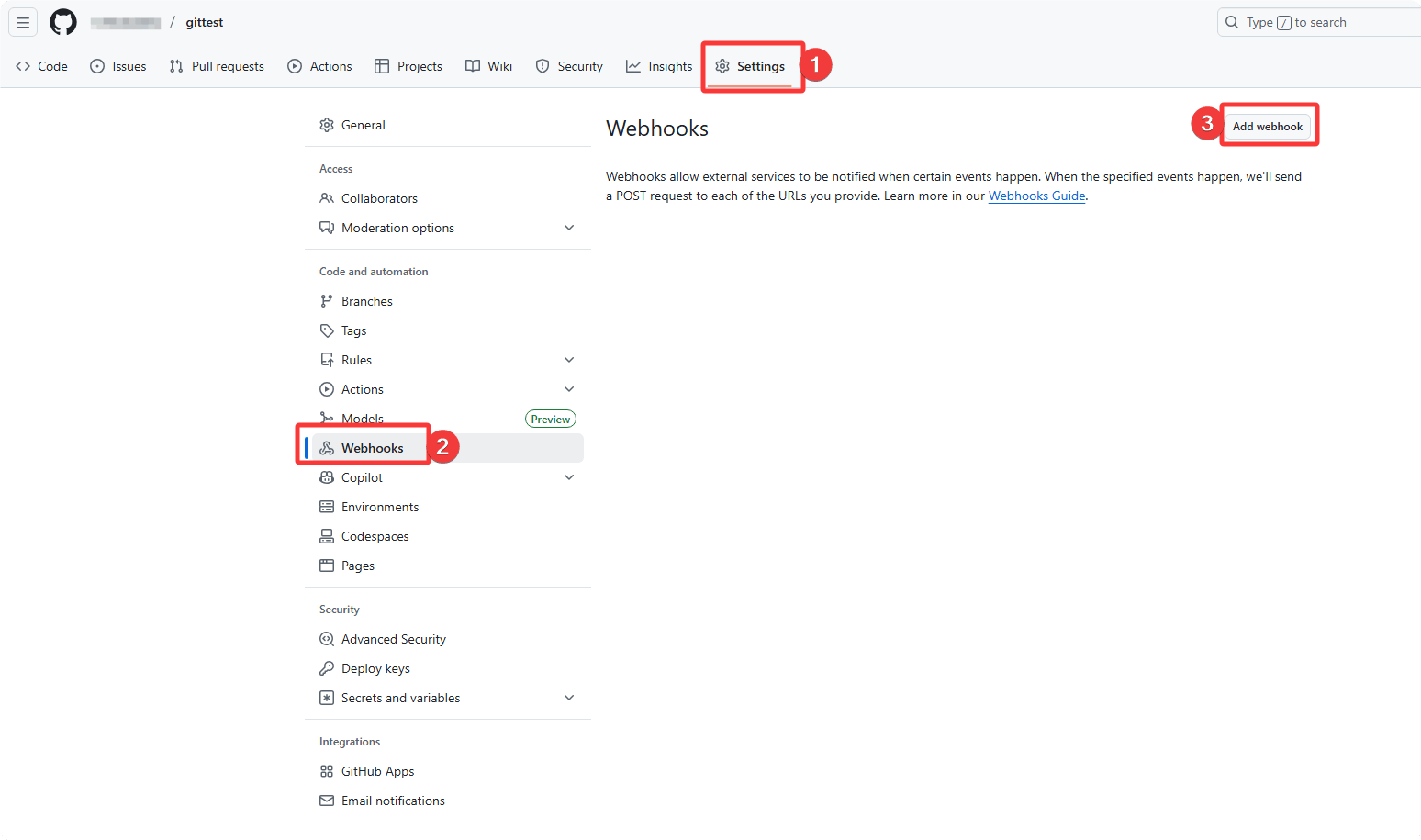
Add the Webhook in the Settings of your Git repository
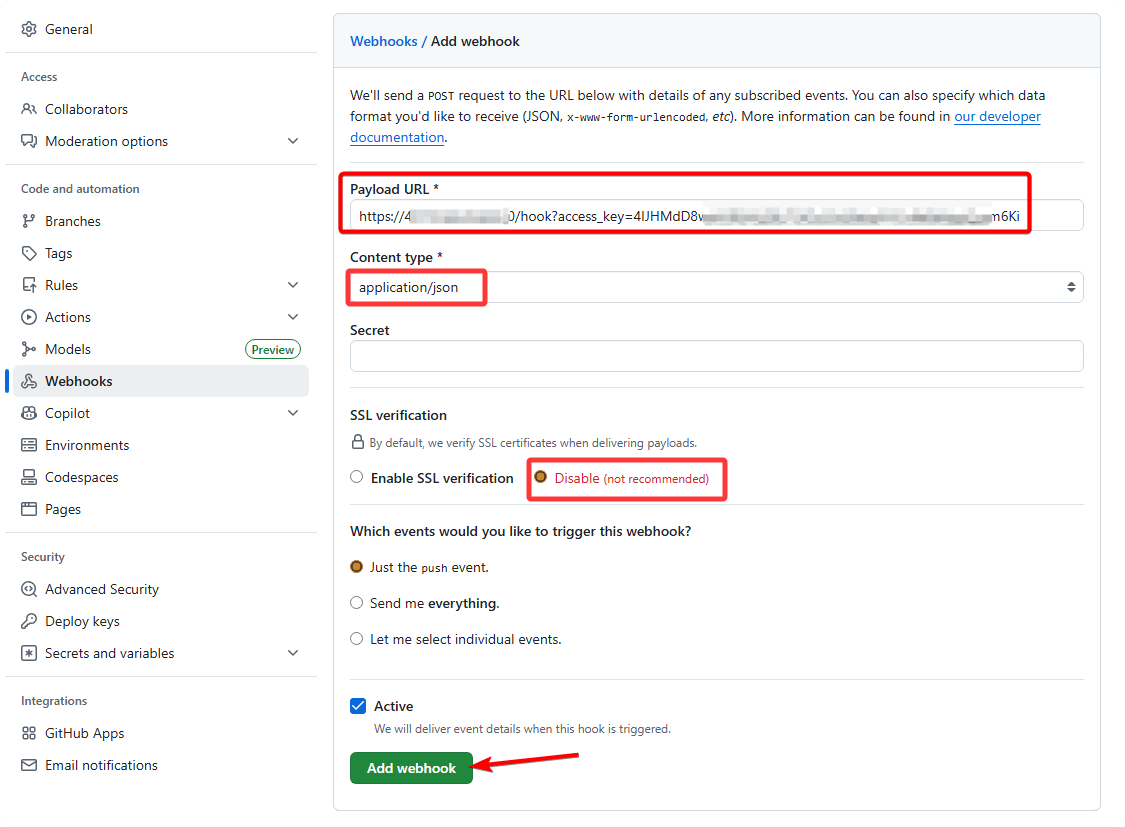
Payload URL: Paste the Webhook URL copied earlier.
Content type: Select
application/jsonSSL verification: Select
Disable
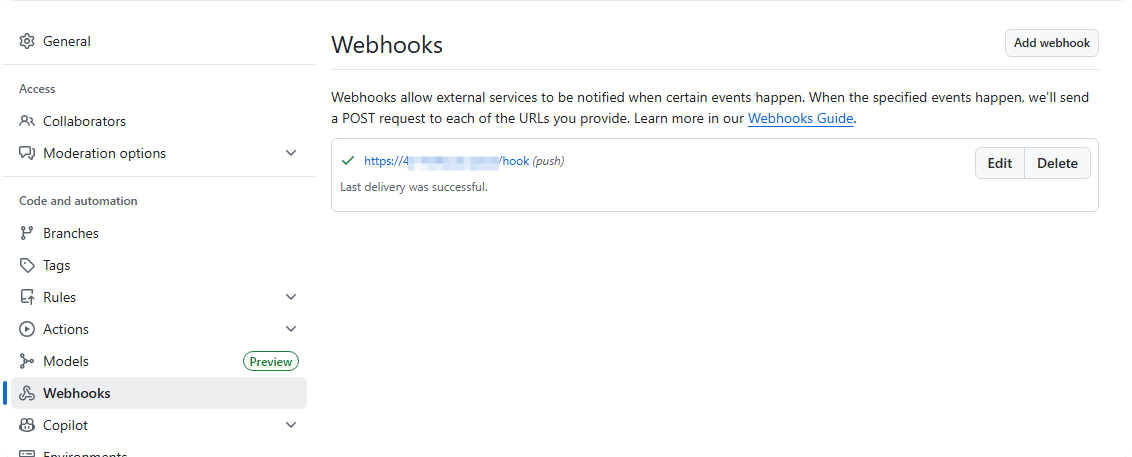
After adding the Webhook, test the automatic update function of the Webhook
Modify file and commit it to the Git repository; this will trigger the Webhook to execute the specified Script.
Successful trigger:
Script execution result:
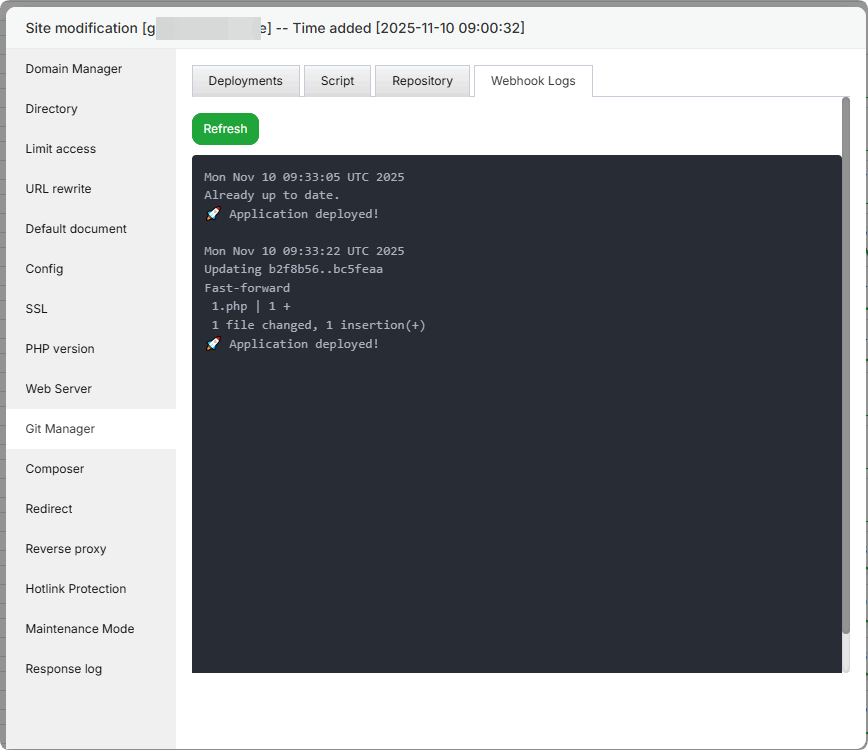
Tip: If the website content is not updated, check the
Webhook Logsin aaPanel’s Git Manager or viewRecent deliverieson the Webhooks page of your Git repository. Troubleshoot based on the log information (e.g., failed Webhook request, script execution error, etc.).