
How to Use the Domain Access Panel
When using the domain access panel, it is recommended to create a
new A recordspecifically for accessing the panel, for example: panel.example.com
If you use the domain record of a website, the browser may prompt a certificate issue, which will prevent normal use.
Tutorial Environment:
- Domain: panel.example.com
- Server IP: 192.168.66.161
- Panel Access Address:
https://192.168.66.161:7800/safe_entrance
Access Panel via Domain
Add an A record in your domain registrar. The IP of the
A recordshould point to yourserver's IP, as shown: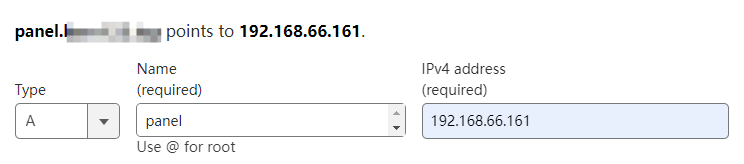
Access the panel directly using the domain:
https://panel.example.com:7800/safe_entranceDeploy the Panel SSL Certificate: Deploy SSL
- Bind domain in the panel Settings? Not recommended. After binding domain, you can only access the panel via the domain, and access via IP will be blocked.
How to unbind the domain: Clear the domain content or use the command to cancel:
bt 12
Access Panel via Domain Reverse Proxy
Add an A record in your domain registrar. The IP of the
A recordshould point to yourserver's IP, as shown:Add a
websiteand set upreverse proxyIf the website and the panel are on the same server, it is recommended to use 127.0.0.1
- Target URL:
https://127.0.0.1:7800(Note: Do not add the safe entrance path here)
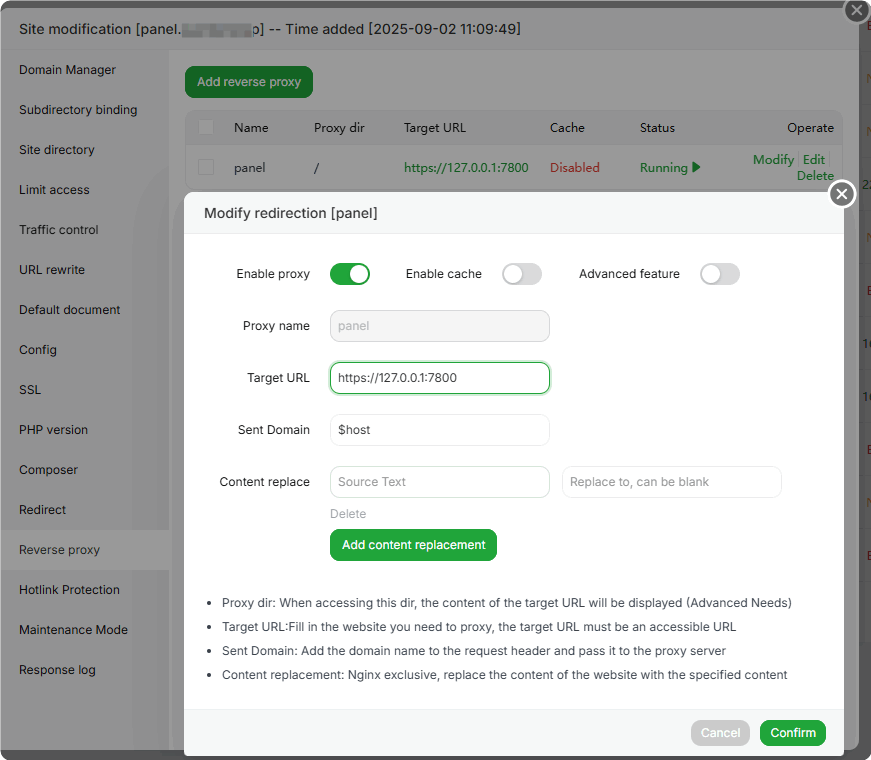
- Target URL:
Deploy SSLcertificate for the domain's website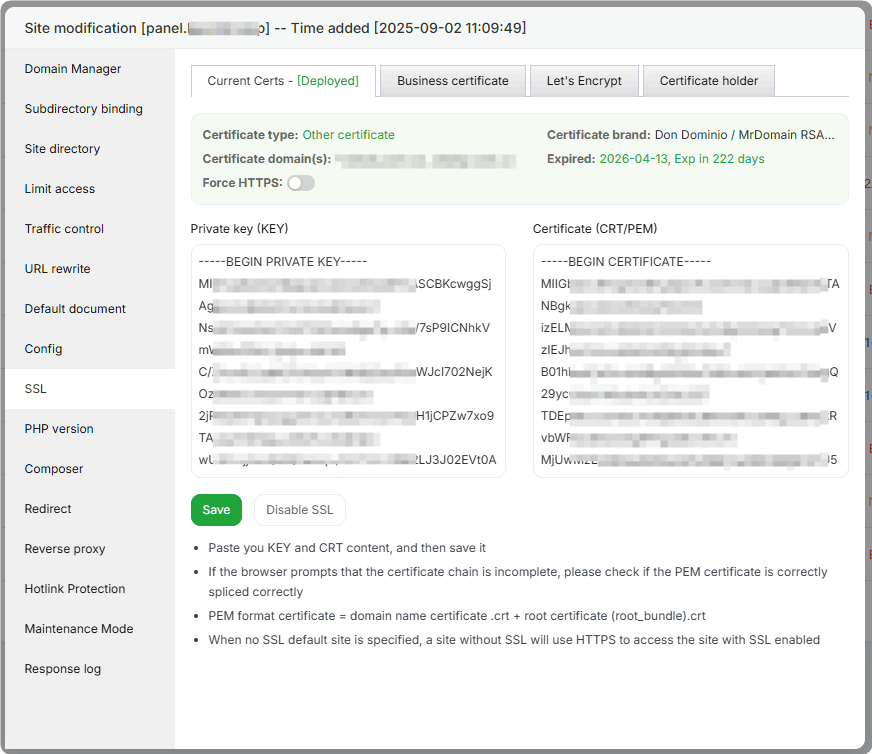
Access the panel:
https://panel.example.com/safe_entranceEnable to obtain real IP access:
Setting-->CDN Proxy
Access Panel via CloudFlare Proxy
CloudFlare proxy only supports specific ports; port 8443 is used here.
Add an A record in your domain registrar. The IP of the
A recordshould point to yourserver's IP, as shown:
Change the panel's port to
8443or another port supported by CloudFlare proxy: CloudFlare portsIf the server has security group, please open the corresponding port in the security group of your server provider.
Access the panel:
https://panel.example.com:8443/safe_entranceEnable to obtain real IP access:
Setting-->CDN Proxy
Deploy an SSL Certificate for the Panel
Can Panel SSL be disabled? Not recommended. Using an SSL certificate enhances the panel's security; after disabling it, you can only access the panel via
http.
Deploy by Directly Pasting Certificate Content
Settings -> Panel SSL --> Modify
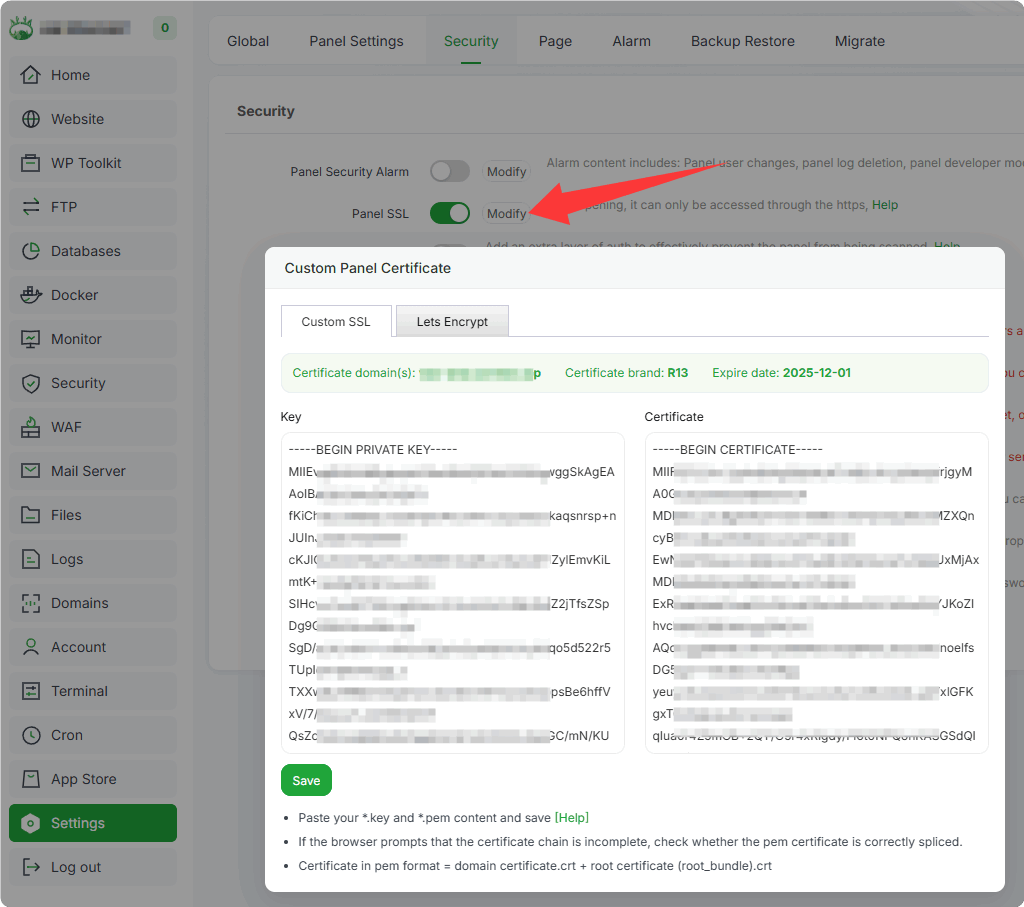
Deploy in the Domains Module
Domains --> SSL Certificate --> Manage --> panel
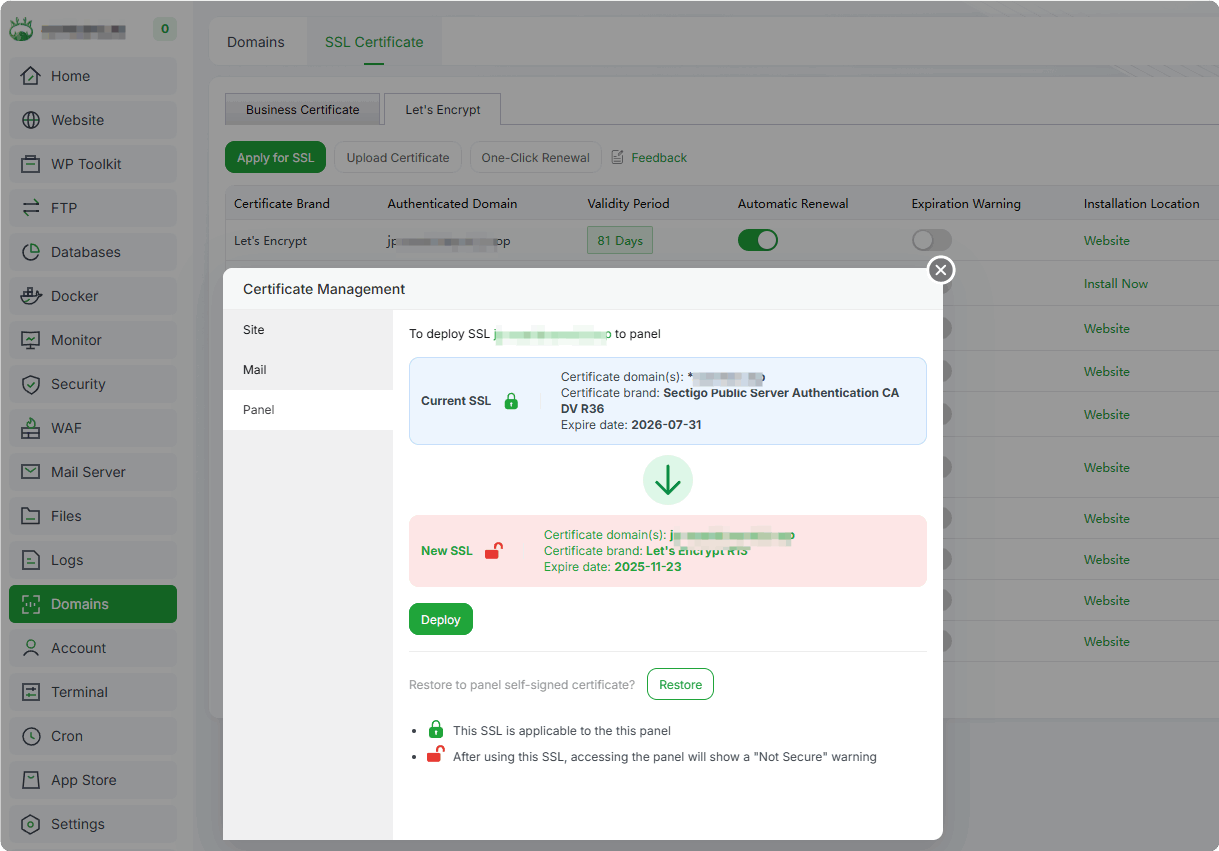
Apply for an SSL Certificate Directly in Panel SSL
Settings -> Panel SSL --> Modify
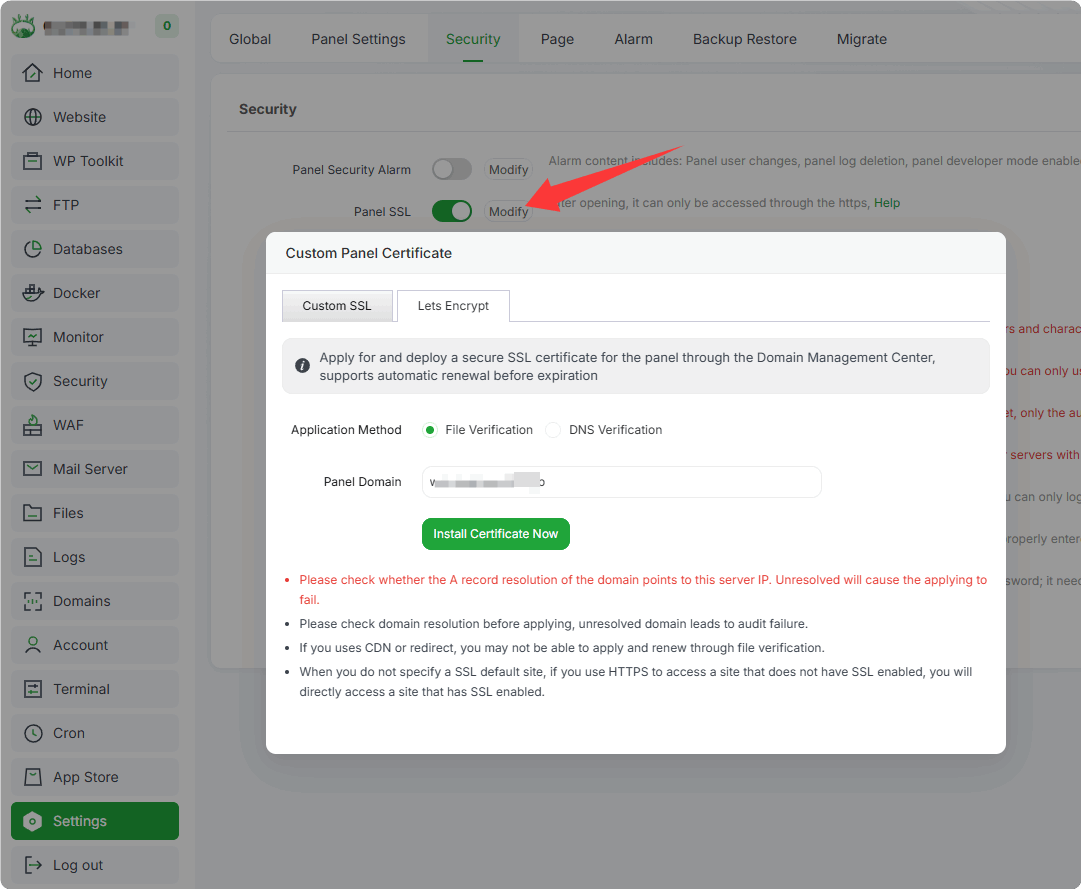
File Verification: You need to first add an
A recordin your domain registrar. Wait for it totake effectbefore proceeding with verification. If the domain is managed in the Domains module, the A record will be added automatically.DNS Verification: Follow the prompts to add a
TXT record. Wait for it totake effectbefore proceeding with verification. If the domain is managed in the Domains module, the TXT record will be added automatically.
Panel SSL certificate file
Directly modify the SSL certificate file and use Nginx format
Identity file: Enable SSL when present, need to restart the panel: /www/server/panel/data/ssl.pl
Private key file: /www/server/panel/ssl/privateKey.pem
Certificate file: /www/server/panel/ssl/certificate.pem