
Using the OpenClaw Plugin
This tutorial describes how to use the aaPanel OpenClaw (Docker) plugin.
Install aaPanel
- If you do not have aaPanel installed, please install it first.
Log in to your server using an SSH tool, and execute the following command with root privileges to install aaPanel:
URL=https://www.aapanel.com/script/install_panel_en.sh && if [ -f /usr/bin/curl ];then curl -ksSO "$URL" ;else wget --no-check-certificate -O install_panel_en.sh "$URL";fi;bash install_panel_en.sh forum- If aaPanel is already installed, skip this step. Go to the
App Store, search for theOpenClawplugin, and click Install.
Install the OpenClaw Plugin
- Log in to aaPanel, go to the
App Store, search for theOpenClawplugin, and click Install.
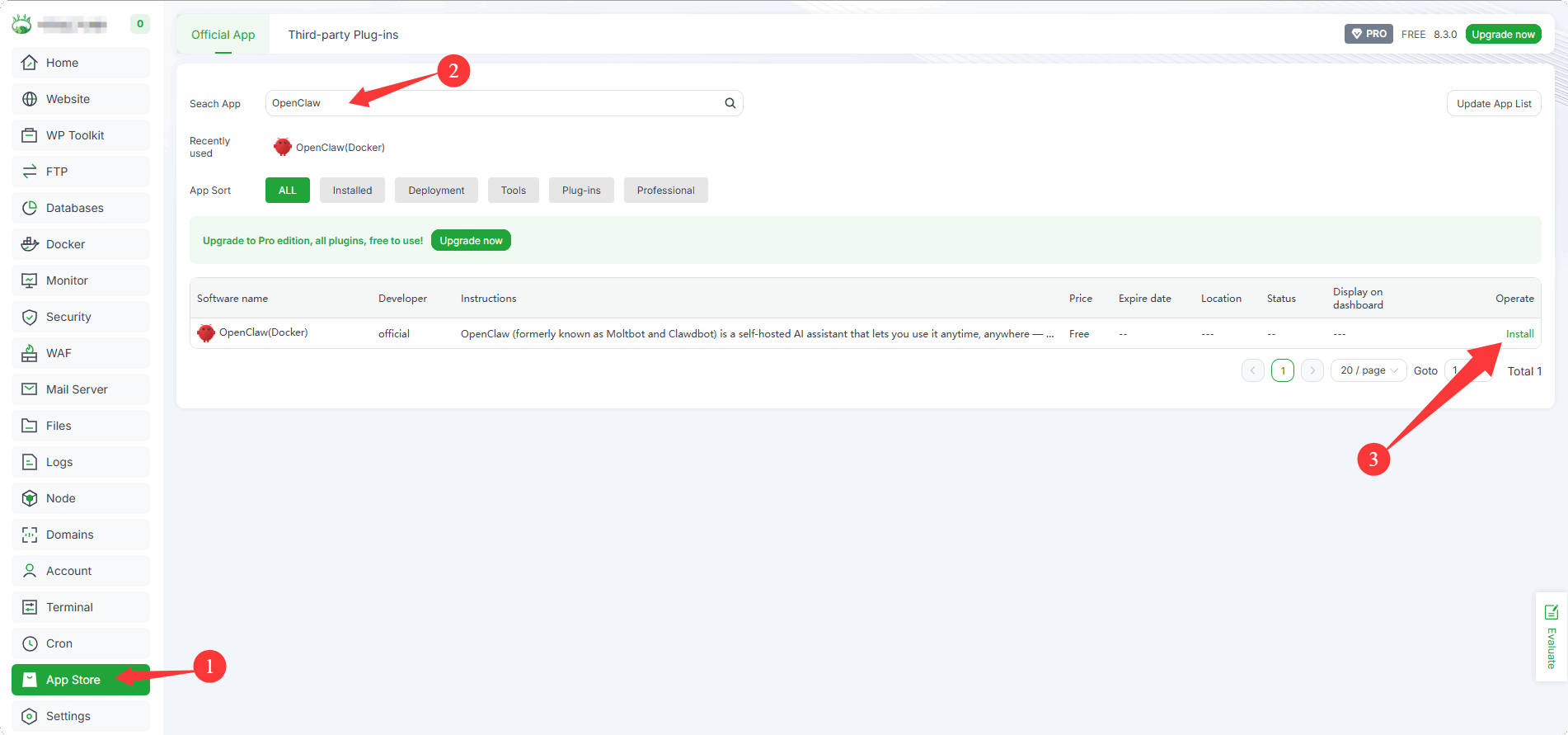
- The installation may take a long time, please wait patiently.
Initialize OpenClaw
For the API address, API key, and model information of the AI model, please refer to the API documentation of each model provider.
On the Install Config interface, enter the AI model information to initialize.
LLM API URL
LLM API Key
Default Model
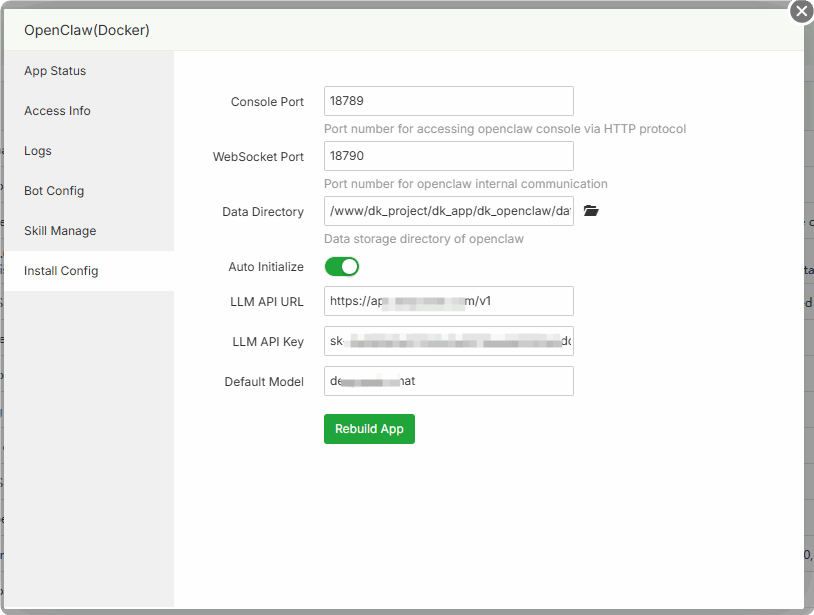 Note: After modifying the configuration, you need to rebuild the application for the changes to take effect.
Access OpenClaw
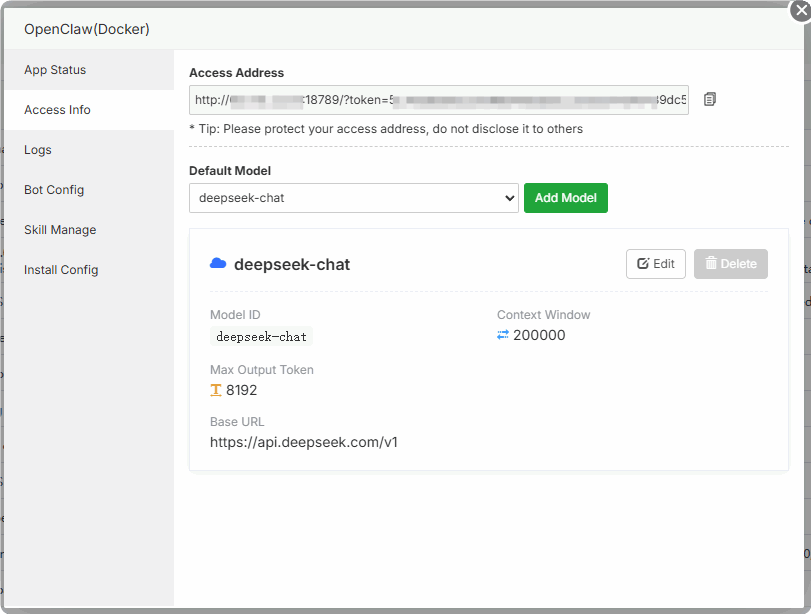
On the Access Info interface of the plugin, directly copy the address to access, e.g.: http://IP:18789/?token=8de7xx628cc313
- Make sure port
18789is open in your system firewall and the security group provided by your server provider.
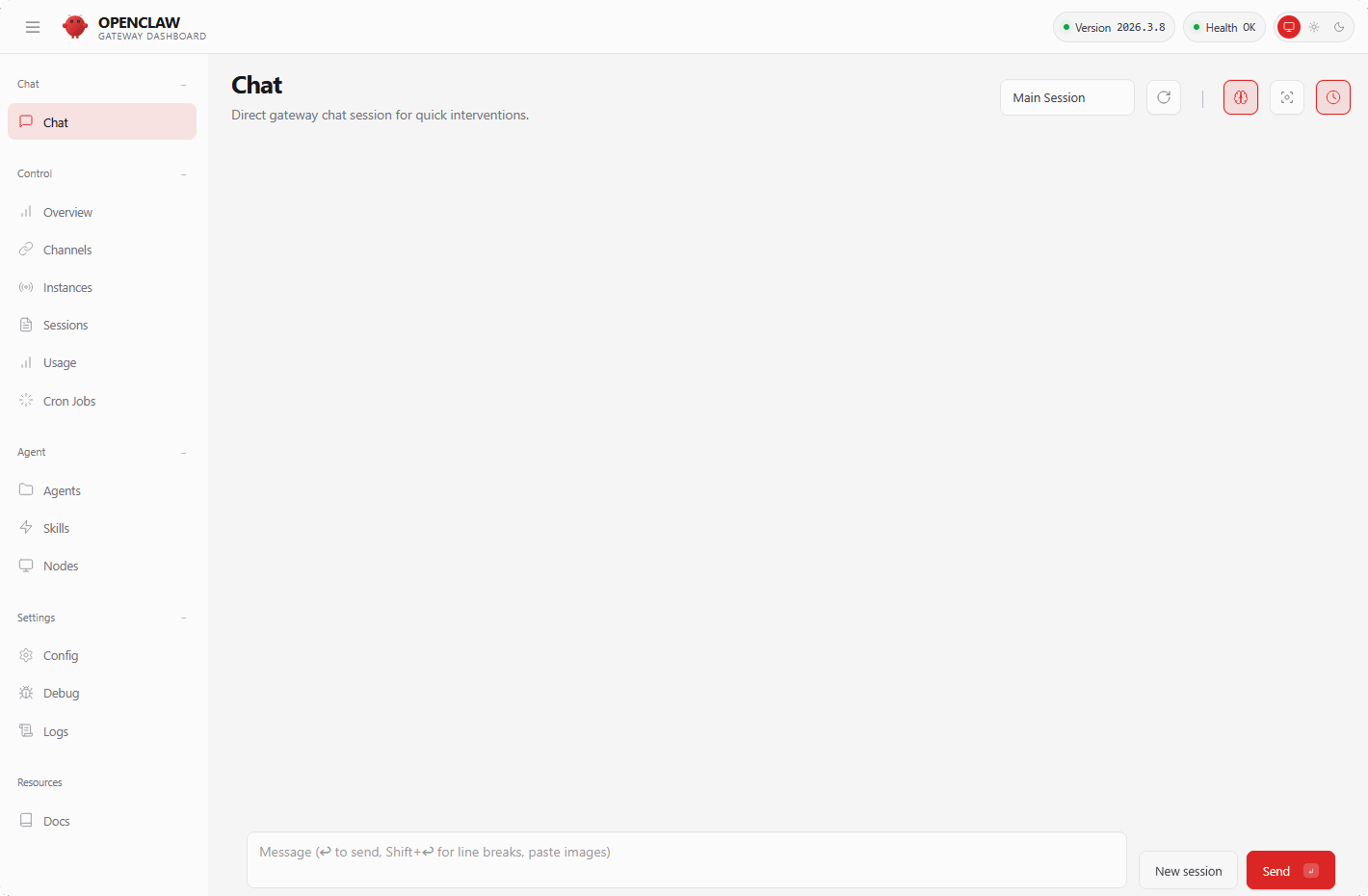
- Successfully accessed OpenClaw:
Access via Domain
- Configure a reverse proxy on the left-side menu
Dockerinterface:
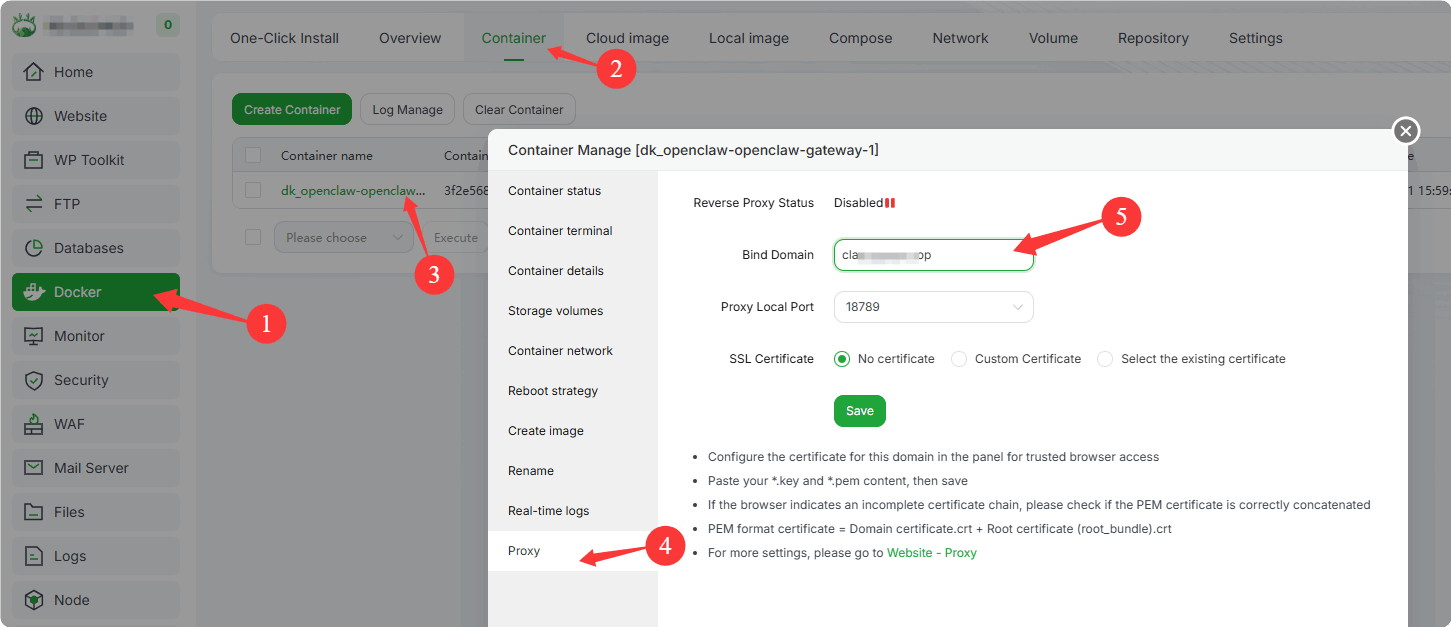
Access test:
http://your-domain:18789/?token=8de7xx628cc313You must use the full URL to access; otherwise, you will receive the message:
unauthorized: gateway token mismatch (open the dashboard URL and paste the token in Control UI settings)
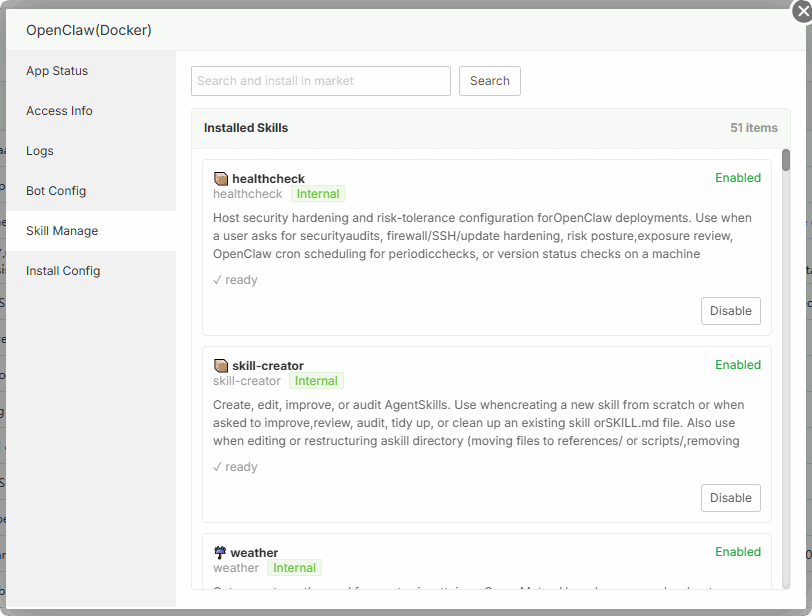
Skill Manage
View, install, and disable skills
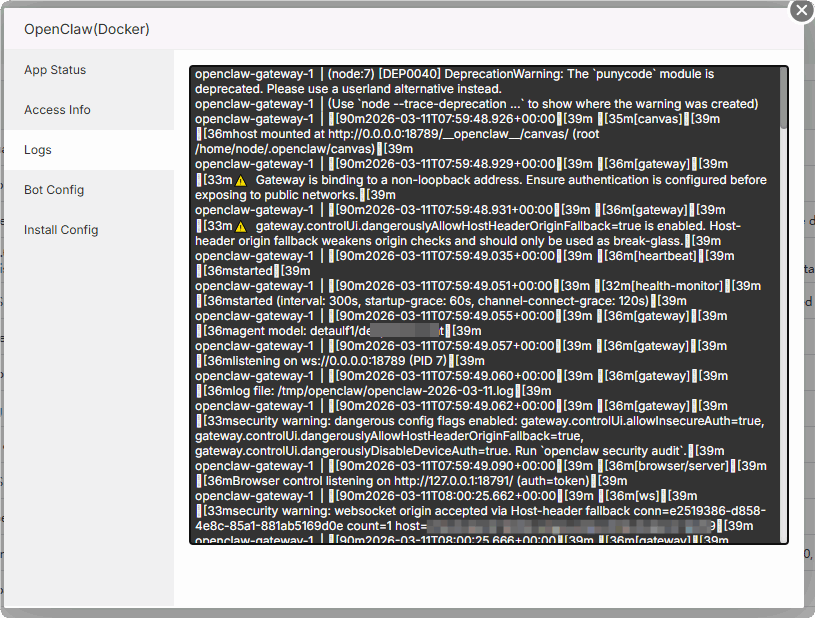
View Logs
You can view the real‑time running logs of the OpenClaw container for troubleshooting.
For more tutorials, please refer to: